


Hello, Fujii, I'm strong.
If you want to make your images and photos high-quality,The DPI (dot-per-inch) setting is very important.
Especially for jpeg and jpg format image files, the quality of printing varies greatly depending on the DPI number.
However, it is difficult for beginners to accurately check the resolution of the image and change or improve it.
In this article, we'll thoroughly explain how to increase DPI, from free online tools to professional Photoshop.
In addition, the focus of 2025AI-powered software "4DDiG File Repair"We will introduce its features and its versatility to repair not only images but also corrupted files. At the end of the article, we also post information on advantageous discount coupons.
If you want to clean up your images or increase the resolution easily, please read to the end.
- 1 What is DPI? Basic knowledge of checking and changing image resolution
- 2 How to increase DPI: In-depth comparison of free & paid tools
- 3 What is 4DDiG File Repair with AI? Thorough explanation of functions and usage
- 4 How to choose an image resolution change tool that can be used on smartphones and computers
- 5 Online site vs dedicated software|Recommended introduction by use
- 6 How to Use 4DDiG File Repair
- 7 For those who want to increase image DPI|4DDiG File Repair Pricing, Installation Instructions, and Discount Information
- 8 How to cancel a subscription and support system
- 9 Why you can install it with confidence|Money-back guarantee, safety, and reliability of support
- 10 Frequently Asked Questions and Answers
- 11 Summary|If you want to increase the DPI of your images, 4DDiG is the best solution for 2025
What is DPI? Basic knowledge of checking and changing image resolution


DPI (dots per inch) is a numerical value that indicates how densely an image or photo will be displayed or printed.
Simply put, it represents how many dots are contained in 1 inch (about 2.54 cm).
The higher this number, the finer and smoother the display will be in print and on the screen.
Why is image resolution important?
If the image resolution is low,It will have a blurry finish when printed.
Especially for physically large outputs such as posters and flyers, a minimum of 300 DPI or more is often recommended.
On the other hand, for display on the web and smartphone screens, it is standard to be around 72 to 96 DPI.
If you want to change the DPI of an image, you can use specialized software such as Photoshop, as well as AI-powered apps and online tools that have recently appeared, and you can easily do so by using these.
Therefore, this time I will explain how you can actually check the DPI of jpeg and jpg images.
How to check the DPI of jpeg and jpg images (compatible with Windows and Mac)
To check the DPI of an image, you don't need to use a special app.
If you are a computer, you can use the functions that come standard on Windows and Mac. Here are some basic ways to check in each environment.
On Windows

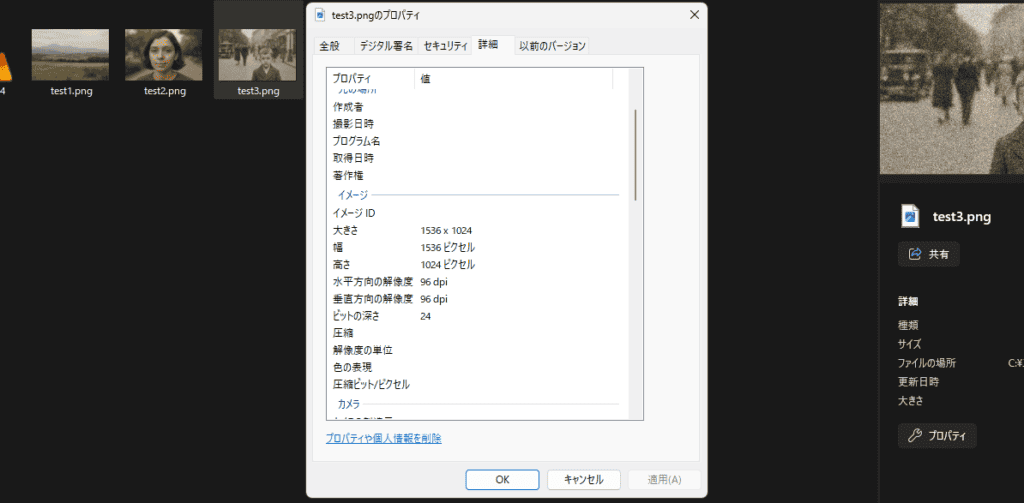
- Right-click on the image file you want to check and open Properties.
- Select the "Details" tab to see the horizontal and vertical DPI of the image (usually 96 DPI or 300 DPI, etc.).
- If you are thinking about printing or processing, check if this number reaches the desired resolution.
On Mac
- Open the image in the Preview app.
- Click Tools → Show Inspector in the menu bar.
- You can check the DPI by selecting the "Image Information" tab in the information window that appears.
Since you can easily check the resolution of your image with these methods, it is important to first understand its current state. If the resolution doesn't suit your purpose, consider changing it using the methods we'll show you in the next section.
On smartphones
The standard features of iOS and Android often do not allow you to check the DPI directly, so you may need a dedicated app.
It's easy to check the resolution of an image, not just DPI. I will explain step by step.
iOS(iPhone)

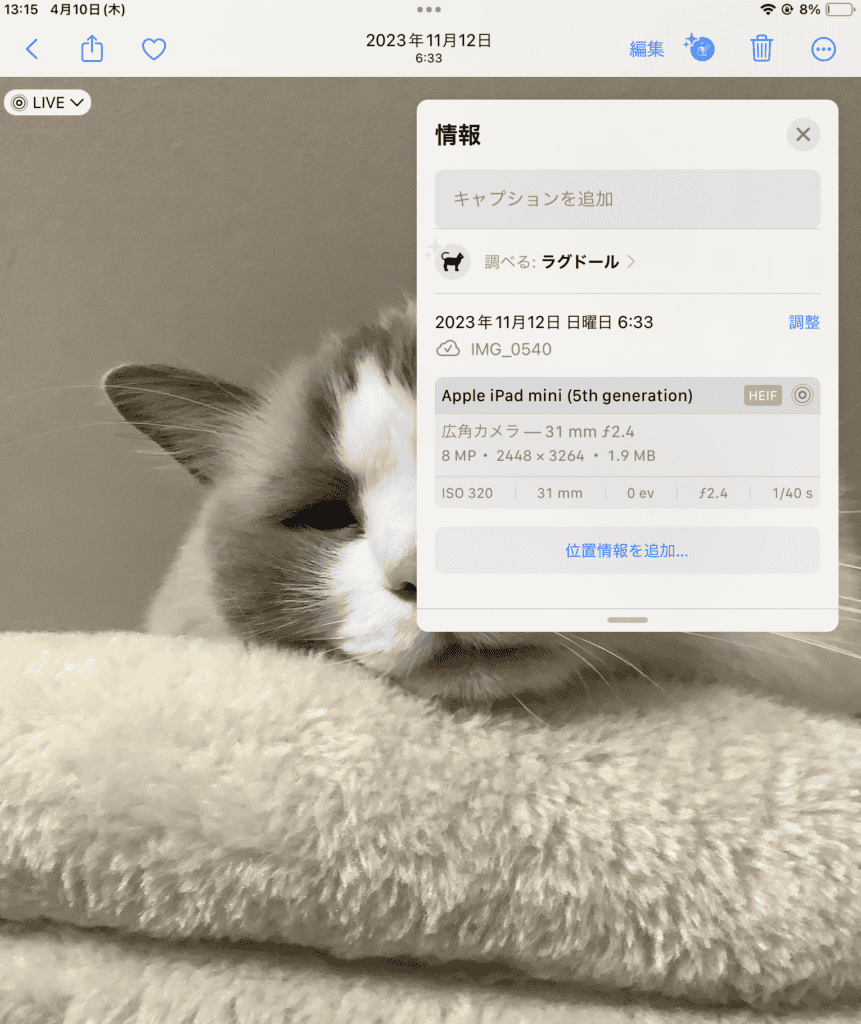
- Open the Photos app
- Tap the "Photos" app from the home screen to launch it.
- Choose an image
- Tap the photo you want to check the resolution to open it.
- Check the resolution
- When the image opens, swipe up from the bottom of the screen.
- Or tap the "i" icon (information icon) on the screen.
- The resolution is displayed in pixels (e.g., 3024 x 4032).
Android


First, open the image


The three-point leader in the lower right (...) icon.
A menu will appear, press "Details"


Detailed information about the image is displayed. You can check the resolution of the image from this file information.
You can still check the resolution by using an image editing app.
- Open an image editing app
- Use image editing apps like Adobe Lightroom or Photoshop Express.
- Choose an image
- Open the image you want to check the resolution of within the app.
- Learn more
- Check the resolution of the image from the app's detailed information menu.
How to increase DPI: In-depth comparison of free & paid tools


There are two main ways to increase the DPI of an image: using professional software and using easy-to-use tools.
Depending on your use and skill level, it is important to choose the method that suits you.
At firstPhotoshopFull-fledged image editing software like this is great because it allows you to make detailed settings.
You can edit with a high degree of freedom, such as changing the resolution and size, cropping, and correcting.
However, it requires some knowledge to operate, which can be difficult for beginners. Another disadvantage is that it costs money on a monthly basis.
On the other hand, recentlyImage enhancement tool using AI technologyis attracting attention.
For example, software like "4DDiG File Repair" that I introduced on YouTube before.
Just upload your image and it will automatically increase the resolution.
The point is that it is easy to use without special skills.
Depending on the software, it is also possible to process according to the type of face photo or landscape, and it is also attractive that it can be adjusted according to the application.
I will explain in more detail.
What is the difference between Photoshop and AI image enhancer?
The main difference between image editing software and AI tools lies in the freedom of operation and ease of use. Here are some points of comparison between the two:
1. Freedom of operation
- Photoshopallows for detailed settings, and you can freely change the DPI value yourself.
- Since AI tools are automatically adjusted, it is difficult to specify detailed numbers.
2. Supported image types
- Photoshop supports all image formats, but it can take some time to learn how to use it.
- The AI tool supports major image formats. So for many this is enough
3. Implementation and Cost
- Photoshop is paid and requires a monthly or annual subscription.
- Many AI tools have free trial versions and are relatively easy to implement.
In this way, Photoshop is suitable for those who want to make fine adjustments, and AI tools are suitable for those who want easy finishing without spending time.
What is 4DDiG File Repair with AI? Thorough explanation of functions and usage
4DDiG File Repairis an all-in-one tool that utilizes AI technology to repair and enhance files, such as photos and videos.

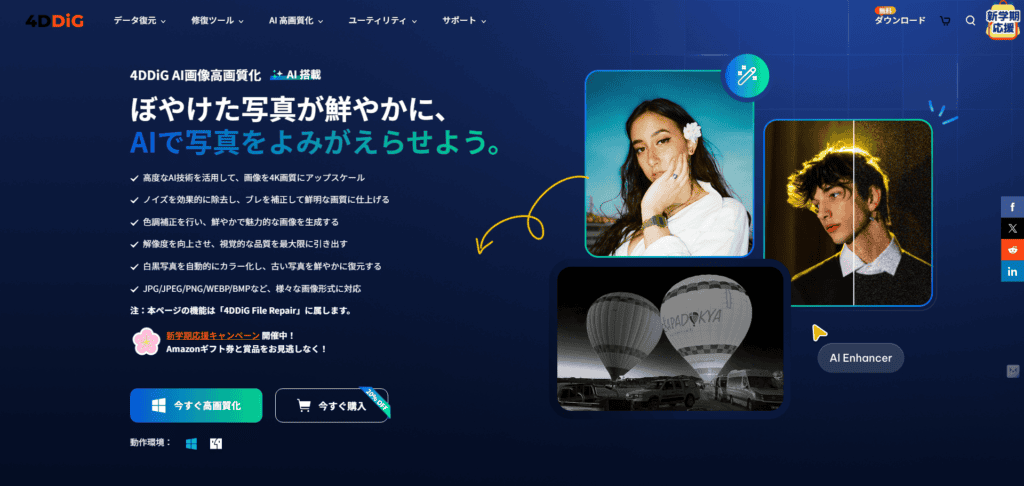
In particular, it is highly regarded for its powerful function that automatically improves image resolution, making it easy to use even for beginners.
Features of 4DDiG File Repair
In addition to repairing corrupted files, this software can also increase the number of pixels in old photos to make them sharper and adjust them to a size suitable for printing.
Not only does it support various image file formats, but it also allows you to process multiple files in batches.
Easy to use even for beginners
It's very simple to use, and after installing the app, simply drag and drop images and videos to start processing.
It is designed to be recommended for those who are not used to operating a computer because there is little confusion in operation.
Supported OS
Compatible OS is available for both Windows and Mac, and a free trial version is available that anyone can easily try.
You can use each of the AI models introduced later to get a more optimal finish depending on the application.
How to choose an image resolution change tool that can be used on smartphones and computers


When it comes to increasing image resolution, it's important which tool you choose.
Depending on the purpose and environment, you need to think about whether to use a site that can be used online or use software that is installed on a computer.
Also, whether it supports smartphone operation is also a point when choosing.
Online Tools
Online tools can be used on a browser, so they are easy to use without installation.
For example, some services automatically increase the resolution by uploading an image and clicking a few clicks.
There is almost no distinction between Mac and Windows, so it is attractive that it can be operated in the same way on any device.
About the dangers of free online tools

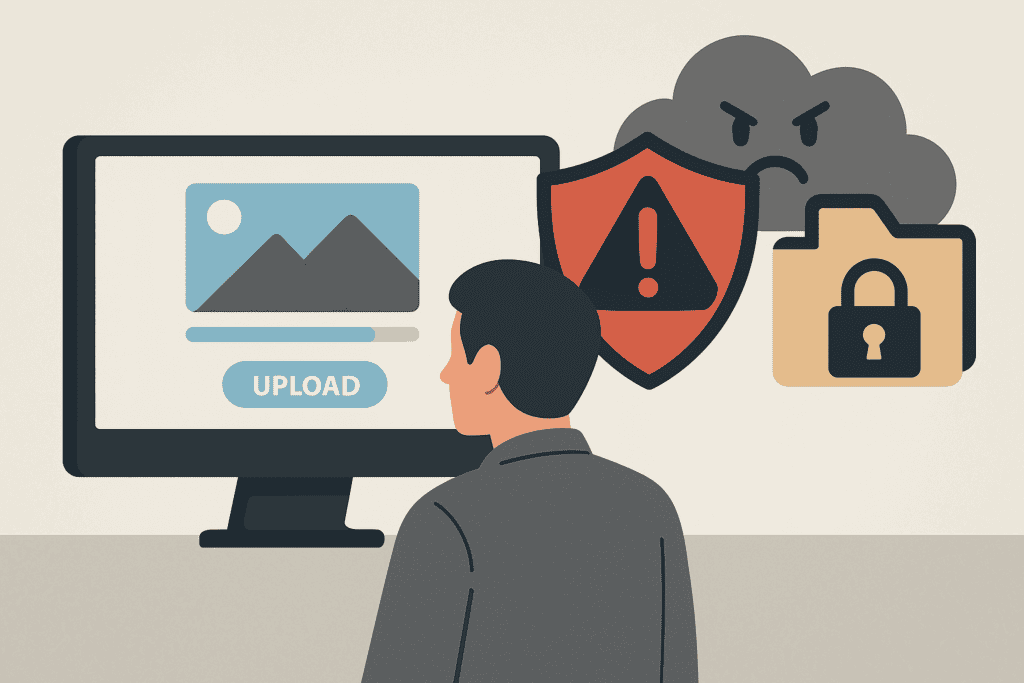
However, there are also concerns about the communication environment and privacy.
Risk of leakage, leakage, or diversion of uploaded image filesI can't wipe it.
It may even be published in a form that can be seen by third parties.
Dedicated software
On the other hand, many software installed and used on computers can process with higher accuracy.
When you want to edit a large number of images in bulkIt is suitable for.
There are many settings and can be finely adjusted according to the purpose, so it is recommended for those who are particular about it.
Recently, software that uses AI to automatically optimize the number of pixels in images has appeared, especially in improving the quality of photos and files.
Both types have their advantages and precautions, so it is important to think about what kind of situation you want to use it in and what functions you need before choosing the best method.
Online site vs dedicated software|Recommended introduction by use
To decide which tool to use, let's organize it by purpose.
If an online site is right for you
- When you want to temporarily change the DPI of an image
- When you want to easily operate from your smartphone
- When you want to use it without installation
When dedicated software is suitable
- When you want to edit multiple photos or JPEG files at once
- When you want to be particular about the finished result after editing
- When you want to work without an internet connection
For example, if you want to print a photo in high resolution or correct the dots so that they don't stand out, AI-powered software is more effective.
On the other hand, if you want to make small adjustments or change images for social media, online tools may be sufficient.
In this way, by choosing the most suitable method according to the usage environment and purpose, you can naturally improve the quality of the image.
How to Use 4DDiG File Repair
Please see here for a video explaining how to use it.
Easy to use without manual.
How to download & install
Please download it for free to see if you can install it first.
Official websiteaccess.
After that, download the file from the top page.
After downloading the file, install it.

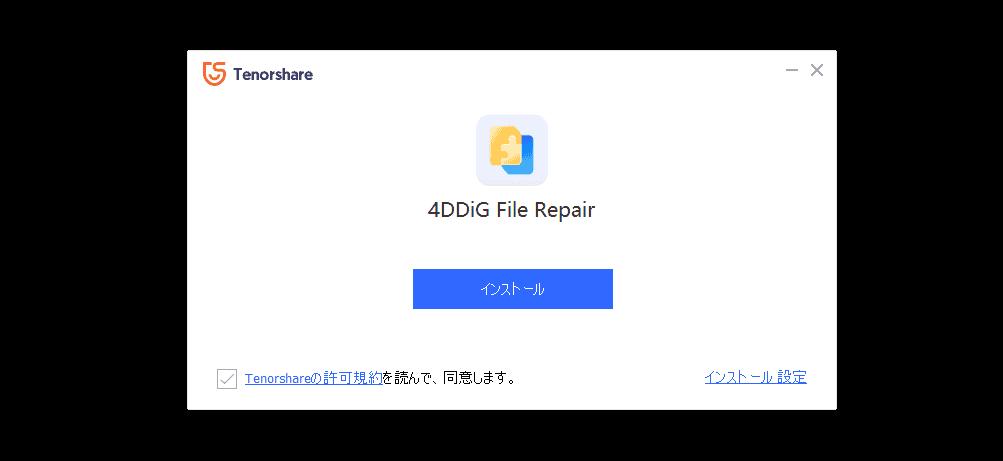
Wait for a few minutes and the installation will be complete.


When 4DDiG File Repair launches, you will see a menu.

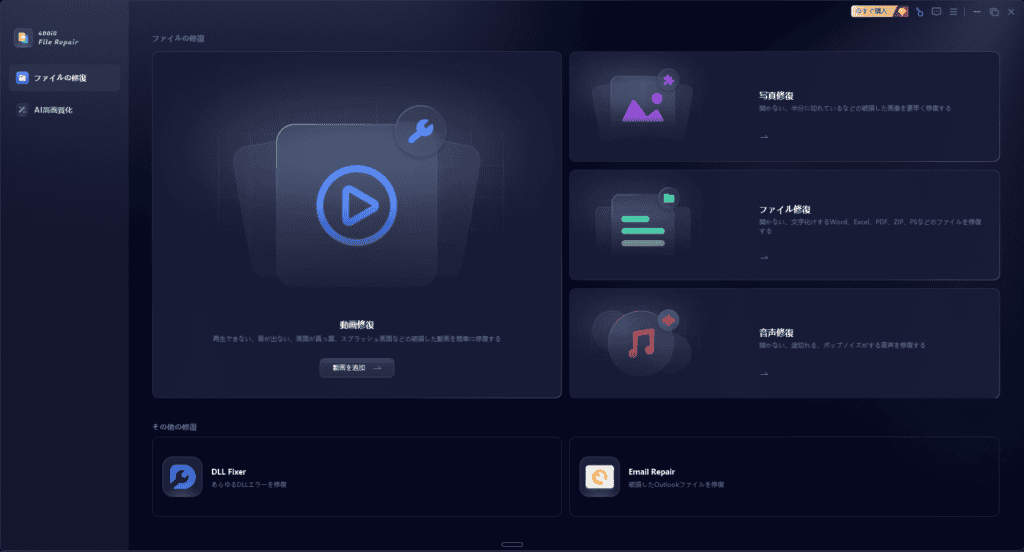
Types of AI Enhancer
Launch 4DDiG File Repair and press "AI Enhancer" from the sidebar on the right sidebar.
You can choose the type of image enhancement according to the file type and purpose.
- Video quality enhancement
- Photo enhancement
- Video Colorization
- Colorizing Photos
In this way, it supports not only images but also video quality.
This time, I will explain the image quality.
Increase image resolution with 4DDiG File Repair
This time, we will test whether you can really increase the resolution of the image without thinking.
I explained it in the video. Please see below.
Let's increase the resolution of these three images.
General model


It supports a wide range of images, and even photos that don't require any adjustments will give you a natural finish. It is suitable if you want to improve the overall image quality or automatically optimize the resolution.
Face-only models

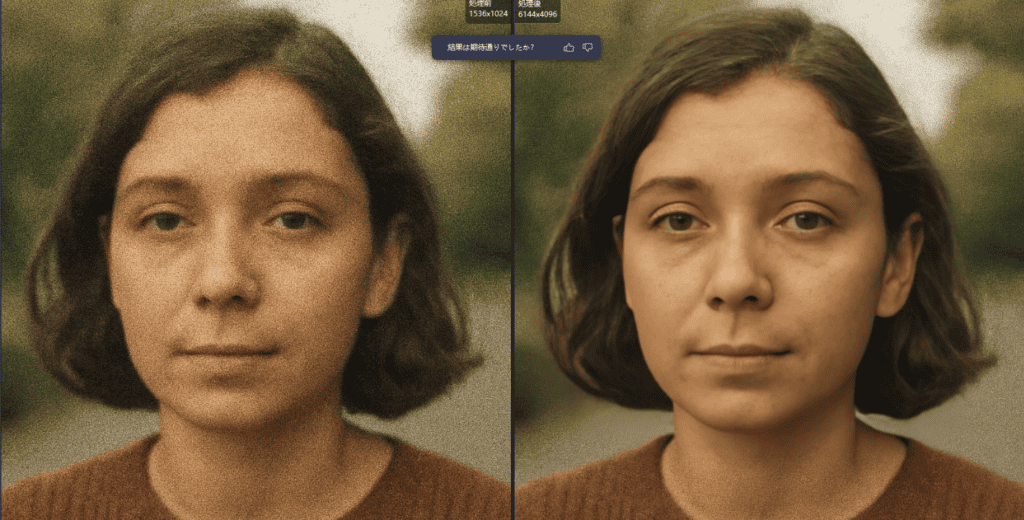
This model specializes in portraits and portraits, delicately reproducing details such as facial contours, eye area, and hair texture. It's perfect for when you want to make your photos beautiful for social media and printing.
Noise Cancelling Model

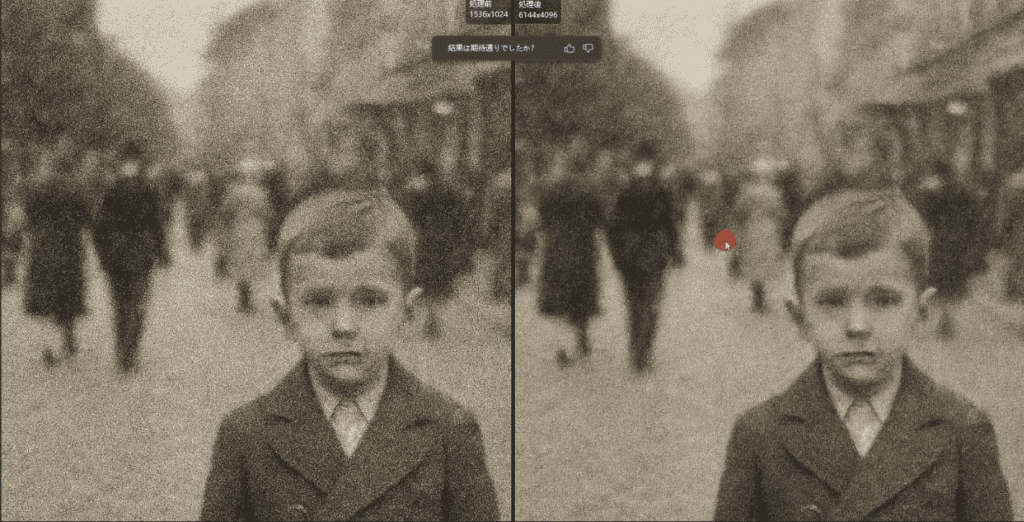
This model is perfect for photos taken at night or in low light conditions. It reduces unwanted grain and blur in images and transforms them into clear expressions. It is especially effective for low-light images.
By using these AI models differently, you can not only increase the DPI but also improve the perfection of the image quality itself.
By choosing the best mode for the purpose taught by the new model, you will be able to achieve more satisfactory results.
For those who want to increase image DPI|4DDiG File Repair Pricing, Installation Instructions, and Discount Information
Pricing Plans Comparison
4DDiG File Repair is a useful software that uses advanced AI technology to improve the quality of your images and videos. To get started, you can first download the free trial version from the official website.
There are three types of pricing plans: "monthly", "annual", and "perpetual license", which can be selected according to the duration and frequency of use.
| Plan | Features | Recommended Users |
|---|---|---|
| Monthly | Easy to use only when you need it | For those who try it for the first time, use it for a short period of time |
| Annual | Good cost performance and ideal for continued use | Those who work with images and files on a regular basis |
| Permanent | One purchase and can be used forever | Convenient for those who want to use it for a long time and for corporate use |
A monthly plan is suitable for those who want to use it for a short period of time, and a perpetual license is suitable for those who want to use it for a long time or want to pay a single payment.
By the way, if you apply for an annual plan, a perpetual license is more affordable.
How to use discount coupons
At the time of purchase, "4DBD20OFFYou can get the software at a discounted price compared to the regular price.
The coupon is applied by simply copying and pasting the code into the input field on the purchase screen.
First, check the price plan on the official website▼
30-day money-back guarantee
Step 1: Go to the pricing page.
Open the pricing page.


Step 2: Press the coupon input area.
Look for the coupon entry area within the pricing page and click on it.


Step 3: Enter the coupon code.
Enter the coupon code in the provided input field and press the "Apply" button.


You can get it at a discounted price with very simple steps. Please give it a try.
How to cancel a subscription and support system


Cancel automatic renewal and respond after purchase with peace of mind
4DDiG allows you to cancel the auto-renewal of your subscription at any time.
First, you can cancel your subscription by contacting customer service.
How to contactSupport pageAccess to it, fill in and send it in order from the top, which will lead to support.
You will also receive a notification email from the payment platform before you renew your subscription. You can cancel your subscription from there.
When canceling, don't forget to check your order number and registered email address.
How to cancel using MyCommerce
If you are using a payment platform called MyCommerce, you can also cancel your account yourself.
Additionally, the support team is available to respond within 24 hours on weekdays and within 48 hours on holidays.
Inquiries in Japanese are also available. I have also consulted about 4DDiG several times, and it has been very smooth.
In case of subscription cancellation or technical problems, you can consult in Japanese with confidence.
Why you can install it with confidence|Money-back guarantee, safety, and reliability of support
4DDiG File Repair is in place for first-timers. We also have a full user support system as follows:
- Backed by a 30-day money-back guarantee
- You can reset the registration code up to twice (e.g., when changing PCs)
- After purchase, you can update forever for free
- Secure payments and malware-free design
- Customer service around the clock
If a problem occurs, you can rest assured that you will be able to respond firmly.
I actually used 4DDiG File Repair's support, and the support was very fast and polite.
Frequently Asked Questions and Answers
What are the effects of increasing the DPI of an image?
Increasing the DPI increases the detail of the image and makes the result clearer when printed. This is an important element, especially when creating high-quality printed materials such as posters and business cards.
You can also easily improve the DPI of low-resolution images sleeping on your smartphone by using a dedicated app like the one introduced in this article.
Which is better for beginners, Photoshop or AI software?
Photoshop is multifunctional, but somewhat complicated to operate. It will be a little difficult to use until you get used to it.
On the other hand, AI software automatically improves image quality by simply uploading an image.
It can be said that AI software is easier to handle for beginners.
Who is the operator? Is it really safe?
4DDiG is a product of TENORSHARE, an IT company founded in Hong Kong in 2007.
It is a software that is used not only in Japan but all over the world.
I actually installed it and verified it in detail. Naturally, no malware was detected, and it has been confirmed that there are no safety issues (investigation as of April 9, 2025)
Where can I use the coupon "4DBD20OFF"?
On the purchase page of the official website, enter "4DBD20OFF" in the "Coupon Code Input Field" on the screen to confirm your order details to receive the discount.
Please take advantage of it before purchasing.
Summary|If you want to increase the DPI of your images, 4DDiG is the best solution for 2025
There are various ways to increase the DPI of an image.
The AI-powered 4DDiG File Repair balances the three aspects of ease, beauty of workmanship, and reliability as a tool.
30-day money-back guarantee
Above all, it is attractive for its simple operation that is easy to handle even for beginners and the high-precision image correction function with a variety of AI models.
It also supports popular file formats like JPG and JPEG, catering to a wide range of needs, from restoring old photos to increasing the resolution of data for printing.
For those who want to make their images look natural and beautiful, or to improve the perfection of printed materials, this is the perfect tool for 2025.
How to increase the DPI (resolution) of an image effectively: https://bit.ly/3RGe4Pk










![How to use Genesis Framework and discount sale information [2024]](https://sp-ao.shortpixel.ai/client/to_webp,q_lossy,ret_img,w_485,h_273/https://takeofujii.net/wp-content/uploads/2022/11/genesis-framework-485x273.png "How to use Genesis Framework and discount sale information [2024]")










Leave a Reply