



Hello, I'm Takeshi Fujii.
In this article,How to use "VideoToBlog"I will explain. This AI tool has the ability to create blog posts based on YouTube videos.
It is very easy to use.
Copy and paste the YouTube video URL and press the button to automatically rewrite it into an article.
It is not yet known in Japan. Is this tool really useful for content marketing? We have explained the features and fees.
What is VideoToBlog?


VideoToBlog is an AI tool that automatically generates blog posts by simply entering a YouTube URL.
The features of this tool are:
- Analyze video content in detail
- Convert video content into blog posts
- Publish with WordPress
Starting with the title, the opening sentence, headline, and each paragraph, everything is automatically generated, saving you a lot of time in blog post creation.
Watch the video below for more details. In fact, I use VideoToBlog by paying for it.
Now, let's explain how to use VideoToBlog.
How to Use VideoToBlog: Surprisingly Easy
Using VideoToBlog is very simple.
Copy the YouTube video URL, paste it into VideoToBlog,Just press the generate button.
The AI will automatically generate the blog post for you. The operation is really simple.
Of course, it is available in Japanese, so anyone can quickly convert YouTube videos into blog posts.
I actually made a blog post with VideoToBlog
I'm going to pick a video I recently posted from my YouTube channel.

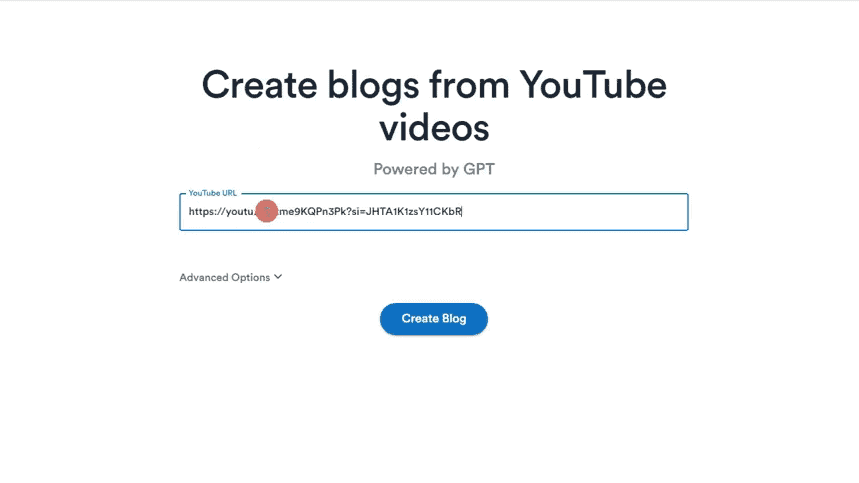
Paste that URL into VideoToBlog. You can configure a few settings in Advanced Options.

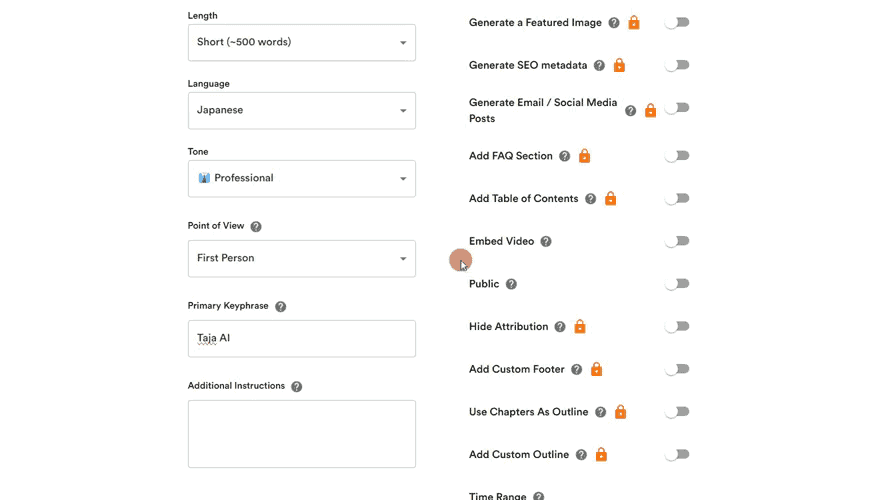
Set the language to Japanese and set the tone of the blog post to Professional. Write your point of view from your own point of view, and also specify important key phrases.
Specifying a key phrase increases the accuracy of recognizing certain words.
For example, if you set the keyphrase "Apple", it will often be accurately recognized as "Apple" instead of Apple or Apple.
Press the button to start generating your blog post.


This time a short article was created.
… Titles are useless.
There are some areas that need to be reworked in terms of writing quality, but I think it went well overall.
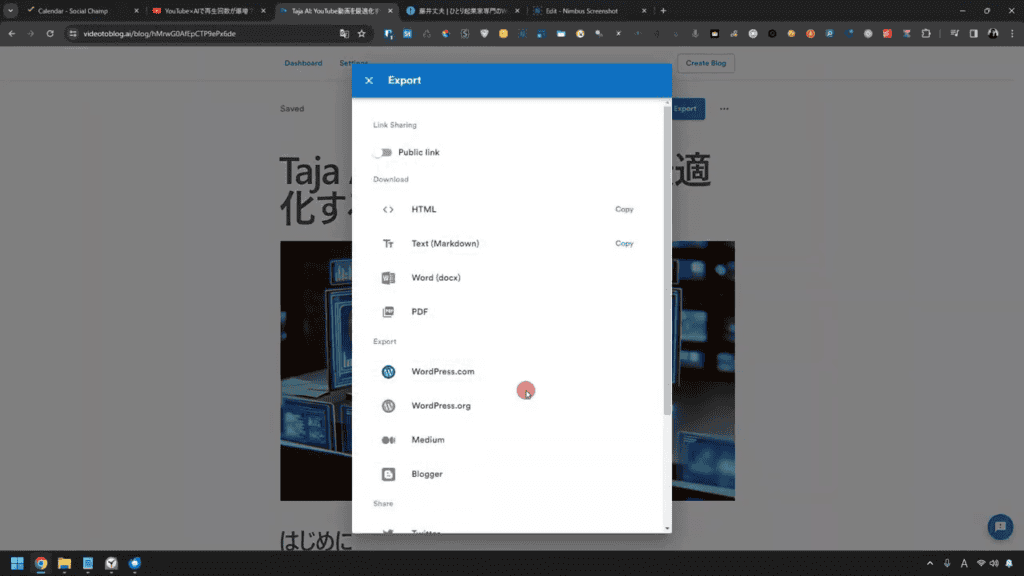
You can freely export the generated blog posts so you can download them or publish them on your WordPress website.
It's also nice to be able to make it in Japanese. I think it's easy because you can easily create blog posts.
Is VideoToBlog free to use?
There is also a paid version, but a free version is available.
You can generate up to 3 blog posts per month for free.We recommend that you check the free version first and try it out to see if you get a satisfactory output.
>>Try VideoToBlog completely free
The features of the free version are quite limited. Specifically, you can't create long-form blog posts because the blog post length is set to short.
Also
- Featured Images
- SEO Meta Titles
- SEO Meta Description
- SNS posts and email texts
- FAQ (Frequently Asked Questions)
etc. are not generated in the free version. These features are available on paid plans.
Disadvantages of VideoToBlog
VideoToBlog also has some disappointing points.
Duplicate content in generated blog posts
If your video content is short, generating a long blog post willSometimes the content is duplicated.
Since the blog posts generated by VideoToBlog are based on the content of YouTube videos, the same items may be repeated and the text may be generated if the content of the video is short.
About 67 blog posts are generated in long sentences
It's a bit dry, but the generated sentences are 62~67 points.
It will definitely need to be corrected.
To control the generated sentences, use the「Add Custom Outline」We recommend using You can specify the headline of the blog post that you actually generate.

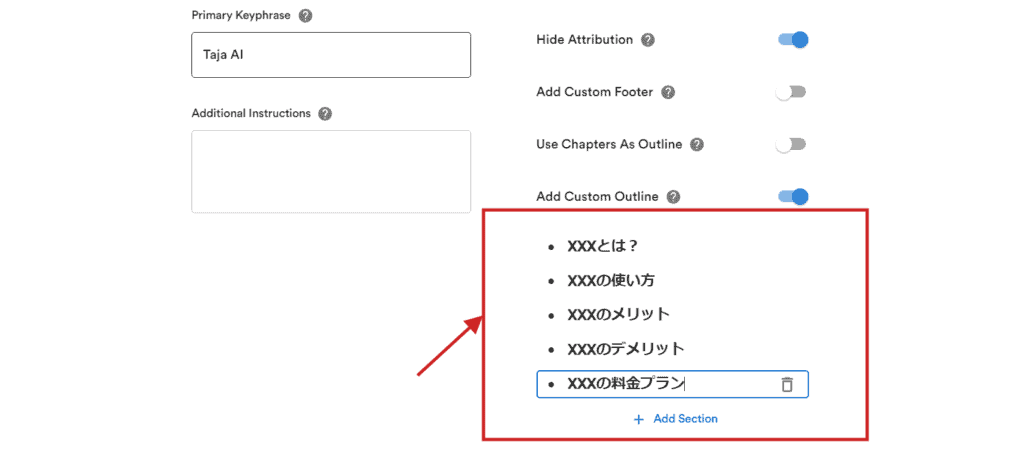
This feature gives you some control over the content of your blog posts.
Also
- Primary Keyphrase
- Additional Instructions
to improve the quality of the generated blog posts.


In my case, I often put proper nouns in my primary keyphrase.
Specifically, if you want to make a blog post about a "review video of a tool called Taja AI", enter "Taja AI" as the key phrase.
By doing this, you can use Taja AI andIt is easier to generate with the correct name.
Amazing features of VideoToBlog
Advanced Options Customizability
VideoToBlog's Advanced Options are a feature that allows users to set up more detailed settings for blog post generation.
- Specifying the length of a blog post: Freely adjust the length and length of the article
- Specifying the language: Useful if you want to create content in different languages
- Specifying the tone of your blog post: You can specify the tone that the article should have. Adjust the mood of your article
- Specifying Perspectives: Choose your point of view when writing the article. Such as your own point of view or a third party's point of view.
- Specify key phrases that matter: Specify the key keywords or words to include in your blog post. Easier to generate relevant content
You can freely choose these options with paid plans.
The free version has limited options. Therefore, even if you create a blog post with the free version, the quality of the text may decrease.
With these additional settings, you'll be able to generate blog posts from your videos that are close to your ideal.
Add screenshot image
You can also add images and screenshots to your blog posts. For example, if you press the screenshot insertion item, a YouTube video will appear.


You can take a screenshot image from a video and insert it directly into your blog post.


You can also crop and adjust screenshot images in VideoToBlog.

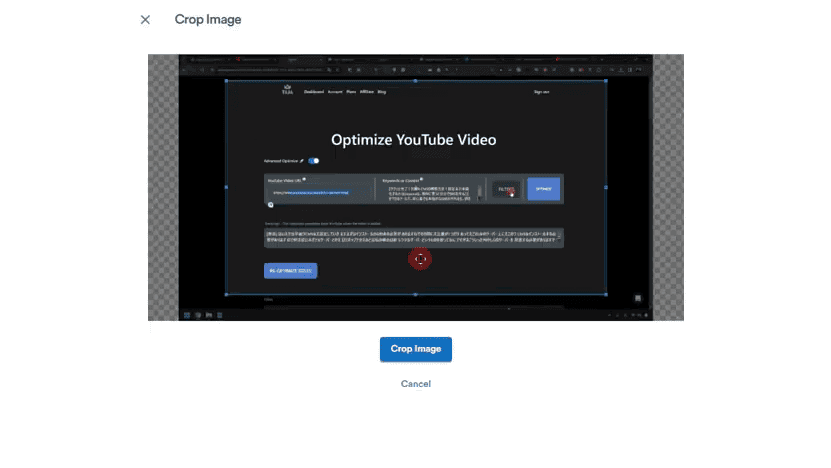
This feature is quite useful. This is my favorite feature.
Content Analyzer (Analysis)

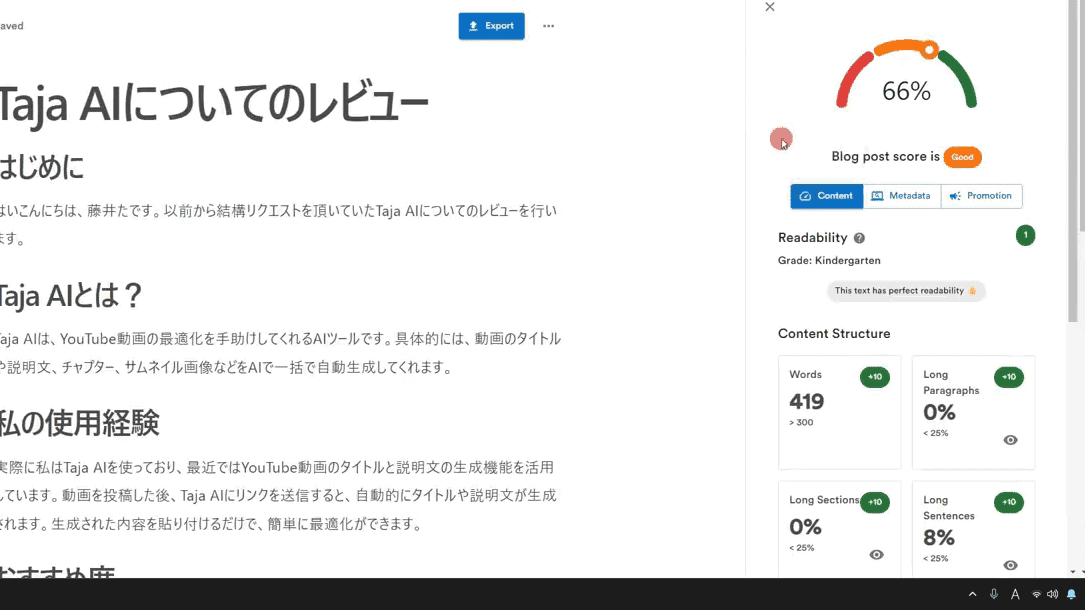
The blog posts generated by VideoToBlog can be analyzed using the content analyzer.
This content analyzer is a fairly simple analysis. In fact, even if the results of this analysis are good, it is unclear whether it will have a positive impact on SEO.

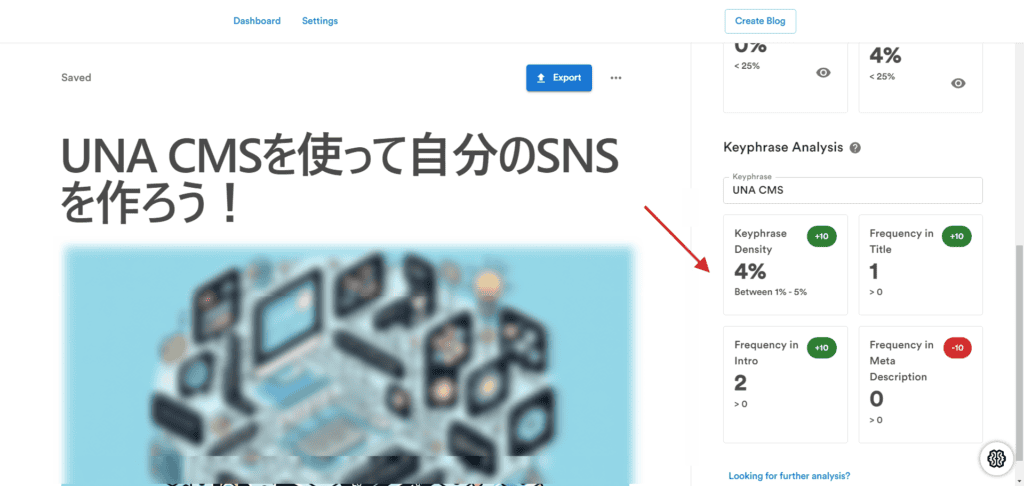
However, it is very easy to use as a guideline.
Feature: WordPress integration
I'm going to actually export it to WordPress. You need to integrate with WordPress in your exports. I choose my main blog.

Enter your website address and login username to create an application password.

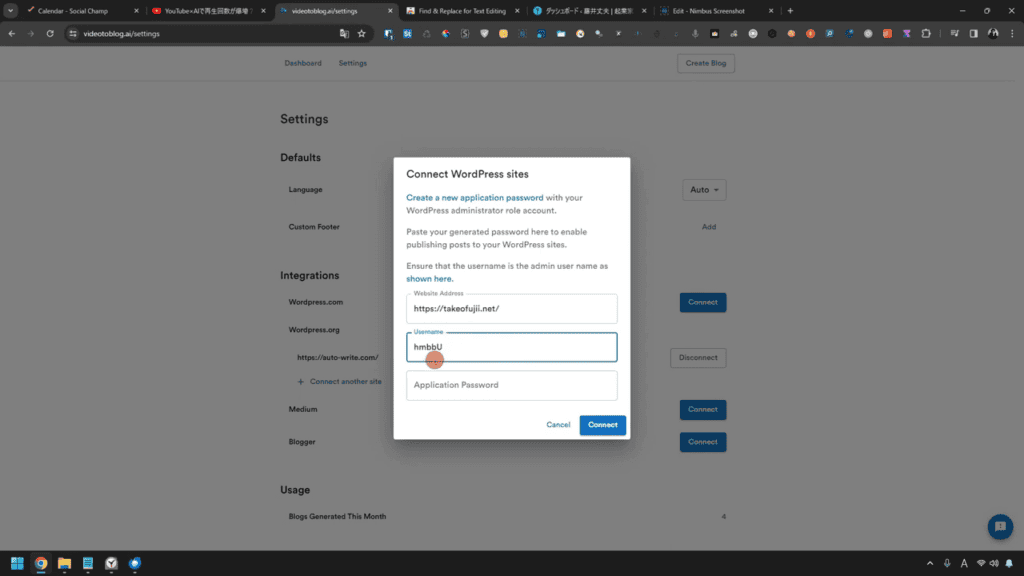
Paste it into the application password input area of VideoToBlogAI and press connect. Once you've integrated it, it's time to export it.
It will automatically be published to WordPress.


The published article also includes screenshot images.
However, the screenshot images in the article are not imported into my WordPress and need to be imported.
Upload external images as well. Replacement work is also required, but it can be used as an image for blog posts.
You can also use VideoToBlog to convert YouTube videos into blog posts and publish them to WordPress.
Recommended extension "Find & Replace"
The generated blog post should have words that have been misjudged.

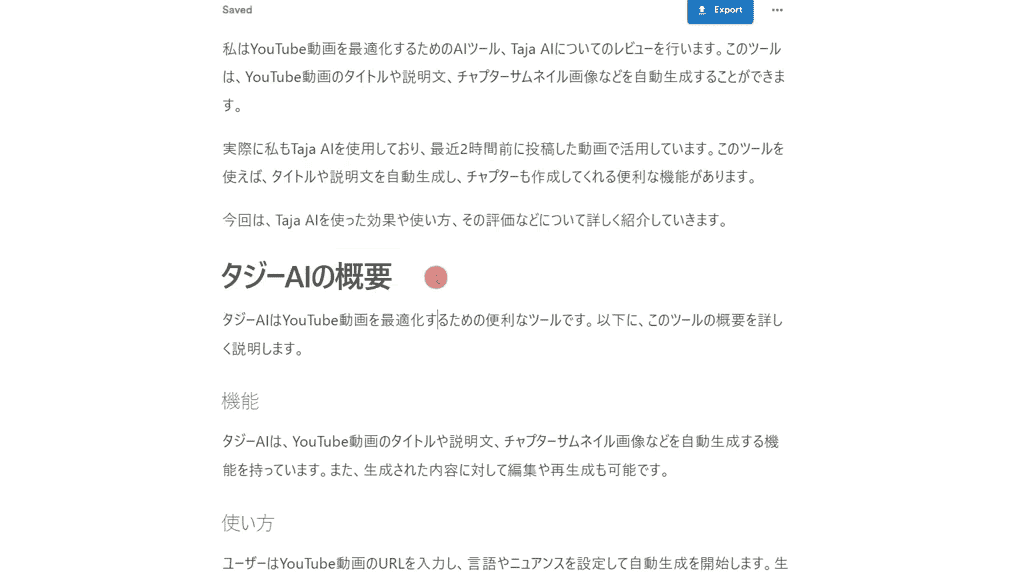
In the example of the article above, the keyword that was originally recognized as Taja AI was mistakenly recognized as "Taja AI".
It is tedious to manually correct this misrecognized word. That's where we recommend Google extensions
Google extension "Find & Replace for Text Editingto replace the wording displayed on the page in bulk.

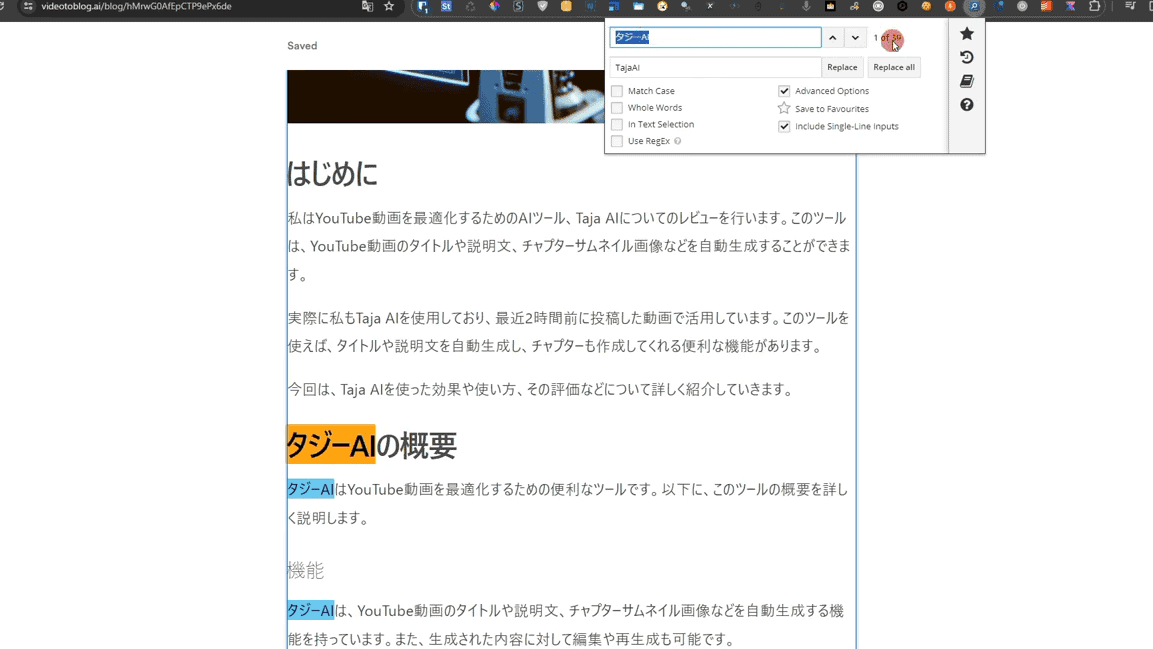
You can use it to replace words on a page in bulk.
The extension allows you to replace wrong words in bulk, so it works very well with VideoToBlog.
Overall, I think it's pretty good. I think you can use it just by reworking.
VideoToBlog Paid Plans

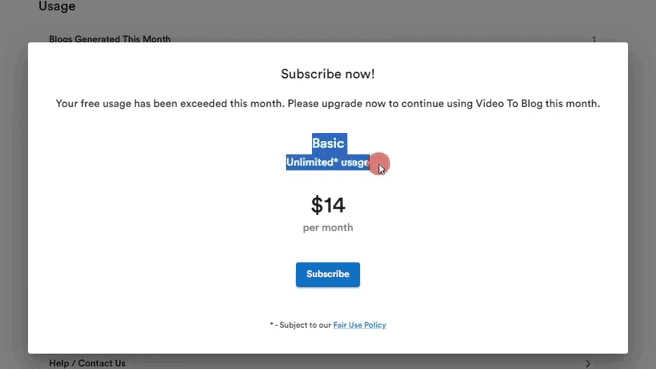
The paid version is only available on the BASIC plan.For $14 per month, you can generate unlimited blog posts(However, there is a limit of 1000 articles per month).
No credit card required to try it!
It is about 2000 yen in Japan yen. Cheap.
Paid plans also unlock options that can be used, such as the ability to automatically generate recommended images and SEO metadata.
- Featured Images
- SEO Meta Titles
- SEO Meta Description
- SNS posts and email texts
- FAQ (Frequently Asked Questions)
All of the above features will be available.
You will also be able to generate long-form blog posts of nearly 5000 characters in Japanese.
Is VideoToBlog worth paying for?
Honesty,Not recommended for everyone.
Depending on the content of the video, the quality of the blog will vary. In my case, there were times when blog posts were generated well and bad sentences were generated.
However, the cost performance is good.
VideoToBlog's pricing plan is $14 per month. Unlimited use.
It is more than enough for personal use.
If you have a lot of videos on your YouTube channel, you may want to charge for only one month to convert those videos into blog posts.
AI-made blog posts need to be modified, but it's pretty cheap to have unlimited at $14.
How to upgrade (bill) VideoToBlog
We will explain how to actually charge from a free account.
Press Dashboard in the top menu.

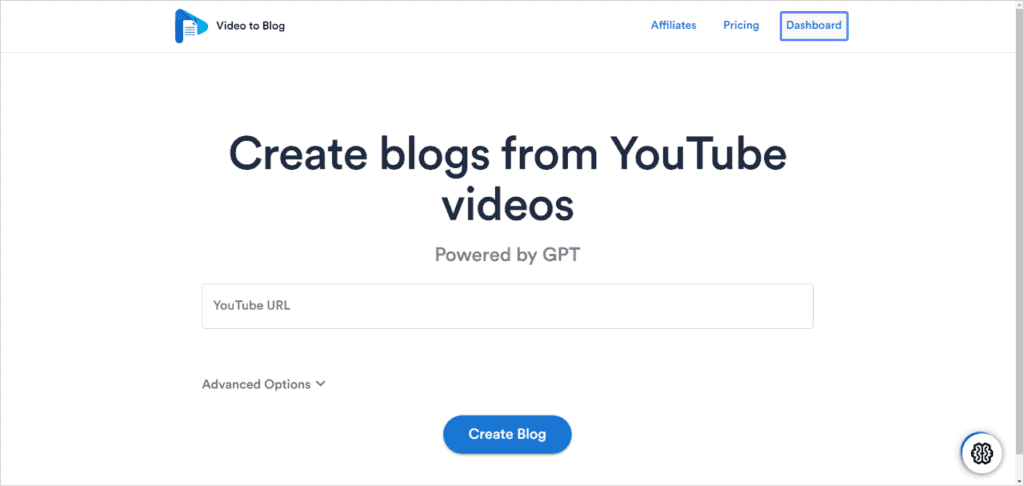
Then press Settings.


Select Upgrade, enter your billing information, and press the Subscribe button.

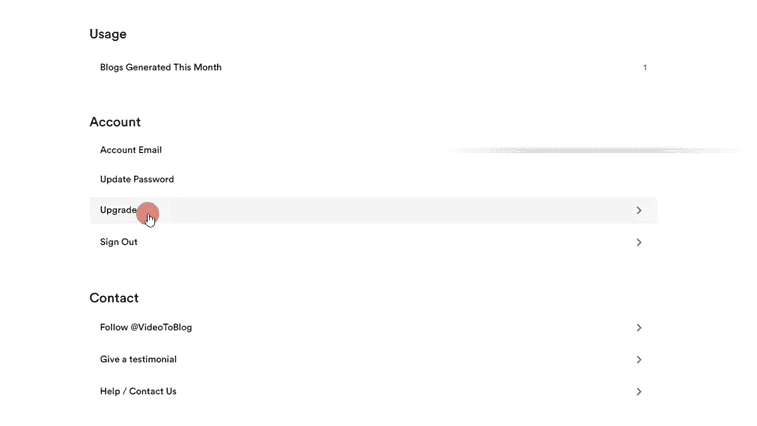
You can rest assured that payments are made with Stripe.


It is a recommended tool that is cheap and quick to use.
How to cancel or cancel VideoToBlog
To cancel VideoToBlog, press Billing from Settings.
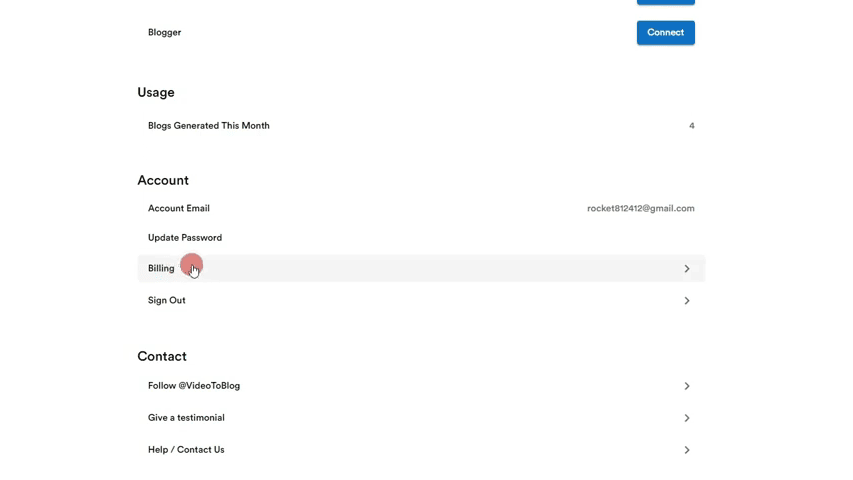
Cancel on your Stripe page.

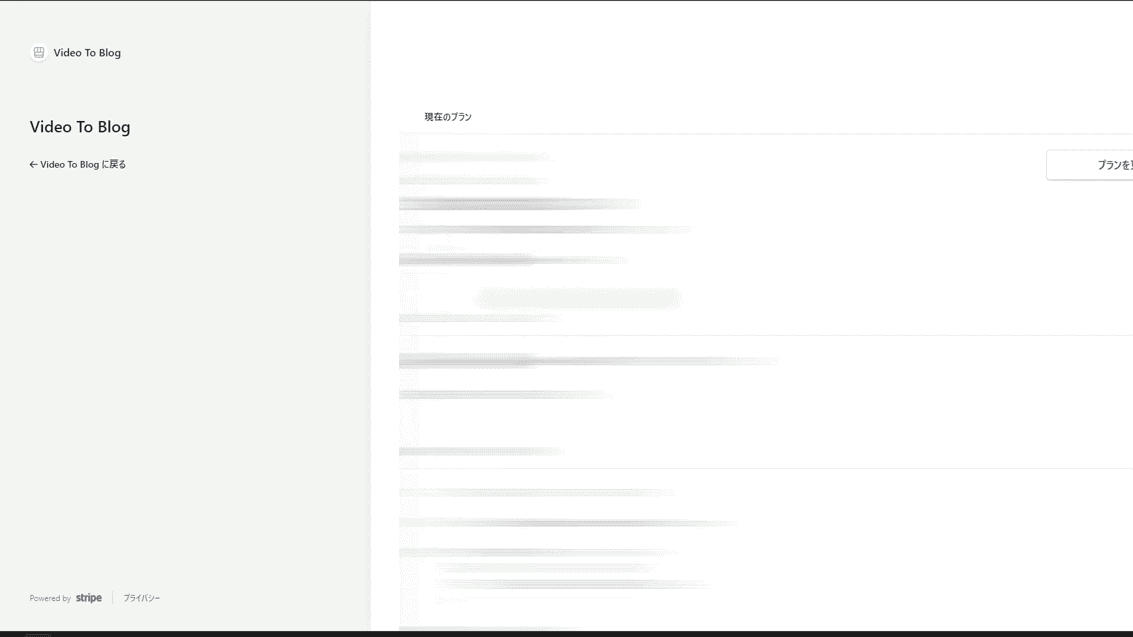
You can easily cancel your contract. There are no particularly complicated procedures.
Overall, the quality of the text varies, but the developers of VideoToBlog actively listen to the voices of users.
If you try VideoToBlog and don't like something, send us your feedback. It could be improved.

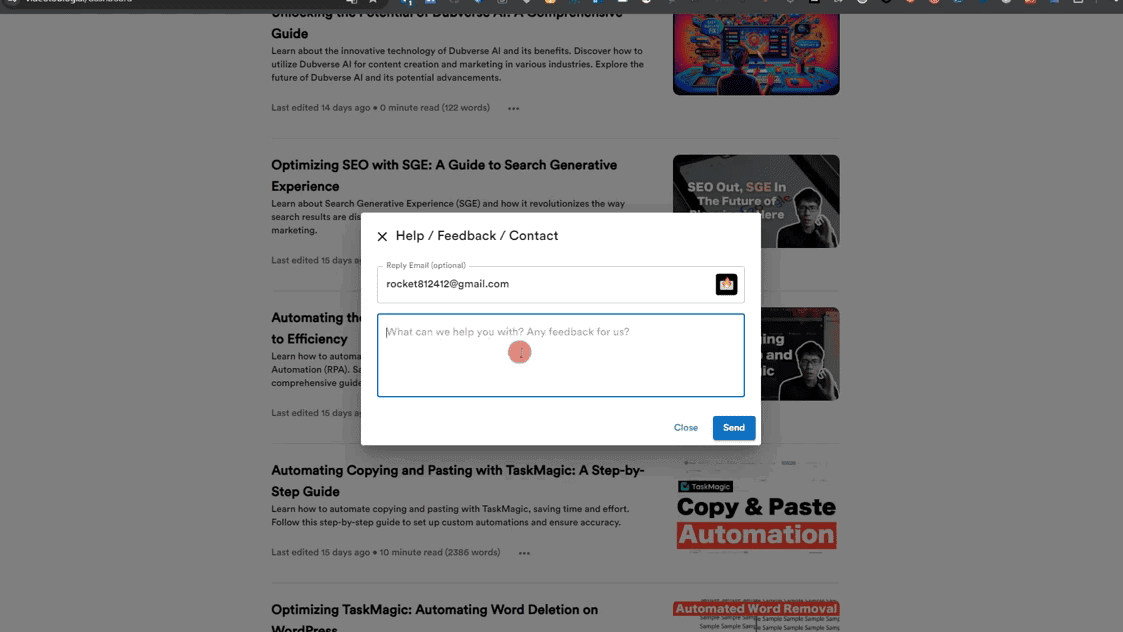
I actually provided feedback myself, and the developers made solid improvements within a month.
You can easily use it for $14 a month and quit at any time. It can be used for unlimited purposes for one month, so it will be worth paying for.
I think VideoToBlog will continue to be improved, so please send feedback to the developers if you have any improvements after using it.
Summary: Is VideoToBlog recommended?
For one month, I tried the free and paid versions using VideoToBlog.
My honest impression is that the flow of the sentence is strange or that some words need to be corrected.
SimplyOverall, the quality was satisfactory.
The paid version gives you access to many features and options, and you can create (virtually) unlimited blog posts.
$14 (about 2,000 yen) per month is cost-effective.
Also, the feature will be updated in the future, so if you are unhappy with using it, please provide the developer with a rating and improvement. I think it will be easier to use in the future.
VideoToBlog is a tool that we expect to continue to improve in the future. I think it's worth trying for free at least.
FAQ
We answer frequently asked questions.
What is the difference between free and paid versions?
The free version allows you to create up to 3 blog posts per month. However, the features and options are limited.
The paid version allows you to create unlimited blog posts. You can now create long-form blog posts, and you get even more features and options.
Do you need to fix your blog posts?
The generated blog post needs some corrections.
I actually wrote blog posts on VideoToBlog, and I always fix the title and content.
How to integrate with WordPress?
When exporting blog posts generated using VideoToBlog to your WordPress site, you will need an application password on the WordPress side.
- WordPress Site Address
- Username to log in to
- Application Password
Enter these information.
















![How to use Pretty Links and discount sale information [2024]](https://sp-ao.shortpixel.ai/client/to_webp,q_lossy,ret_img,w_485,h_273/https://takeofujii.net/wp-content/uploads/2022/11/pretty-links-485x273.png "How to use Pretty Links and discount sale information [2024]")


Latest Comments