


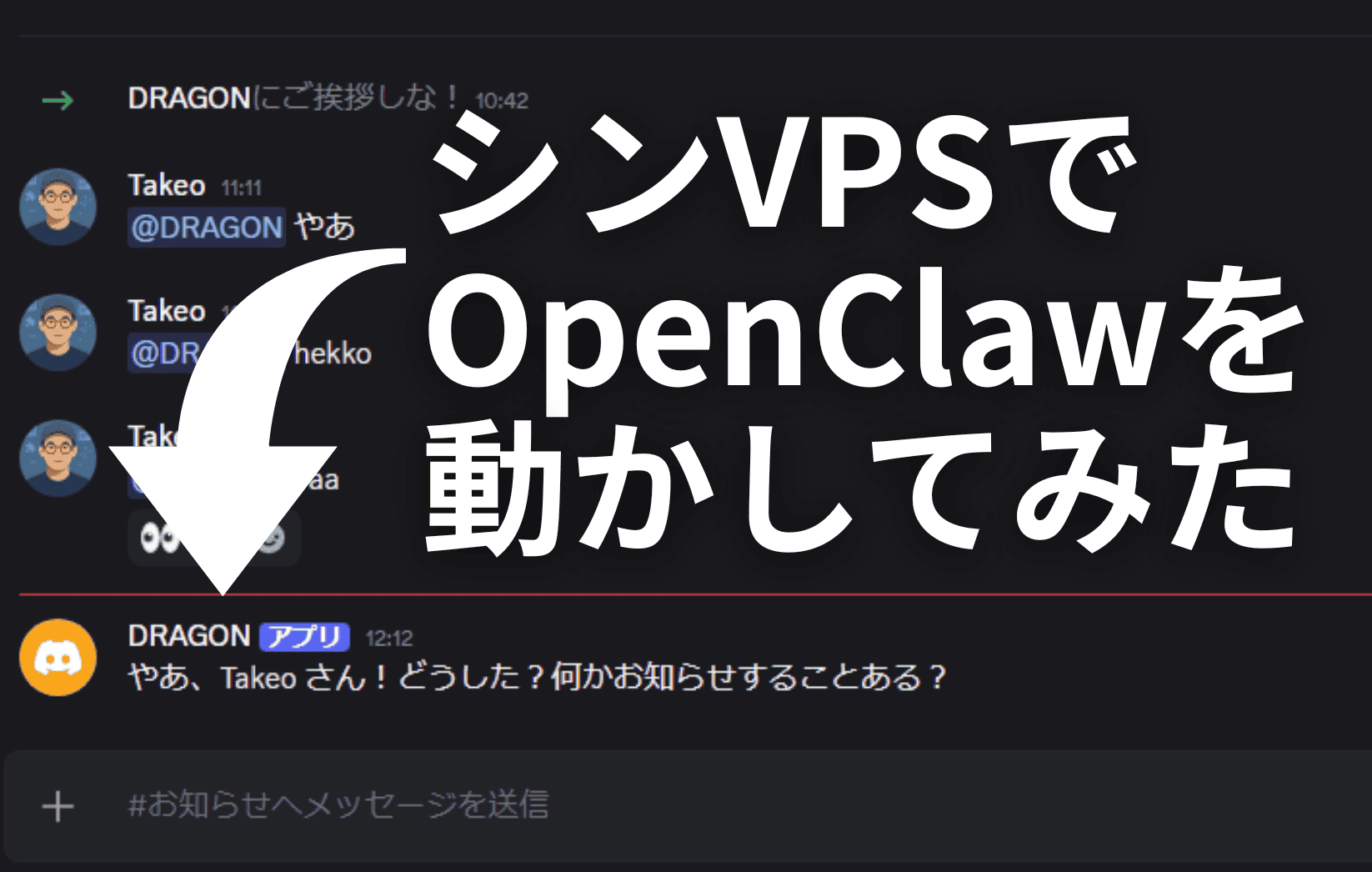
This article explains how to install and use OpenClaw relatively safely. The setup is very easy. As long as you don't do anything unnecessary, you can install and run it quickly.
Please look at this image.

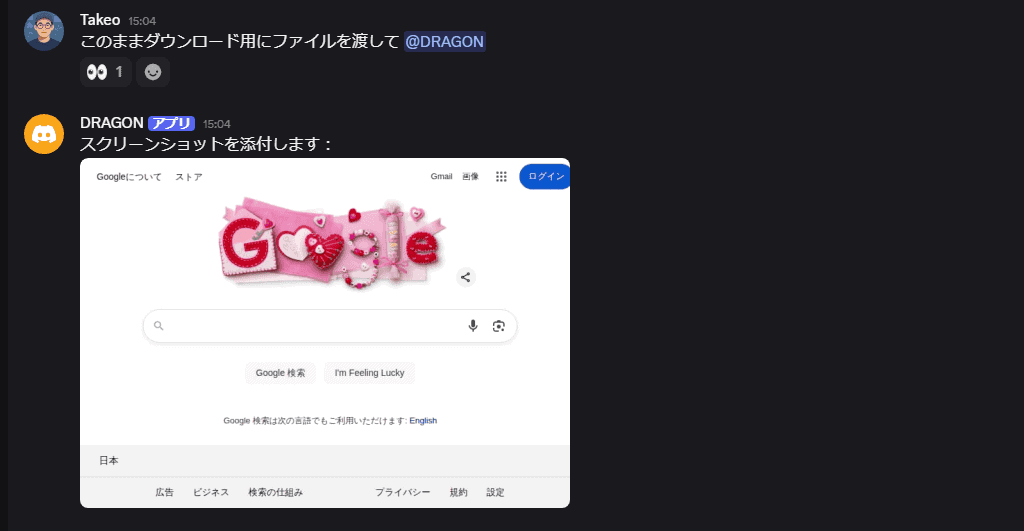
You can also give instructions on Discord and have it open a page and take a screenshot.
OpenClaw can automate various tasks depending on its extensions.
Is OpenClaw dangerous?
As of the time of writing this articleOpenClaw may be "extremely dangerous" at this timeThere is.
Therefore, for beginners to use it safely, we recommend operating it in an independent environment such as an unused Mac.
Assume you will be hacked
Since it is still a new open-source technology that has not been fully patched, even security experts should use it with the assumption that it may be hacked, in my opinion.
Above all, as you know, OpenClaw not only answers questions but also has "hands and feet" that can connect to tools, execute workflows, and operate autonomously. There is also a risk of it becoming uncontrollable due to malicious attacks or misconfigurations. This is due to the strength of its permissions.
How to safely install and use OpenClaw?
Just keep two things in mind.
- Create a completely independent environment
- Never put important data in it
First, this time we will install and operate using a VPS. Therefore, you do not need to purchase a new MacBook or Mac. However, if it's completely blank, you can install it on such a device.
And, regardless of the environment you run it in, please do not put any data that would be problematic if it were hacked.
For example, if you are giving credit card information to OpenClaw, use a virtual card (like Revolut or Mercury) with a set spending limit instead of your main card to limit potential damage.
Which is better for OpenClaw: VPS or Mac mini?
If you are a beginner or don't have cybersecurity expertise, rather than a VPS (cloud server),it is safer to run it on your own Mac mini (or an unused PC).This can be said.
Since a VPS is a server that is always exposed to the internet, if configured incorrectly, the risk of hacking from external sources increases.
On the other hand, with a Mac mini at home, there is no incoming traffic from the outside, making it difficult for hackers to penetrate.
In addition, since the Mac mini is in your possession, if there is any abnormality, you can physically disconnect it by "pulling the plug" in the worst-case scenario. This is an advantage that a VPS does not have.
Although I keep mentioning Mac mini above, there is no need to purchase a new Mac mini.
You don't need a Mac mini to run OpenClaw
The reasons why Mac mini is chosen for OpenClaw are as follows:
- To stably run local AI models like OpenClaw for extended periods
- Secure large memory and abundant ports at low cost
- Set up a stable work environment
- Cooling performance and stable continuous operation
In other words, it is chosen for its cost performance and cooling capabilities. However, it will run on other devices too. I installed it on a Macbook Air that was left in a warehouse.
OpenClaw is a very powerful tool. It's just that it's excellent and powerful, but too pure, so there's a huge risk of being tricked into doing bad things or having bad things done to you.
This is an experimental stage. Always run it on a separate PC or VPS environment, isolated from your main system, with restricted permissions. This is the safest way for beginners to get started.
Let's try running OpenClaw on Shin VPS
Now, buying a new device for OpenClaw can be budget-prohibitive. If you absolutely must, run OpenClaw on a VPS.
This way is easier.


This time, we will run OpenClaw on ShinVPS. The reason is that it's the best cost performance & OpenClaw can be installed immediately. Even beginners can easily use OpenClaw by following this article.
It's incredibly cheap if you use the campaign. After using it for a year, it's effectively around 504 yen/month.
Let's get started.
First, we will contract with ShinVPS.
Shin VPS Setup Procedure
There are confusing sites, so please use thisShinVPS OfficialPlease visit.
ShinVPS frequently runs campaigns. If you use a campaign, you can use it for about 336 yen per month. It's cheap.
As expected from a service that boasts the lowest memory unit price in Japan, it is very cheap for its performance.
Proceed to the application procedure with ShinVPS.

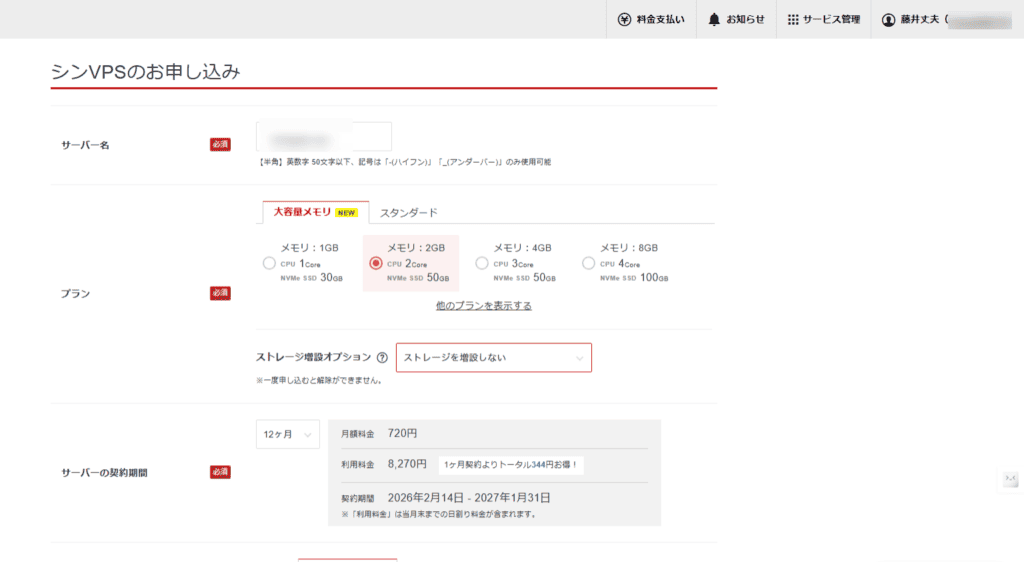
Decide on the server name and select a plan.
Large Memory Plan
- Memory: 2GB
- CPU 2Core
- NVMe SSD 50GB
We chose this plan because OpenClaw cannot be selected with the 1GB memory plan.
This time, we will proceed without increasing storage.
Scrolling further down, you can choose the OS and applications to install. Select applications.

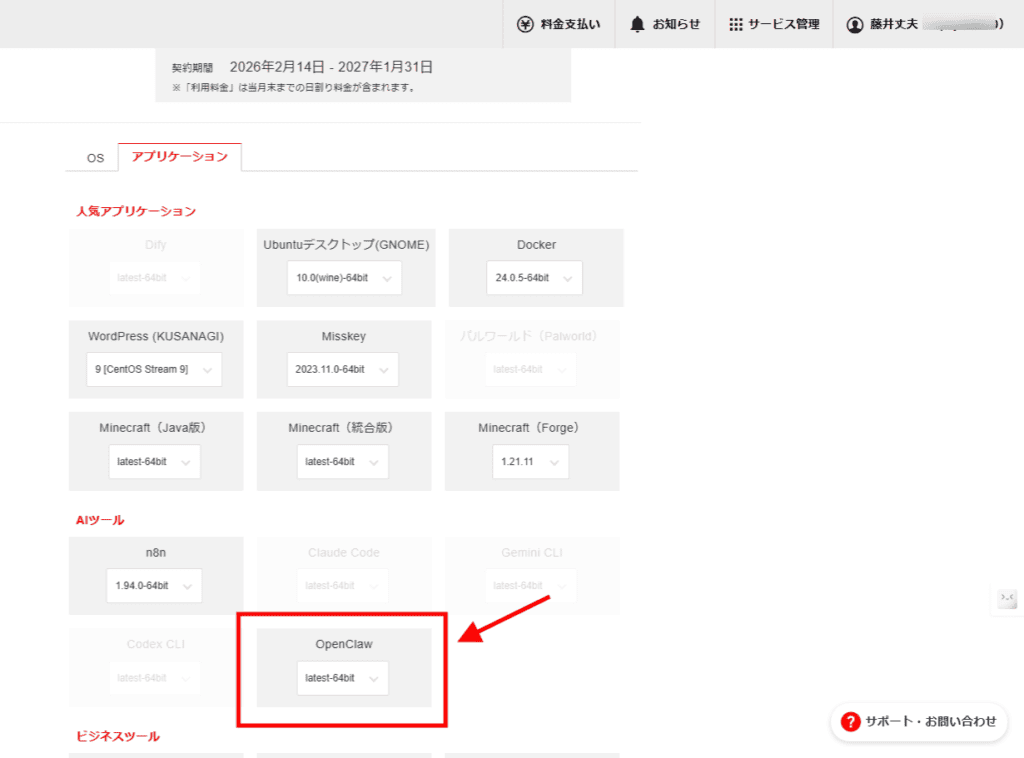
Then, you will find OpenClaw in the list. Select this.
Then, we made the settings as shown in the image.

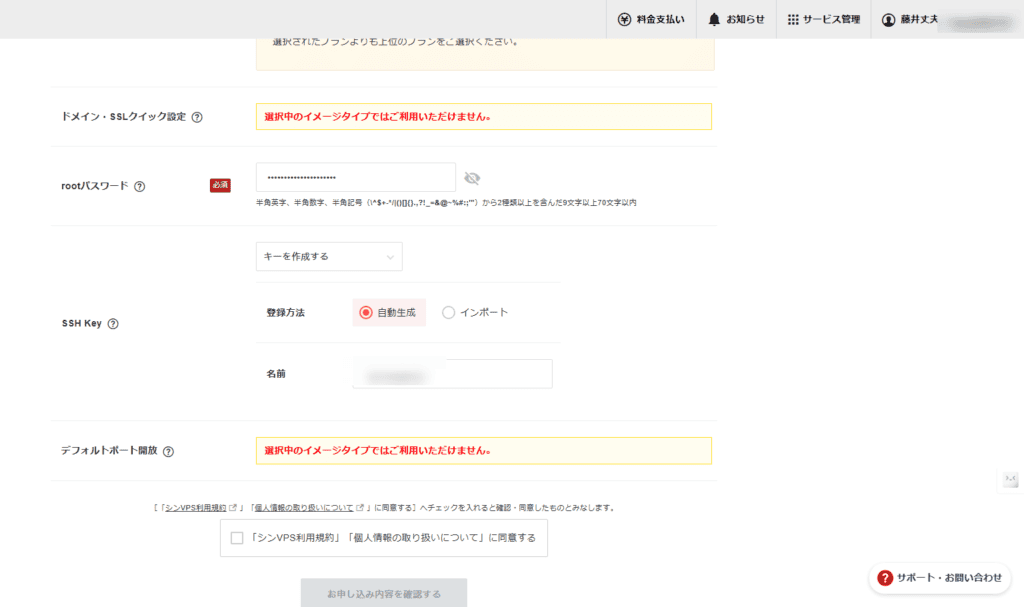
Please keep your password safe. You will use it when setting up OpenClaw.
Then proceed.
Download and save the private key.


Then, complete the payment.

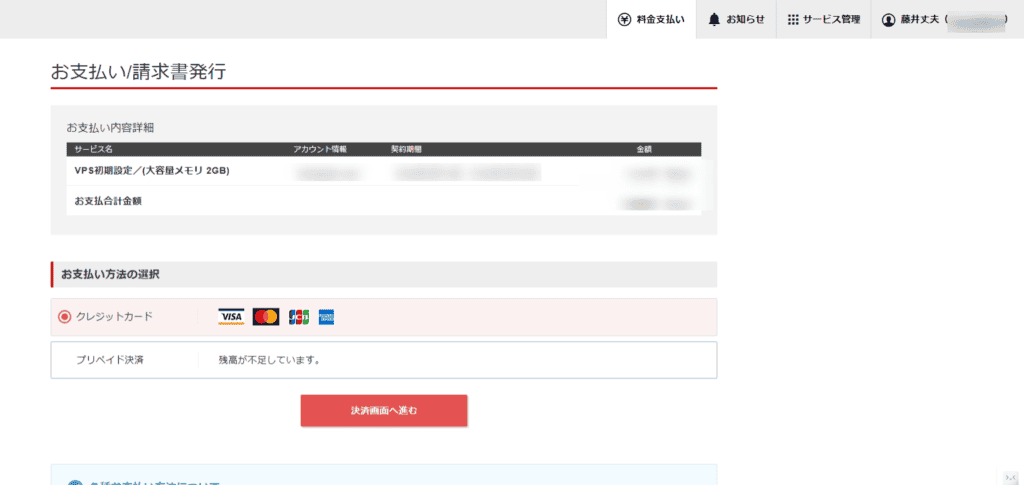
Once completed, wait for the environment construction to finish.

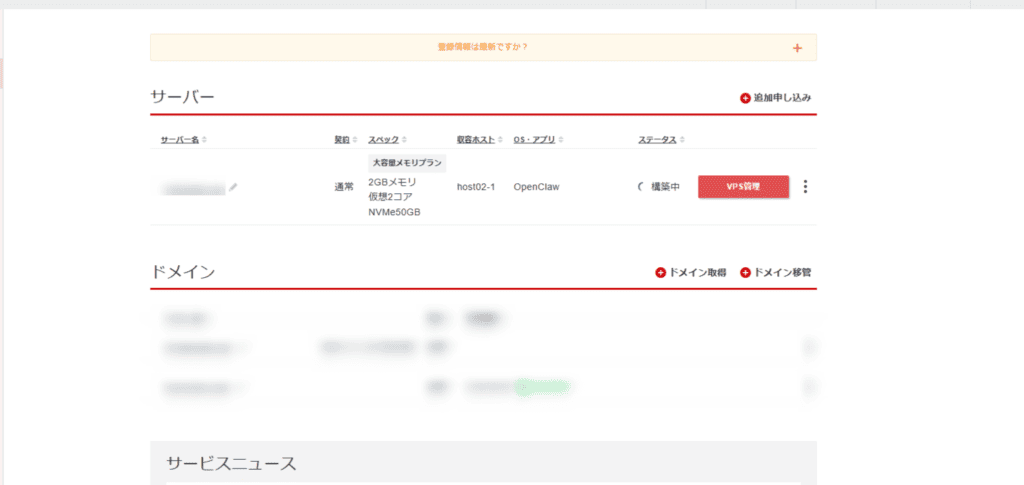
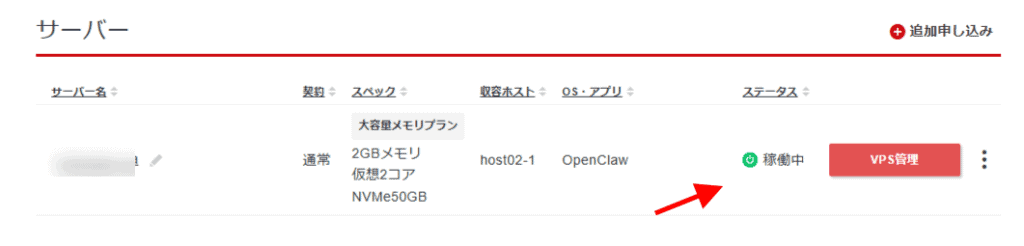
It says "Building", so once this changes to "Running", preparation is complete.

Setting up Discord
While the build is taking place, let's finish setting up Discord to talk with OpenClaw.
Setting this up beforehand will make things smoother later.
FirstDiscord Developer pageAccess. Then click the "New Application" button in the top right.

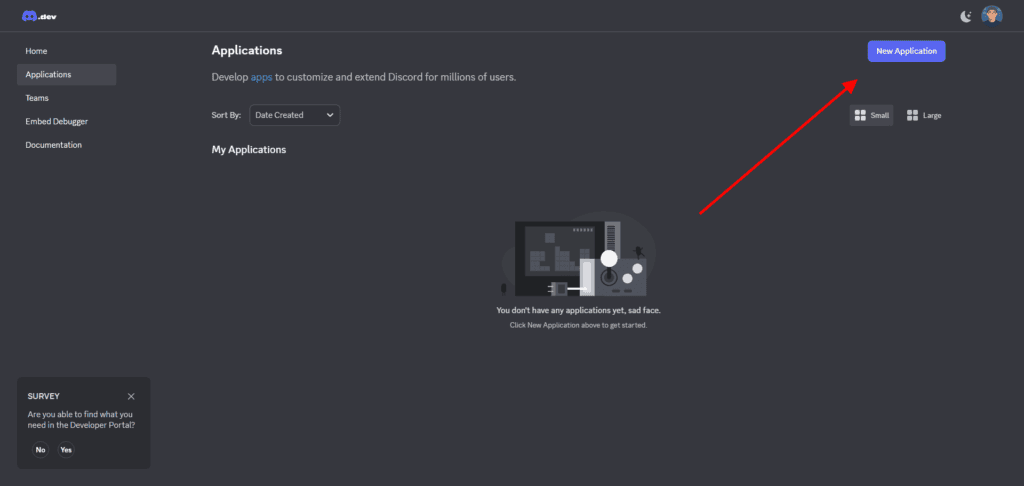
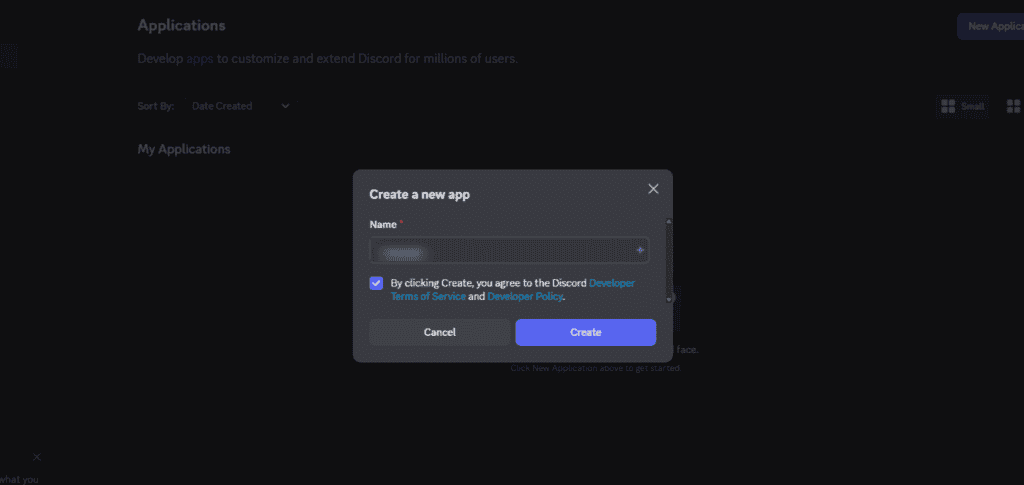
You can set a name for your new application. Feel free to choose any name.
Once you have decided on a name, check the box to agree to the Terms of Service and Developer Policy, and click the "Create" button.

Creating a new app will take you to a screen like this.

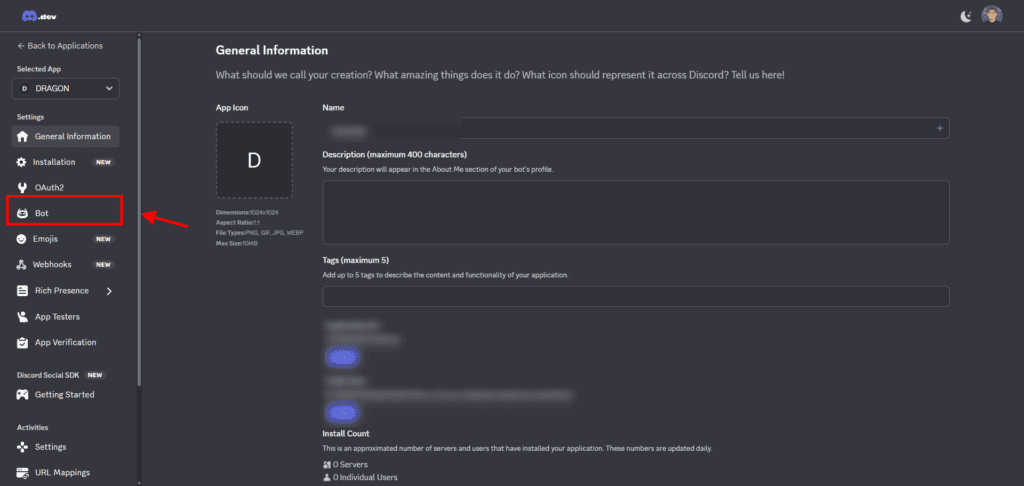
There is a Bot item in the left sidebar. Click on this Bot item.
The Bot screen will be displayed. It says Token here.
Click this "Reset Token" button.

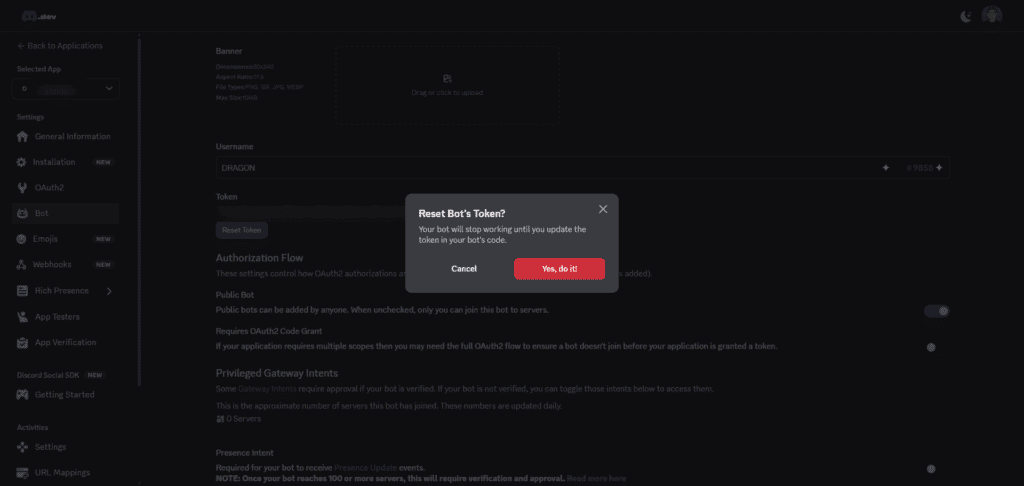
You will then be asked for your password, so please enter your Discord password.
This allows you to generate a token here.

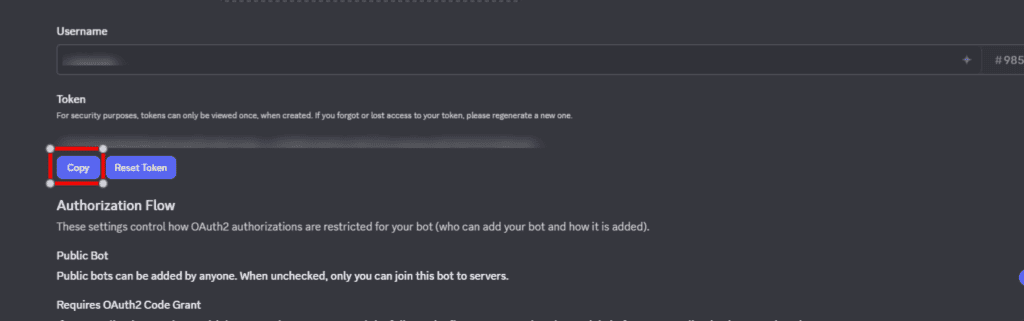
You will use this token later. Please save it carefully.
Next, scroll down to "Privileged Gateway Intents." Turn each of these on.

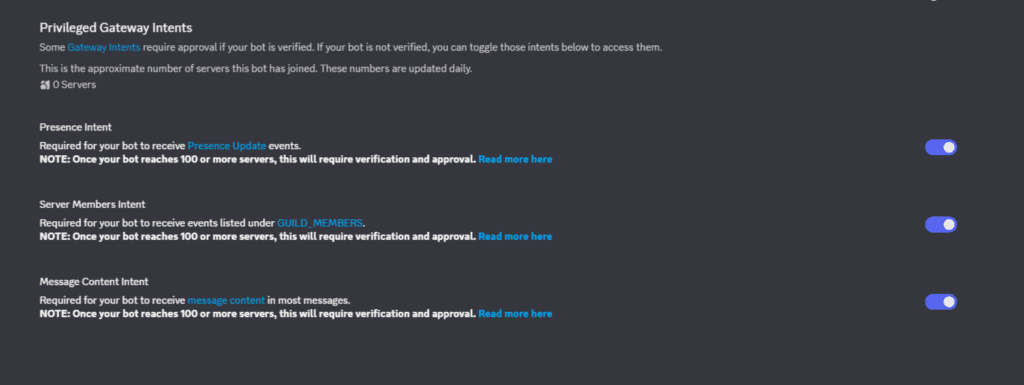
Scroll further down on this page to find the Bot Permissions settings. Set General Permissions to "Administrator" here.
Once done, select the "OAuth2" item in the left sidebar.
Scroll down the page to the "OAuth2 URL Generator" section. Check the box for "bot" here.
Also, check "Administrator" under Bot Permissions.

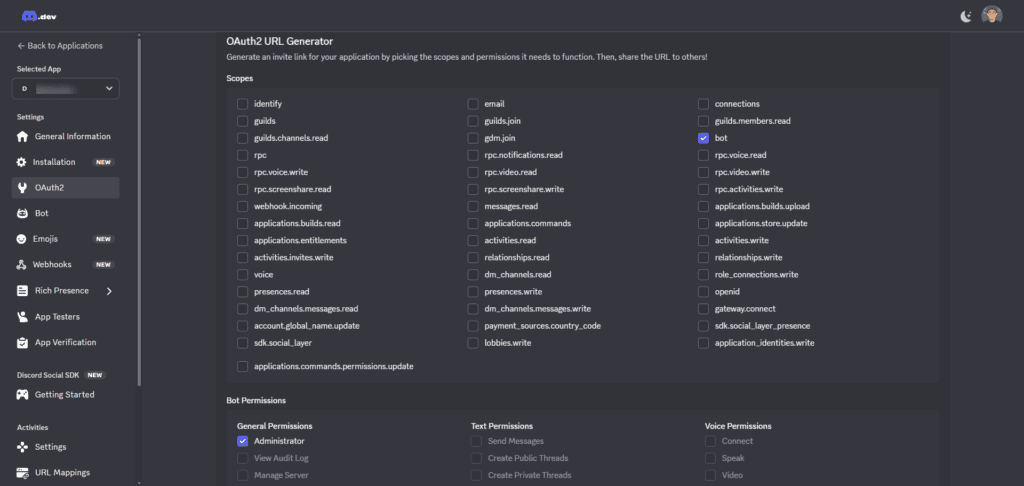
This will display the generated URL in the "Generated URL" field. Copy this URL.
When you open it, you will see a screen similar to the image below. Let's complete the authorization for each.

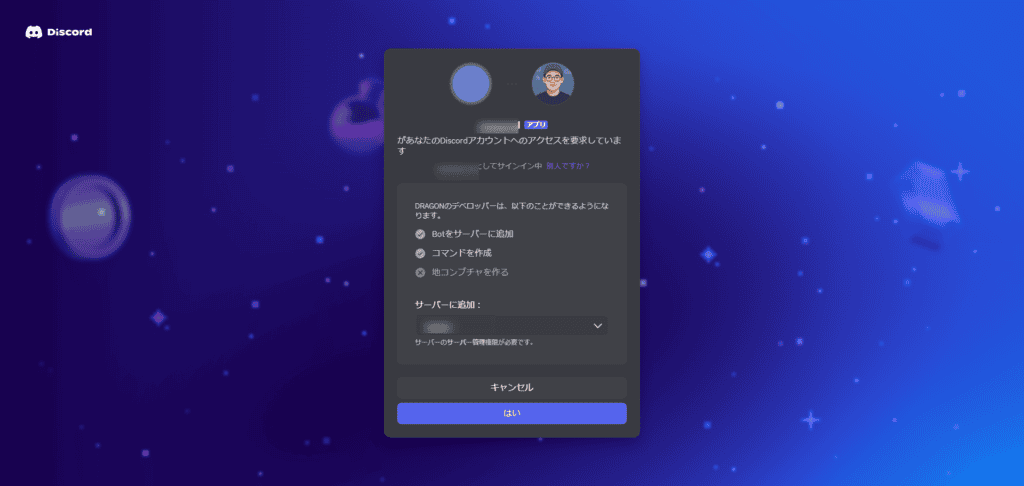
It might seem complicated, but if you try it, it should only take less than a minute.


Installing OpenClaw on Shin VPS
Next, return to Shin VPS and press the "VPS Management" button.
I used Tera Term. For details,Shin VPS Official Manualplease check.
Console connection is also available, of course. Please look towards the upper right of the page.

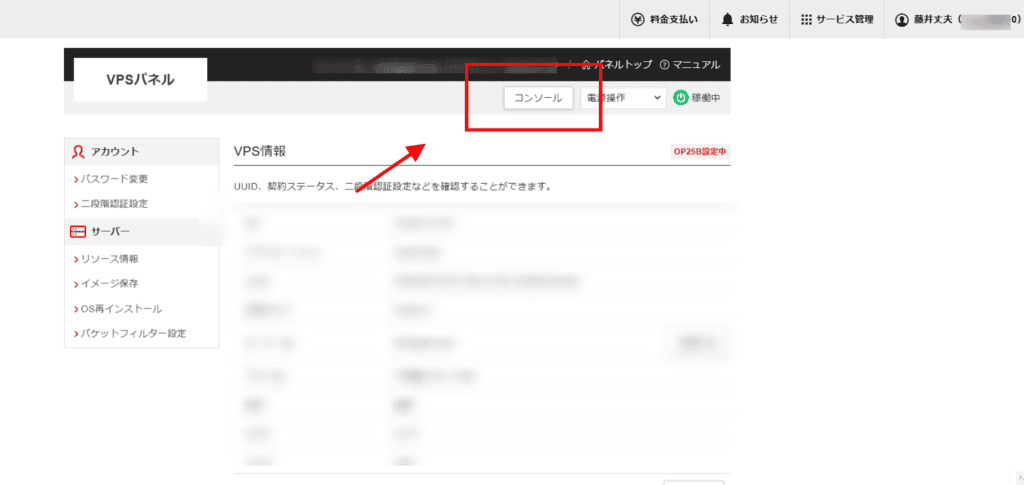
This is a feature that allows you to access and operate the server directly from your browser.
The console screen will appear. First, log in.

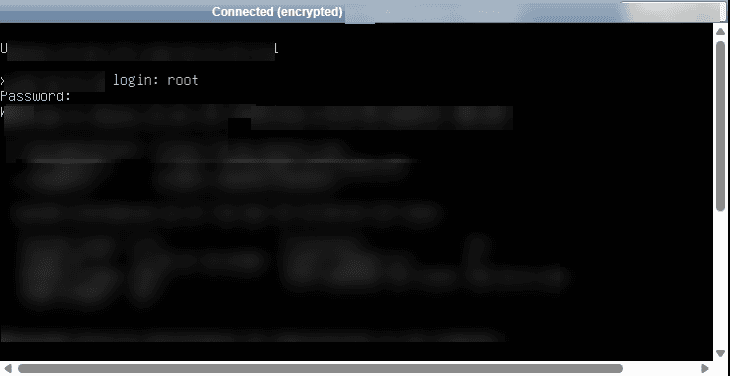
It displays "○○ login:". Type "root". Then press the Enter key.
Then "Password:" will be displayed. Enter the root password you decided on in the setup steps above. Then press the Enter key.
* It may seem like the password is not being typed, but it is actually being entered correctly. When you are done typing, press the Enter key.


openclaw onboard --install-daemonExecute this command to perform the installation.
This will proceed with the installation.

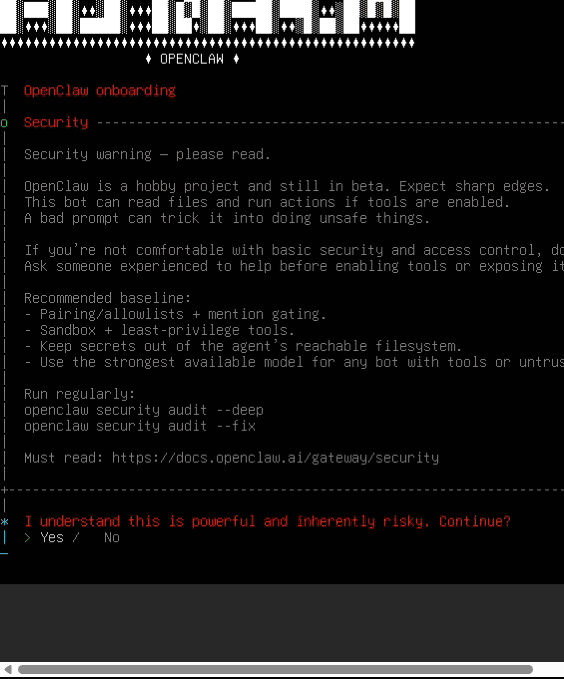
Select "Yes" to acknowledge the risks.
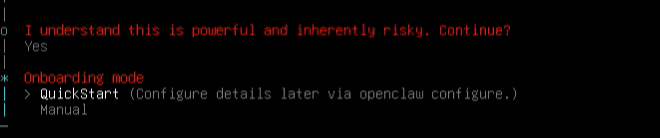
And this time, select QuickStart.

Select the model here. We will use OpenAI this time.

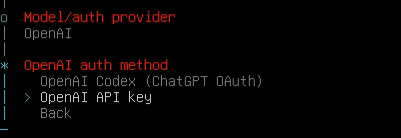
By the way, the one being evaluated right now around me is "Claude 3 Opus". It is optimal for operating autonomously like OpenClaw, but the cost is fairly high.
It is recommended to use different models depending on the cost and the content of the task.
Specific recommendations and their reasons are as follows. For example, if you are writing articles, "Claude 3 Sonnet" is sufficient.
This is a test. We will use OpenAI.
Supplementary note: To run it, you need an API key, not the free version of the chat. If you set a budget limit, additional costs will not explode, so please feel at ease.

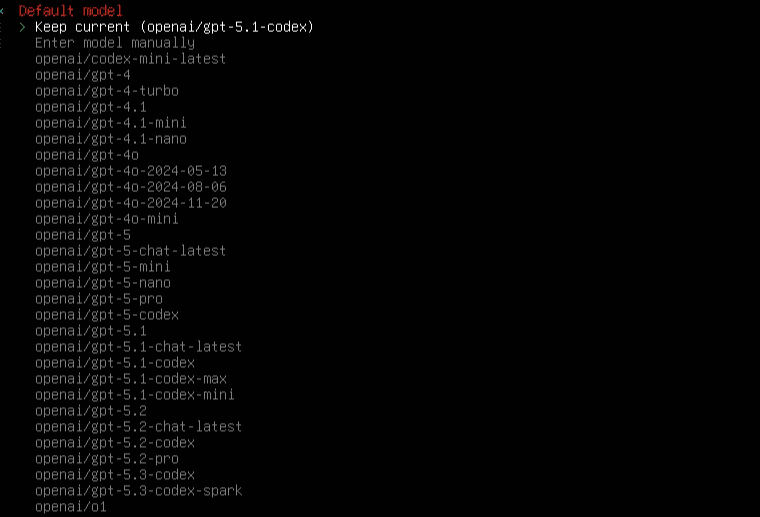
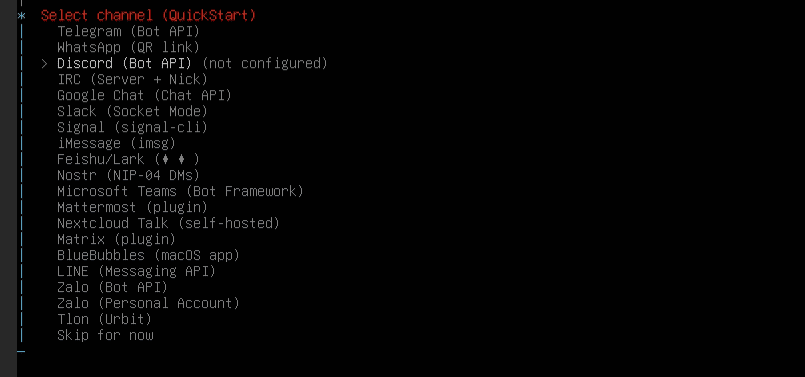
Next, choose based on where you want to use OpenClaw.
You can also run it on LINE, Discord, etc. This time we'll use Discord. If you follow the setup as configured above, the Discord setup will finish easily.

It will ask for the Discord bot token, so paste the token generated during the setup earlier as it is and send it.

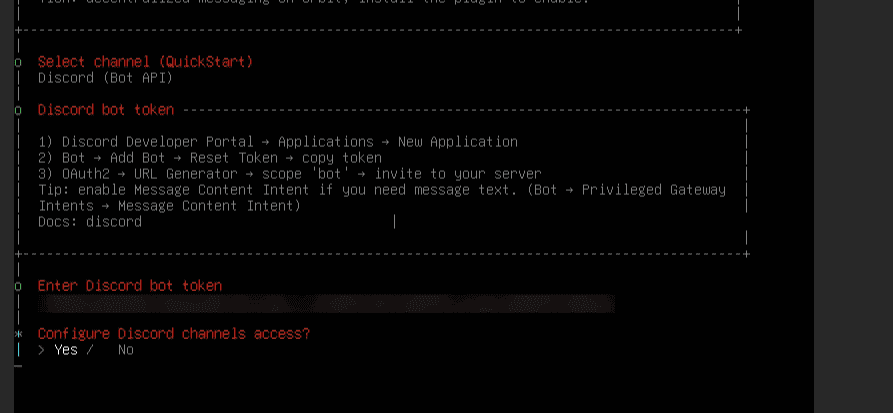
For now, we will skip the rest. It can be configured later.

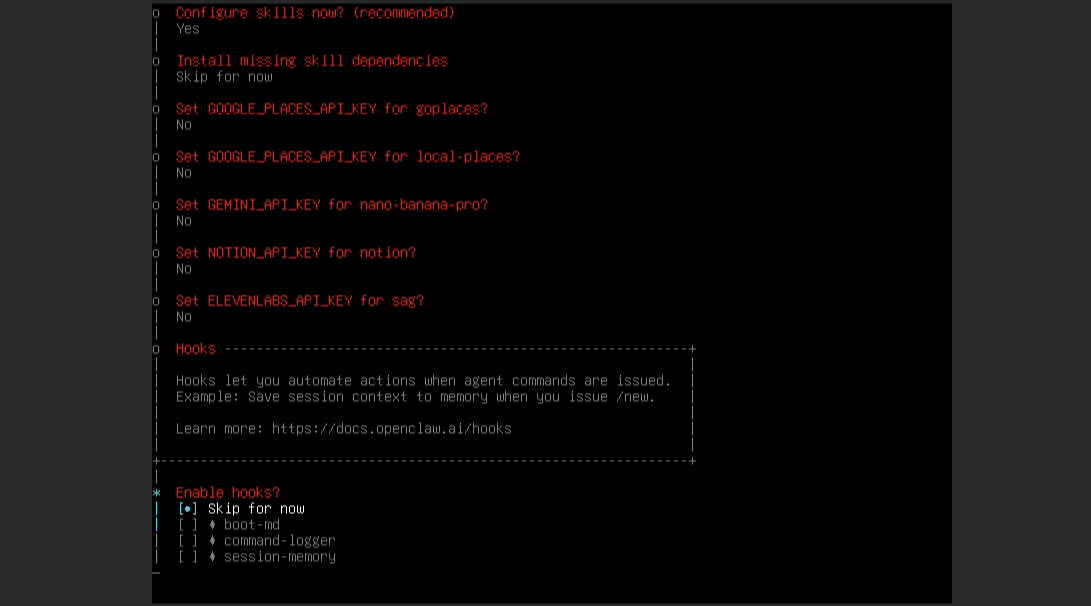
Setup is complete. Let's try talking to it on Discord.

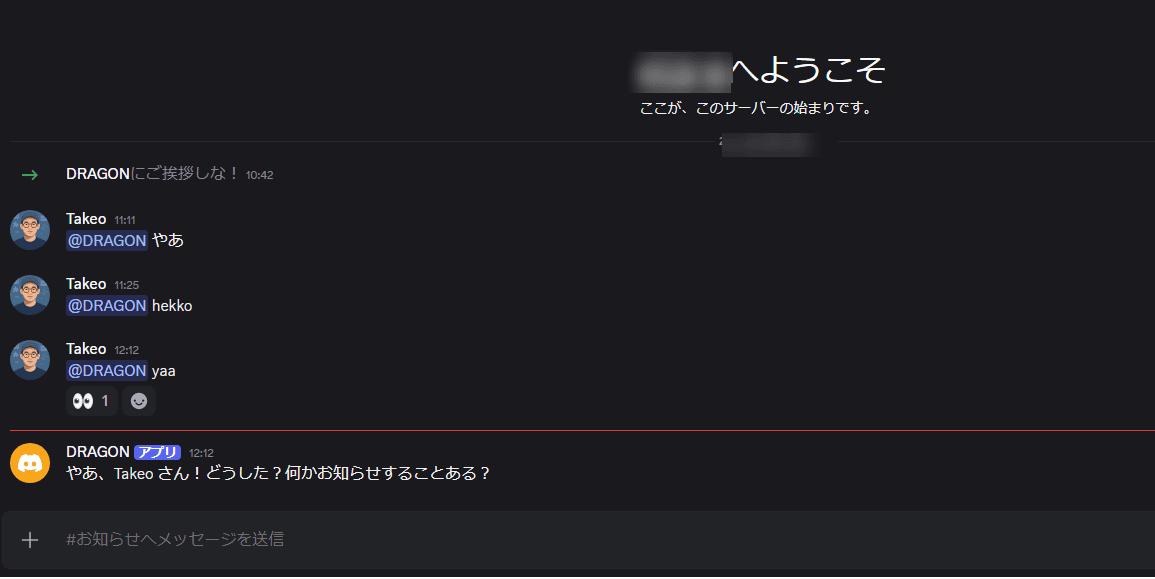
I got a reply from the bot I configured (named DRAGON). Nice!
Conclusion: Shin VPS is the quickest way to introduce OpenClaw
I'm having fun installing OpenClaw on a Macbook Air that was sitting unused in my closet. But I want to keep it running all night. The true value of OpenClaw is being able to leave your PC on and let the agent work autonomously while you sleep.
Thinking about it that way, a VPS is also an option.
Deciding to give it a try, I installed OpenClaw on Shin VPS. The setup took about an hour including lunch? It was easy.
Shin VPS can be foundon this pageCheck it out, as they sometimes run campaigns. Please try using it at a great value.
I'm up to some mischief with OpenClaw. I'll share if I can do anything else interesting.









Leave a Reply