



Hello, this is Fujii. In this articleAI-powered browser extension "Voilà"We will explain how to use it from basic ~ application.
Many people have asked me to explain how to use Voilà. I will also summarize how to use it in this article with the feeling that "I will explain all the usage in Japanese, so leave it to me."
This article is written for beginners who are using Voilà for the first time.
I will also explain the applied techniques, but if you are already using Voilà a lot, please read it while skipping it.
[Until November 29, 2023] Black Friday sale is currently underway! Get Voilà at a special price of 70% off & one-time purchase. For a limited time. Buy as soon as possible ▶Get an extra 10% off your purchase
- 1 What is the AI-powered browser extension "Voilà"?
- 2 Automate with AI! Throw all the troublesome writing to Voilà!
- 3 How to install Voilà
- 4 Basic use of Voilà
- 5 Application techniques to maximize efficiency in Voilà
- 6 Voilà Pricing Plans
- 7 Steps to subscribe to Voilà's paid plan [Japanese OK]
- 8 Which is better, ChatGPT Plus or Voilà?
- 9 Frequently Asked Questions
What is the AI-powered browser extension "Voilà"?

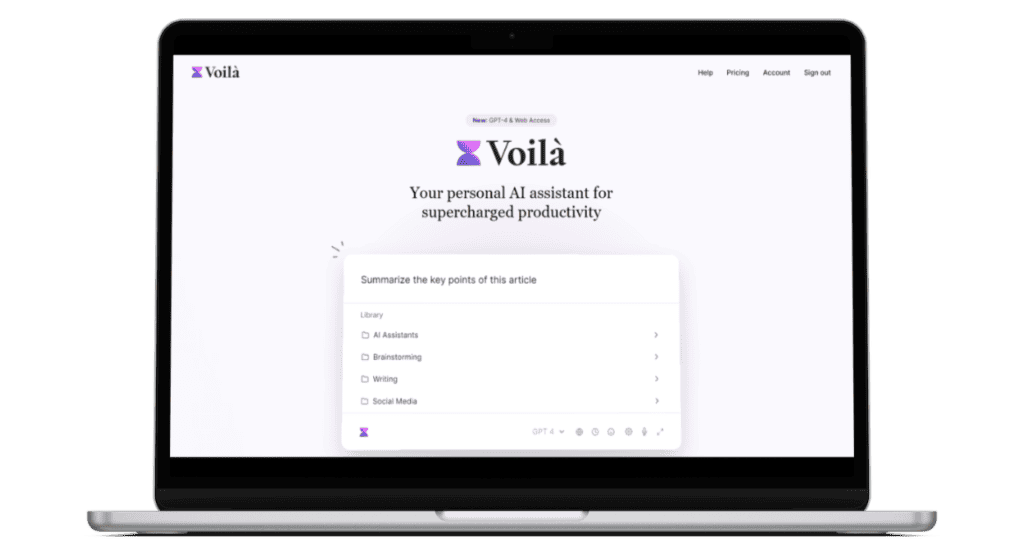
Voilà (Vowara) isAI Writing Assistantis
It is equipped with GPT-4, which is at the forefront of AI technology, and can be launched on any page to generate anything from translation, email writing, blog post writing, document creation, and more.
With this Voilà, you will definitely dramatically improve your work efficiency.
You can try it for free without a credit card!
Let me tell you first, I have used this tool myself and highly recommend it. To put this tool in a simple way,"AI Secretary"is.
I will explain what you can do.
Automate with AI! Throw all the troublesome writing to Voilà!
First of all, you can use Voilà to create any sentence. They will write whatever sentence you need.
Please see below.
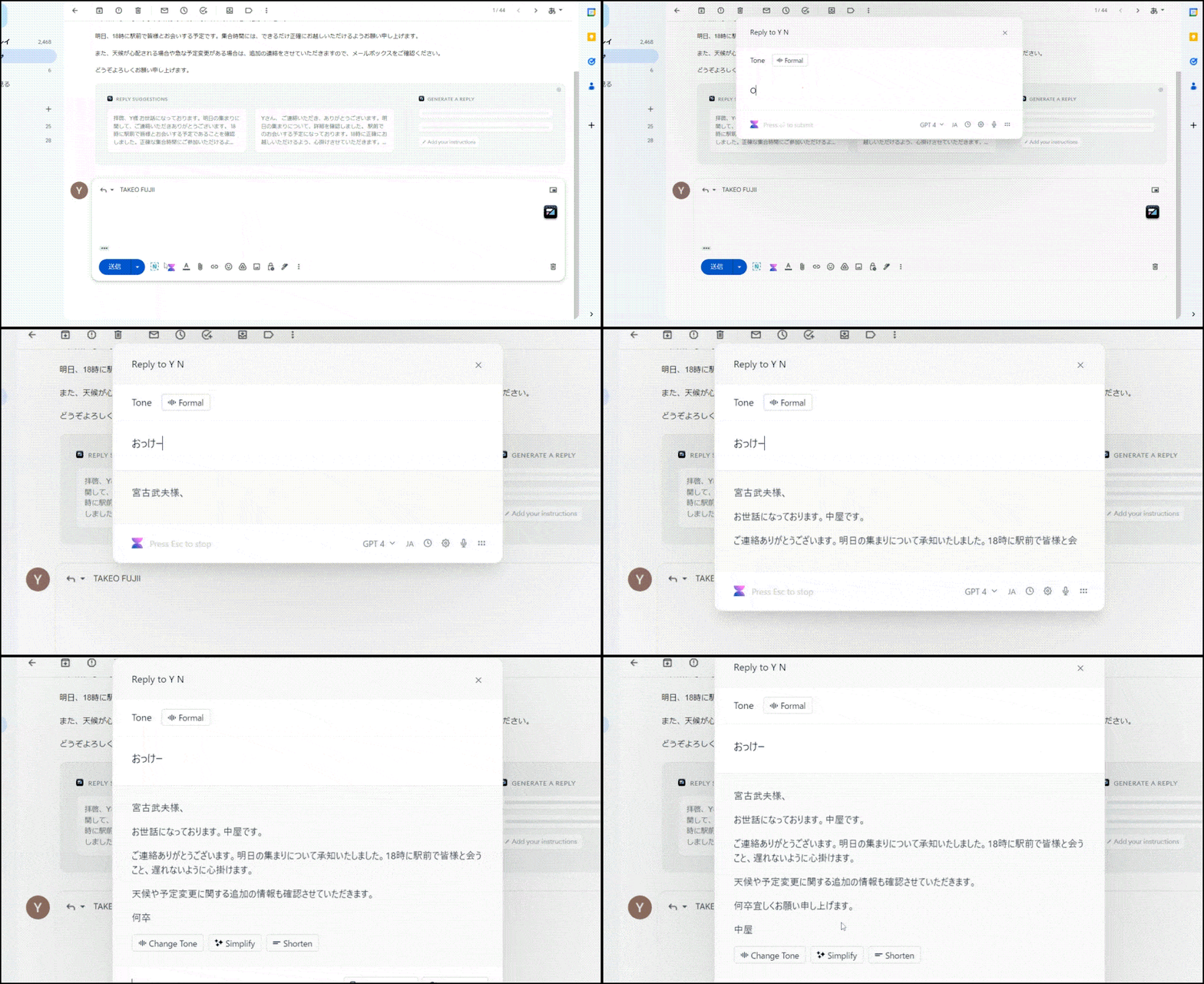
Voilà will automatically generate an email reply in Gmail.
In your daily work, replying to emails can take up a lot of time.
You may have rewritten your email text many times to convey what you intend while caring for the other person.
However, with Voilà, you can easilyIt automatically creates email replies with AI with one touch.
High-Quality Content Creation 📝
Please take a look at one more thing.

I automatically create blog posts with Voilà.Just enter the topic you want to write about and leave the rest. It automatically writes high-quality blog posts.
Generate article titles and headings as well.
Automatically create ✨ blog posts to email text with AI
You can create a blog post, seminar script, professional marketing materials (product development, marketing, sales, ad copy, SEO), and any other text.
And it doesn't just generate sentences for you.
In VoilàImprove writing, correct spelling and grammar, translate sentences, and summarize and extract important information from sentencesYou can also do it.
It's truly an AI secretary.


Numerous entrepreneurs and marketers today use Voilà on a daily basis.
Whether you have this tool or notUndoubtedly dramatically changes your daily work, that's Voilà.
Compatible with 💻 various browsers

This Voilà is a browser extension. This means that you can install and use it on Google Chrome, Microsoft Edge, Mozilla Firefox, etc. It is compatible with major browsers.

By the way, Chrome-derived browsers Brave and Sidekick also worked without any problems at all.
🔒 Privacy-focused
By the way, what you are worried about when using this type of tool isSecurityThat's true.

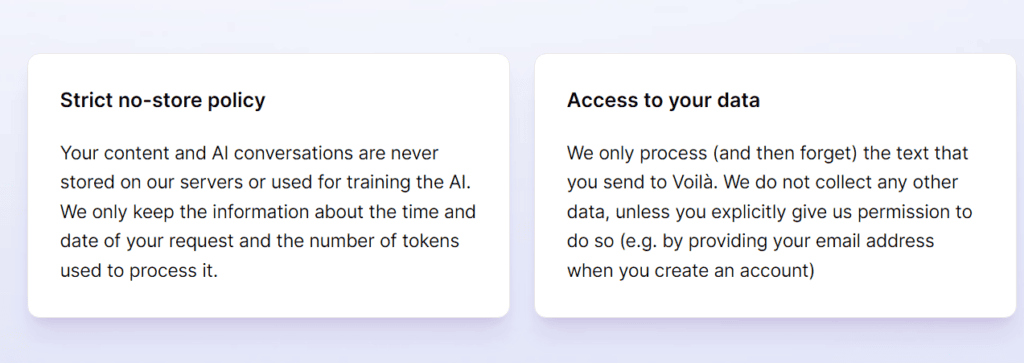
Voilà respects your personal data. Your content and conversations with the AI are not stored on our servers. You can use it with confidence.
How to install Voilà
Now let's explain how to actually install it.
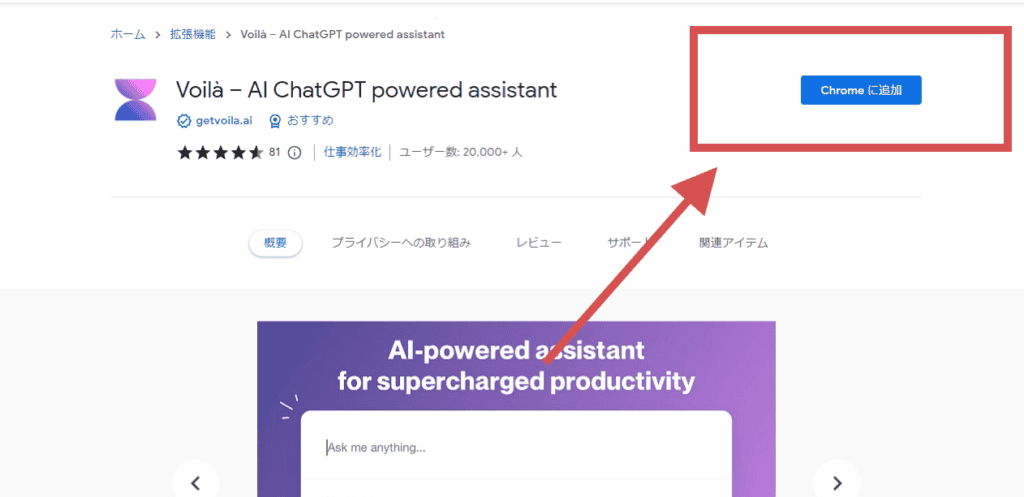
The installation of Voilà is simple. First, open the official Voilà website.


You'll see a link to the extension. Click the link.


I'm using Google Chrome, so I'm going to install the Chrome extension.
Once the installation is complete, Voilà's icon will appear in Chrome's extension bar. Now Voilà has been successfully installed on Google Chrome.
The installation method is simple like this.
After installation, you can take advantage of Voilà's useful features.
Basic use of Voilà
We will explain the basic use of Voilà. However, it is not difficult to use. It's easy to install.
How to start
By default, theYou can launch Voilà by pressing "Ctrl + M" at the same time.
You can freely change this shortcut key at any time. Don't worry.
Or click on the Voilà icon in your browser's toolbar.
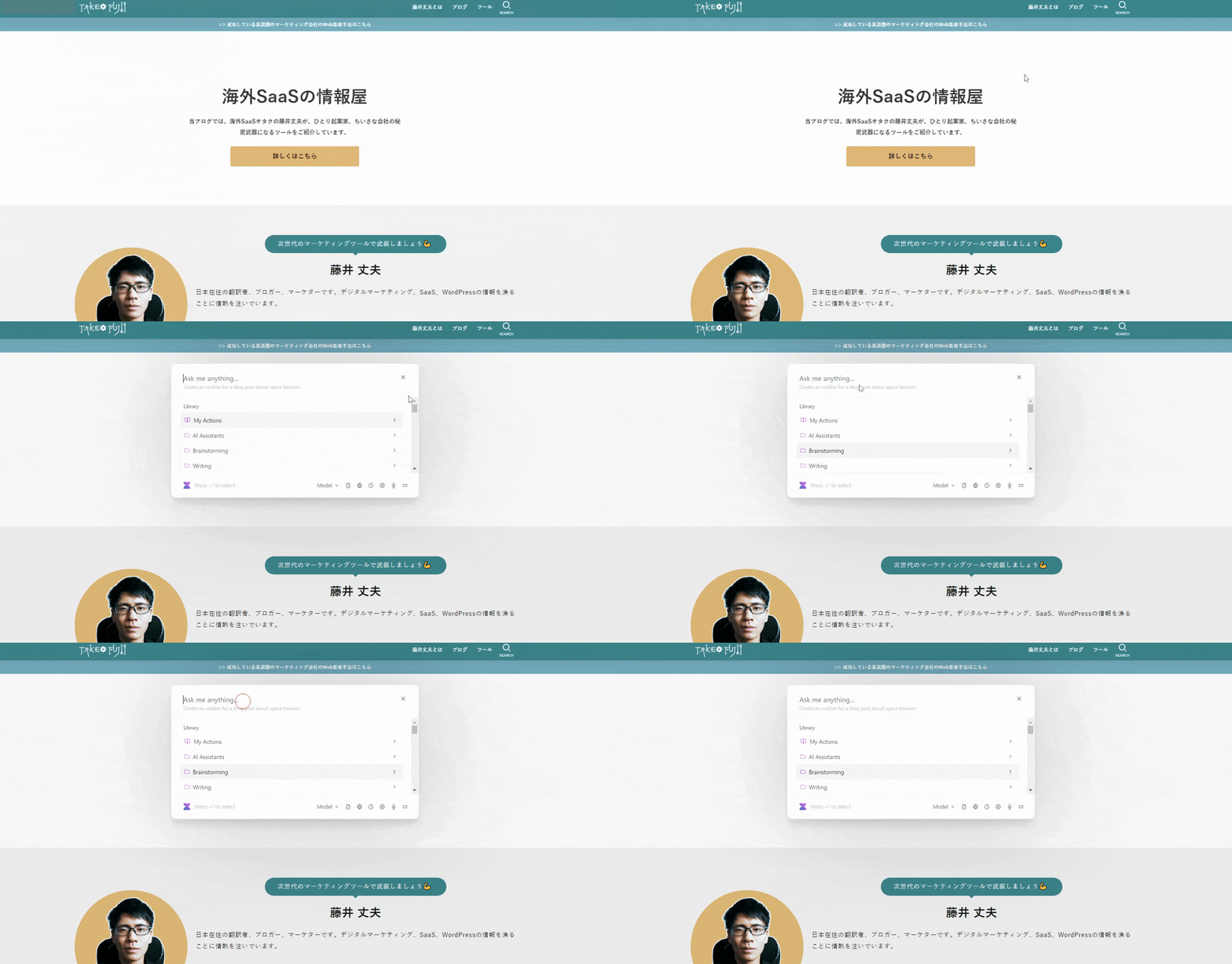
Select a sentence & right-click
Also, select a specific text on the page and right-click on it.
Once you do so, you will see the icon of Voilà. By clicking on this icon, you can translate the selected sentence in Voilà, summarize it, and instruct Voilà to generate various other sentences.
Watch the video below.
It's a short video,Voilà can launch any page and create any sentenceI think you can see that.
Try using prompts
Voilà comes with a variety of pre-made prompts.


However, they are all prompts in English. If you use it on a daily basis, it is a little inconvenient.
But don't worry.You can freely save your daily prompts.


Click Actions from the menu bar.
There is a button "Custom new Action", click on it. Then you can freely create a prompt and save it.

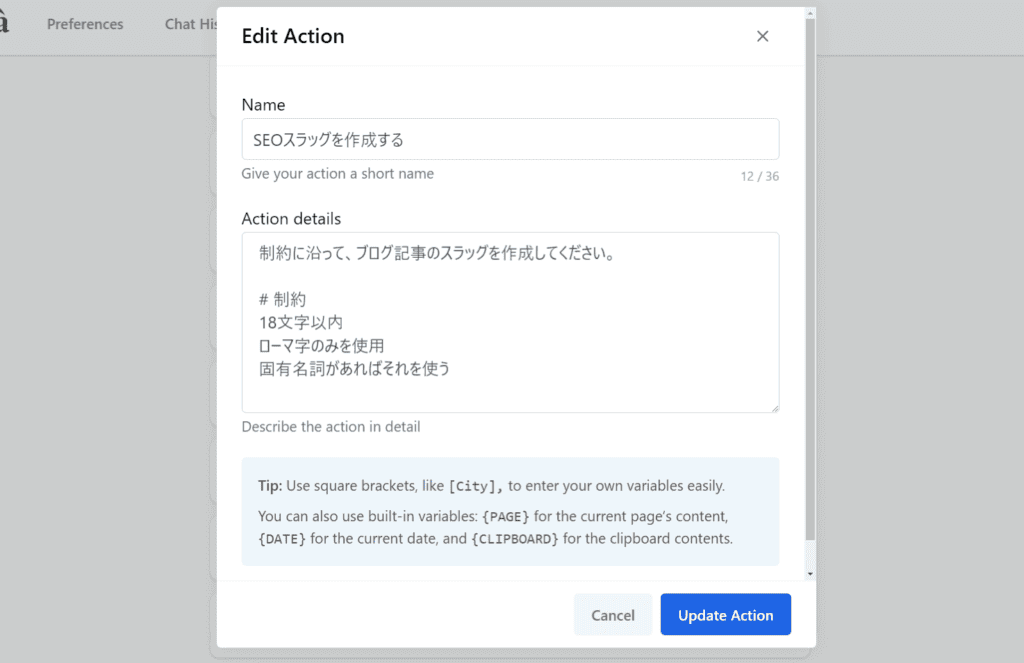
- Name
- Action details (prompt)
By saving the prompts you use on a daily basis here, you will be able to generate sentences more efficiently when using Voilà in the future.
By using this feature, you can quickly use Japanese prompts in Voilà.


You can launch Voilà like this and use your saved prompts at any time.
If you want to create a sentence like this right now, Voilà can instantly generate the sentence you want.
By using this feature, you can easily and quickly generate the sentence you want to create on any page.
Application techniques to maximize efficiency in Voilà
In factApplied techniques to streamline your writing with VoilàI will explain some of them. All of the applied techniques described here work in Japanese.
If you are interested, I hope you will use it.
Integration with Gmail and MS Outlook
- I'm having trouble thinking about the text of the email to send to the other person.
- If you can quickly create easy-to-read email text...
- It's too much trouble to write a reply email
With Voilà, all those problems are eliminated. It analyzes the content and context of the email and generates appropriate email sentences.
In Gmail, an icon appears at the bottom of the email compose window.

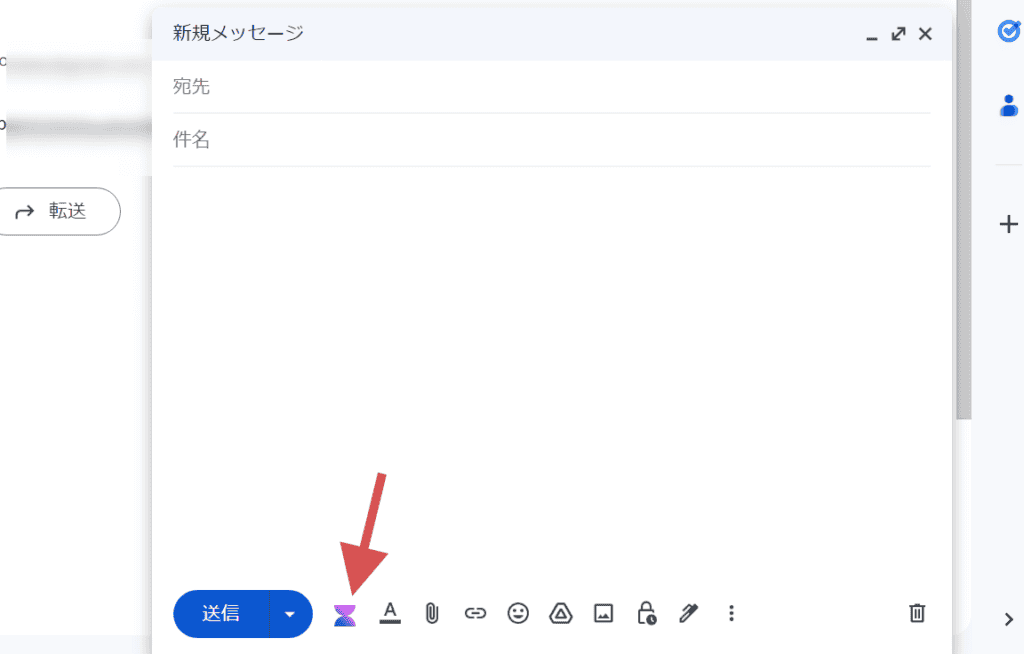
Click this icon to create a pop-up for your email. Please see below.

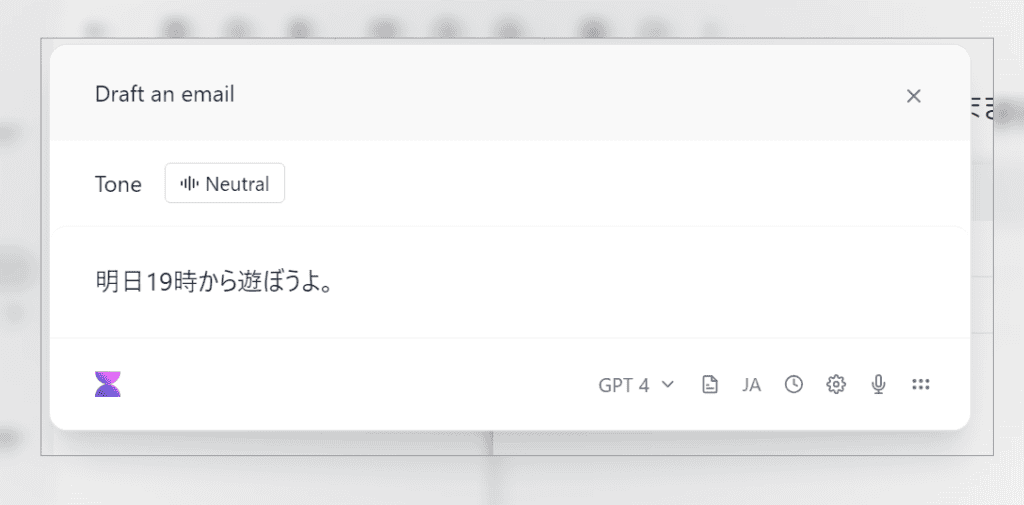
I just typed "Let's play from 7pm tomorrow". Then press Enter.


In this way, a polite reply email sentence was automatically generated. It's a very useful feature, isn't it?
I receive more than 30 emails a day and reply to all of them.
If you reply to emails manually, the morning will be completely crushed, but by using this function,I was able to reply to more than 30 emails in just a few minutes.
If you use Gmail or Outlook, this is a feature you should try.
Recently, the functionality has been improved. It automatically creates higher-quality email text than ever before.
Output in tabular format
You can also output in tabular format. See below for an example of actual output in tabular format.
Just one word like this"Please output in tabular format"Just add it, and it will easily output as a table.
You can paste the table you made here into your blog or use it to create materials. Very useful.
Create a YouTube summary
When you open the YouTube video page and select "Summarize YouTube video",You can create a summary of your YouTube videos automatically.
Press CTRL+M to bring up a pop-up.

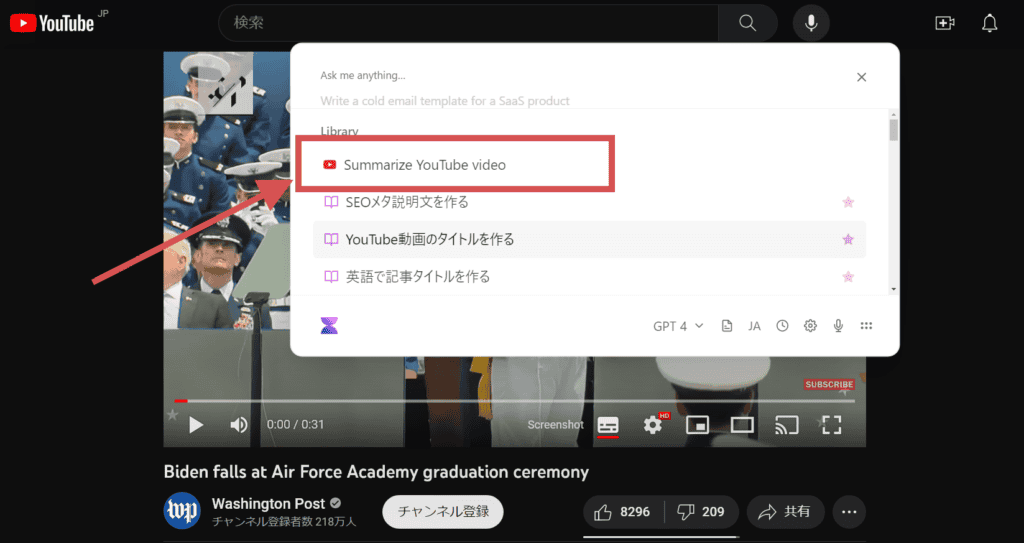
Inside this is an item called "Summarize YouTube video", click on it. It will automatically summarize the content of the video.


Since it is an English video, it is output in "English". But don't worry. If you continue to type "Please translate it into Japanese"...

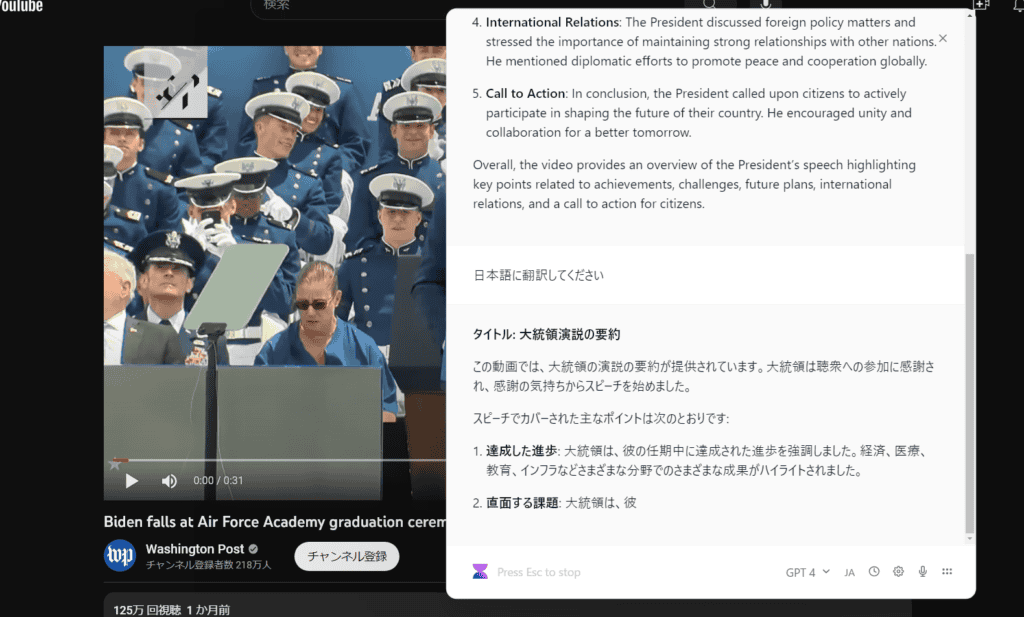
In this way, the video content is summarized in Japanese.
It's not just a YouTube video summaries;
You can translate the summary into other languages, create a blog post based on the summary, or even rewrite it into a social media post, which is very convenient
Create sentences from specific URLs
There are also unusual features in Voilà. Voilà, automatically extracts and parses URLs from the prompts you enter.
What can be done? See below.

If you enter "URL + instruction text", it will automatically analyze the page, generate a sentence, and tell you.
This feature is also useful for creating blog posts.
Create sentences based on information from the current page
In addition, Voilà said:You can generate text based on the content of the page you are currently viewing.
It's easy to use. Simply click on the "Use page as context" icon in the bottom right corner of the Voilà dialog.


This feature allows any website to read the content on the page and generate text.
Even if it is an English page, you can easily read what is written on the page by outputting it in Japanese.
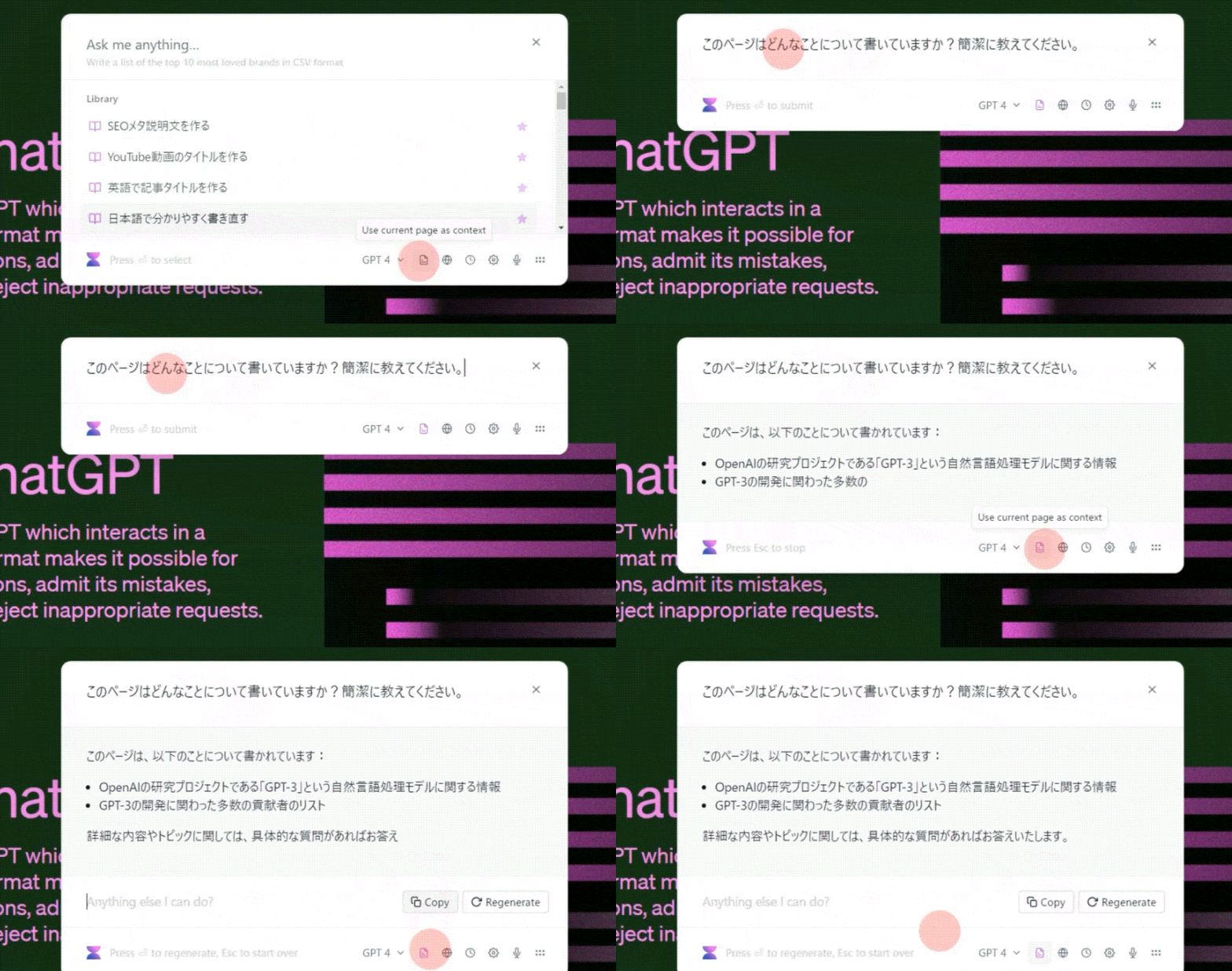
I myself use this feature often. It's a useful feature.
How to change shortcut keys
The shortcut key for Voilà is "Ctrl + M". You can change this shortcut key at will. The change is simple.
To get started, press Ctrl + M. This will bring up the Preferences icon Click on that icon.

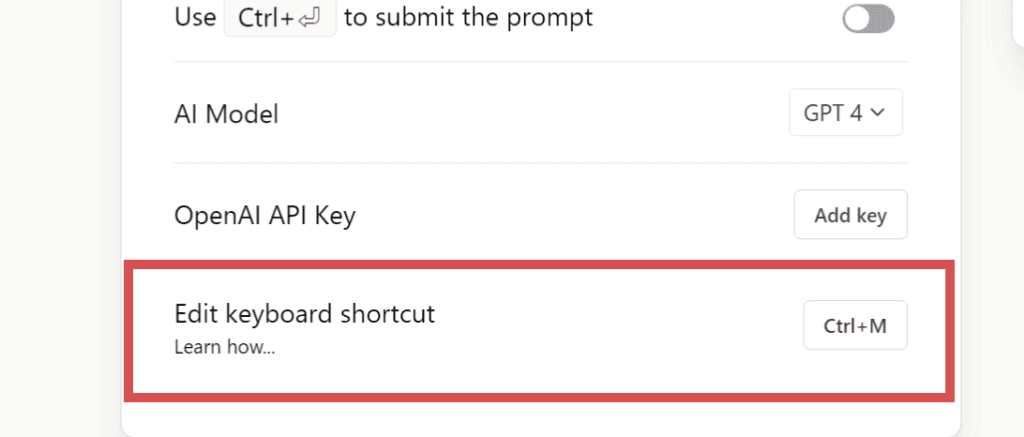
There is an item called "Edit keyboard shortcut" in it, so click on it. Feel free to change the shortcut keys here
Voice input is possible
Click on the microphone icon in the bottom right corner of Voilà to see theYou can type by voice.

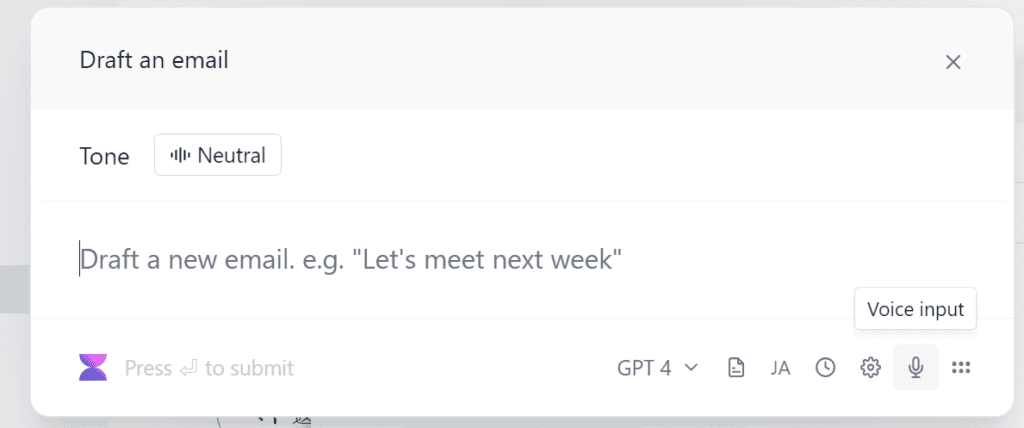
If you're not good at keyboard typing or want to speed up your writing even more, voice typing is a very powerful feature.
In fact, this article is also generating sentences by giving instructions to Voilà with voice input.
By the way, the accuracy of voice identification is also very high. The words you say into the microphone are typed exactly. I don't have to bother giving instructions to Voilà for keyboard typing
Voilà Pricing Plans

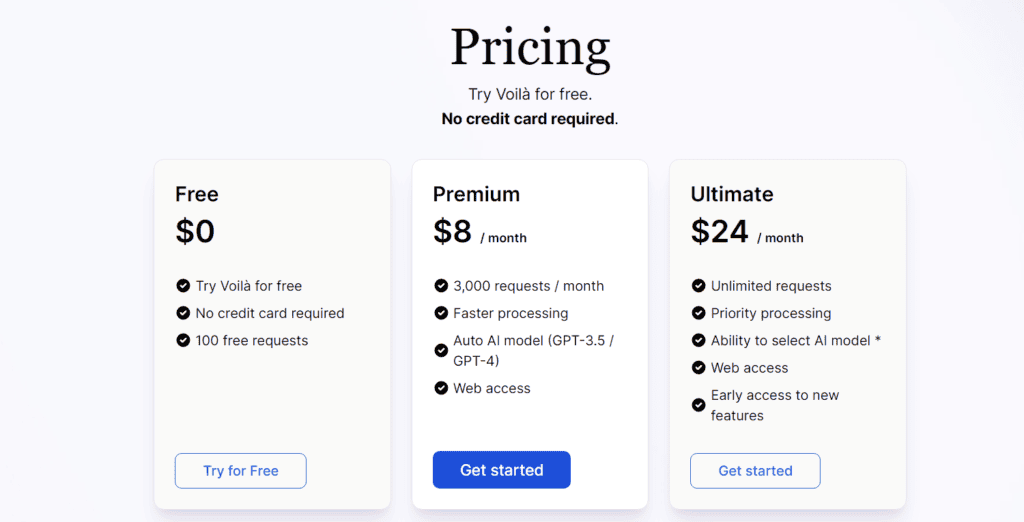
Below we have summarized the pricing plans of Voilà.
| Plan | Price | Number of requests | Processing speed | AI Models | Support | Early Access |
|---|---|---|---|---|---|---|
| Free | $0/month | 100 times/month | Standard | – | – | |
| Premium | $8/month | 3000 times/month | High Speed | Automatic (GPT-3.5 / GPT-4) | Yes | |
| Ultimate | $24/month | Unlimited | Top priority | Selectable (GPT-3.5 / GPT-4) | Yes |
There are three plans available.
If you want to try it out, the Free plan (free) is good. The free version can be used from the official link. Click the button below.
However, try using the free version,
I think there are some people who think, "I can't use Voilà very much."
The feeling is not wrong. Because the features are completely different between the free and paid versions.
What is the best plan for Voilà?
I'm using the Ultimate plan.
For those who are considering using Voilà. If you are in doubt,We recommend the Ultimate plan.
The Ultimate plan costs $24. The yen is weak, so it is 4,000 yen in Japan yen. If you want to join a weird online salon, you should use the Ultimate plan.
The reason is that in the Ultimate plan,Because there is no limit to the number of requests.In other words, you can generate as many sentences as you want. For entrepreneurs and marketers who write a lot of text every day, we recommend the Ultimate plan. You can create unlimited sentences.
You can use GPT4 without worrying about the price
Above all,You can use GPT4 (virtually) unlimitedly.
Do you want to generate sentences with GPT 3.5 or GPT4? You can choose the Ultimate plan yourself.

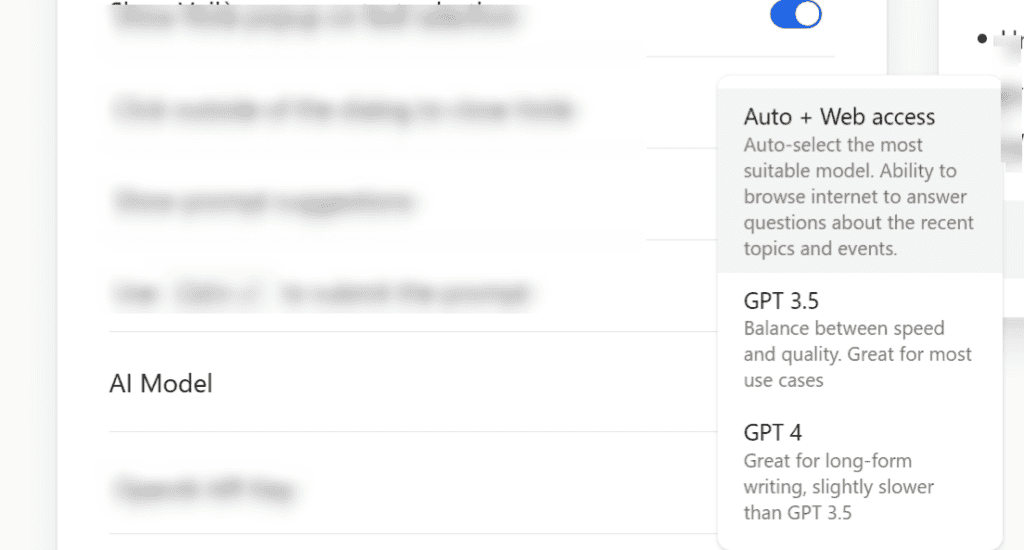
The Premium plan does not allow you to choose your own AI model.
If you want to generate high-quality sentences with GPT4, we recommend the Ultimate plan.
The speed of sentence generation is by far the best!
By the wayThe processing speed of sentence generation is also the fastest.
It can be launched on any page on the web. You can also launch it on your own WordPress editing page and create sentences as shown below.
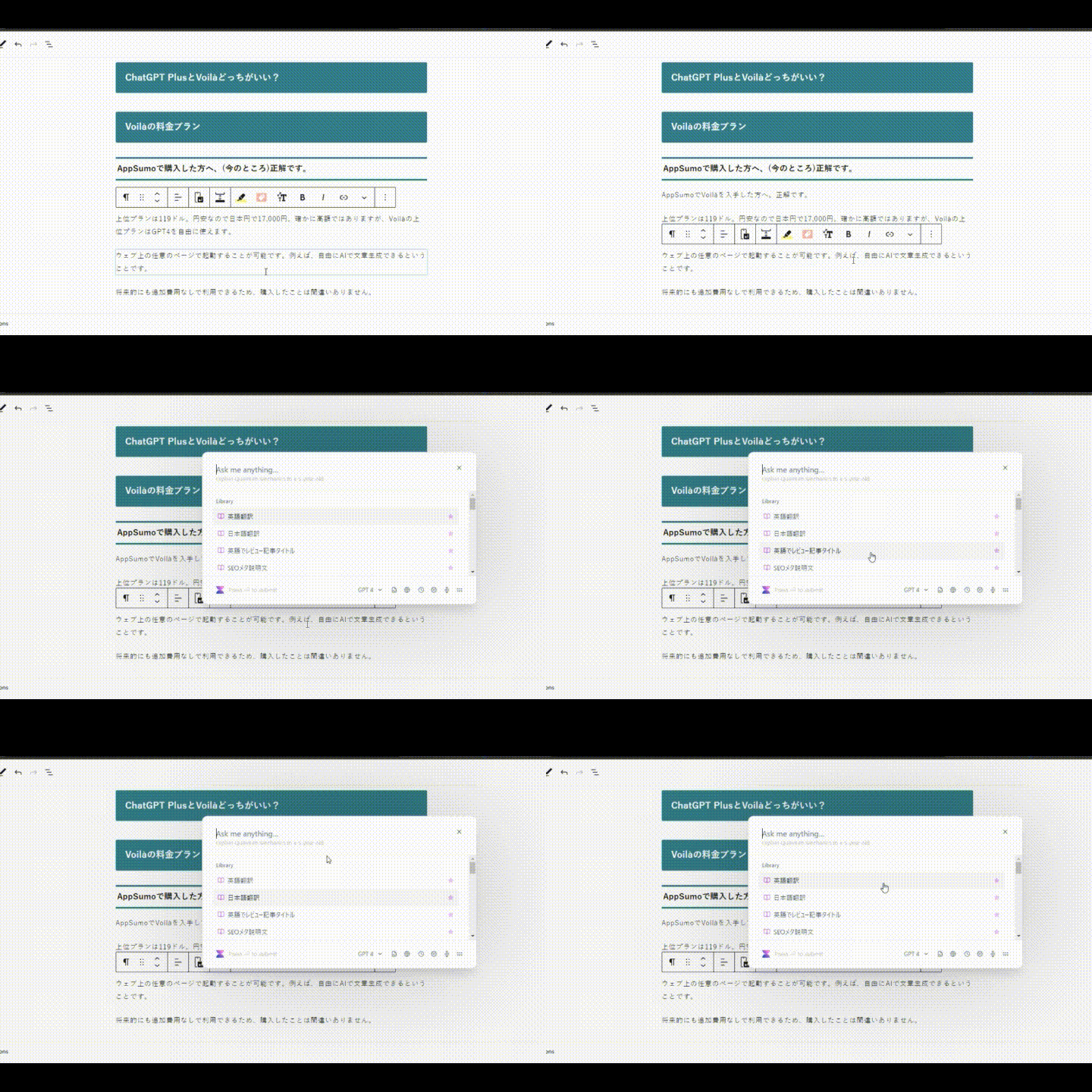
If you are unsure, we recommend using it even for one month.
Steps to subscribe to Voilà's paid plan [Japanese OK]
Now, we will explain how to actually subscribe to Voilà's paid plans one by one with illustrations.
First of allThis linkClick on it.
This will take you to the official page. Install the extension from there.
If you are already using the free version, you can skip this step.
After installing the extension, launch Voilà on any page.

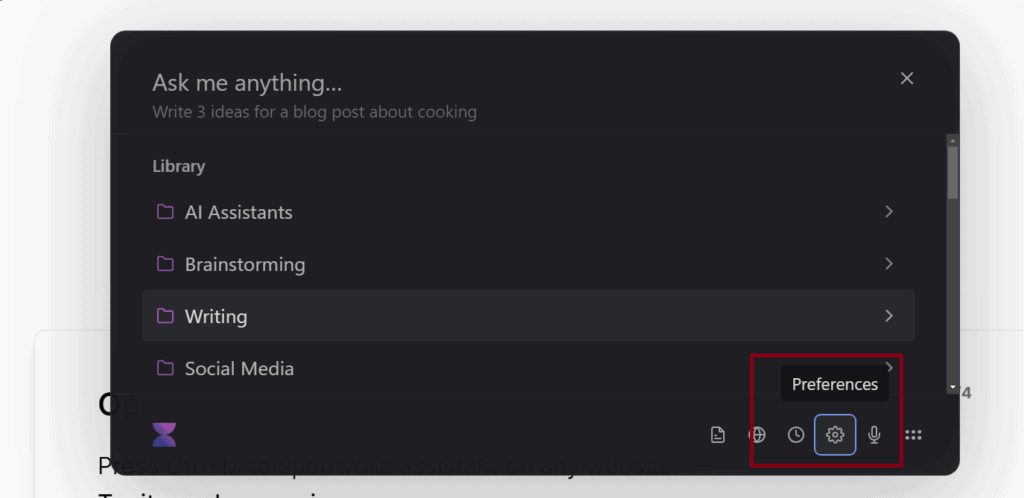
By default, "CTRL+M" will launch Voilà.
PreferencesClick on the icon.
Go to the settings page. A price list is prepared in this.


Select the plan you want to subscribe to and click the button.
This will automatically take you to the payment page. Please rest assured that the page is in Japanese.


Enter your email address here. Once you have entered your input, click "Next".

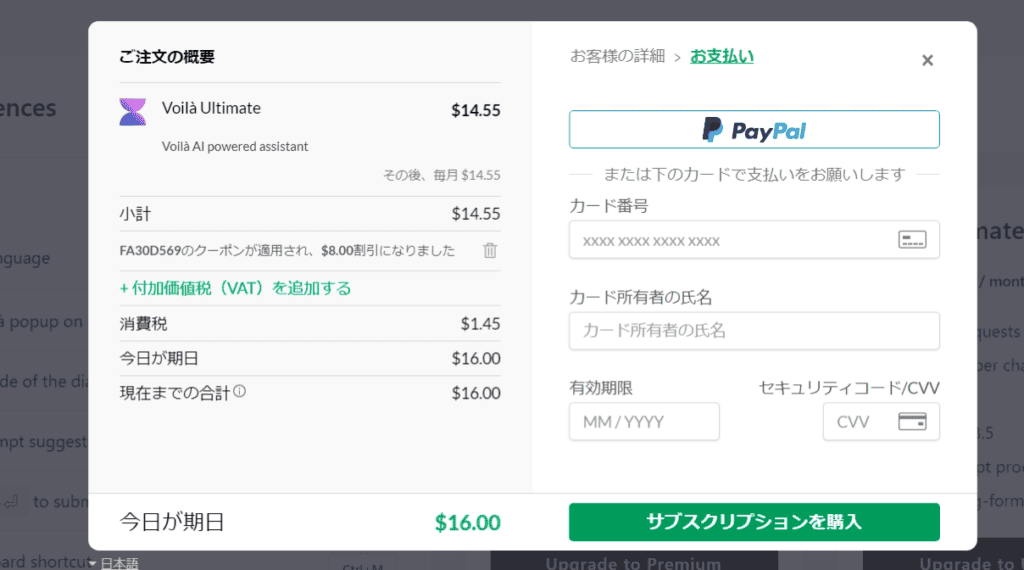
There are two payment methods available.
- PayPal
- Credit Card
Both payment methods are secure.
However, if you are worried about using a credit card on an overseas site, please use PayPal. There is no risk of card numbers being misused or leaked. It can be used safely even from Japan.
Once you've chosen your payment method, click "Buy Subscription."
You have now completed your subscription to the paid plan. Please make the most of Voilà.
If you have any questions or concerns about using it, please feel free to ask me. Please write your question in the comment section at the bottom of this page and we will answer it.
Which is better, ChatGPT Plus or Voilà?
Some of you may have these questions.
Which is better, ChatGPT Plus or Voilà? Both can be flexibly generated using GPT4.
However,Each has different functions and usage scenarios.
Here are the key differences between ChatGPT Plus and Voilà:
The Allure of ChatGPT Plus
First, we will provide basic information about ChatGPT Plus.
Below is a table of information provided:
| Contents | Description |
|---|---|
| Price | $20 per month |
| Available features | – Constant access – Available even during peak hours – Faster response than the free version – Priority access to new features |
| Availability | It is currently available worldwide, except for some regions. It can also be used in Japan. |
| Other characteristics | – ChatGPT Plus allows you to use new features on a priority basis. – You can use GPT4 |
Currently, ChatGPT Plus is adding more and more features that are not available in the free version. I myself pay $20 per month to use it. There is no doubt that it is very useful.
The charm of Voilà
Next, I will include the information about Voilà
| Plan | Price | Number of requests | Processing speed | AI Models | Support | Early Access |
|---|---|---|---|---|---|---|
| Free | $0/month | 100 times/month | Standard | – | – | |
| Premium | $8/month | 3000 times/month | High Speed | Automatic (GPT-3.5 / GPT-4) | Yes | |
| Ultimate | $24/month | Unlimited | Top priority | Selectable (GPT-3.5 / GPT-4) | Yes |
There is a free plan, but the features are quite limited. You cannot select an AI model. Also, it is not practical because it can only be used up to 100 times a month.
If you are looking for practical features, the Ultimate plan is the only choice.
Which is better? ChatGPT Plus VS Voilà
Which one is better to use, this depends on your purpose.
- I want to try the latest features that are not available in the free version of ChatGPT
- I like new things
For those people, ChatGPT Plus is the way to go.
However,If you have a lot of opportunities to write on a daily basis, such as writing blogs or creating social media posts, I highly recommend Voilà.I really want you to try it just to try.
To be honest, creating sentences with ChatGPT can be quite stressful. Navigating to a dedicated page to use ChatGPT Plus every time is a hassle.
On the other hand, Voilà can be launched on any page and used quickly without having to move pages.
You can instantly create AI text on Twitter, Instagram, YouTube, your own WordPress site, or any other site.
In other words, if you want to improve your business efficiency or dramatically change your writing skills, Voilà is the way to go. I definitely want you to try it.
Frequently Asked Questions
The Q&A below is the official answer of Voilà.
You can try it for free without a credit card!



















Mr. Fujii, I always watch videos.
I would like to ask you a question.
Can I use chat gpt plugins and prompts in Voila?
I'm sorry for the beginner and childish question, but thank you.
Mr. Fujikawa
Thank you for your question.
ChatGPT plugins cannot be used in Voilà.
However, you can use prompts.
In addition, Voilà is equipped with interesting features.
You can generate text using the information of the page you are currently viewing.
With this feature and prompts, you can generate the sentences you want very efficiently.
Please see the image below.
https://takeofujii.net/wp-content/uploads/2023/11/voila-active-tab-page-read-and-generate.jpg
The contents of the page displayed in this way are read, and the rate plan is output in Japanese in a table format.
This is quite practical, isn't it? This is a unique feature of Voilà.
You can also save and recall your usual prompts in Voilà at any time.
https://takeofujii.net/wp-content/uploads/2023/11/voila-prompts-lists.png
Therefore, you don't have to go out of your way to copy and paste or write prompts every time.
You can save your frequently used prompts in Voilà so you can call them up at any time to easily create sentences.
Please consider it
Also, any questions are welcome 💪
This blog deals with information that is difficult to find in Japan.
Therefore, if you have any concerns about Mr. Fujikawa, not just VOILA, please feel free to ask us at any time.
Voilà, but can you think of it as only taking out the GPT-4 part of ChatGPT? In that case, I feel that DALL-E 3 and GPTs cannot be used or created.
Yes.
You can use GPT4 and GPT3, as well as the web browsing feature (BETA).
Except for GPTs and image generation, it can be used in the same way as ChatGPT for other text generation.
You can generate sentences with GPT4, so you won't have any problems with the quality of your sentences.
Please check the sales page for details on the included features.
If you have any questions, please let us know.
Thank you for your prompt response in the YouTube comments. I didn't get a reply on YouTube, so I'll comment here.
I flew to that page and didn't find the Voila activate button.
The Activate now button described in the previous video is now displayed as go to product
We will also send you a reference image.
https://imgur.com/a/Vo7RSpH
Also, if Voila is displayed in the products, is it certain that you have purchased it?
Thank you for letting us know more details.
I saw the image.
Once the purchase and redemption are complete, the button will change its lettering.
Therefore, Voila seems to have completed the purchase without any problems.
How does it appear when I log in with the email address I registered at the time of purchase?
https://takeofujii.net/wp-content/uploads/2023/11/Sign-in-to-Voila-_-Voila-passwordreset.png
You should see the following page immediately after logging in.
https://takeofujii.net/wp-content/uploads/2023/11/Account-_-Voila-login-page.png
Now, if you log in and Tier 2 is not displayed, there are two possible ways.
(1) The email address used for registration is different.
(2) Registration failed due to Voila
What will it look like when you actually log in?
We will support you until the resolution. Thank you very much.
Thank you for your reply.
Thanks to you, we were able to safely move to Tier 2.
This was because I had canceled my AppSumo Plus Yearly Plan by mistake because I had canceled Voila as well.
When I checked in again, I was able to jump to the page successfully.
Thank you for your support across YouTube and blog.
Thank you very much.
I was relieved to hear that it was resolved safely.
Thank you very much for informing us of the details.
Please use 💪 Voila from now on.
Can you tell me how to use Voilà to auto-post two types of Twitter accounts with TaskMagic?
I am always indebted to you.
You want to create X (formerly Twitter) posts with Voilà and post them automatically.
In conclusion, you can't use Voilà with TaskMagic.
What that means is,
Because you can't use Google extensions with TaskMagic.
Therefore, not only Voilà but also other Google extensions cannot be used within TaskMagic.
However, you can create X (formerly Twitter) posts with ChatGPT or Katteb and post them automatically
■The video below should be helpful.
How to automate ChatGPT with TaskMagic
https://youtu.be/cHPKM1y83PQ?si=e2CkfodglxFYrJdM
・How to create trending blog posts using Katteb in TaskMagic
https://youtu.be/jO1NnxZHcSs?si=mlD0F5uydM3Jl0EX
I think the second video will probably be useful.
When scraping the text I made with Katteb in this second video,
The line breaks have been completely ignored.
However, when I verified it later,
After setting up scraping, click on "Advanced Settings"
https://takeofujii.net/wp-content/uploads/2023/12/taskmagic-text-line-break0.jpg
Then the following screen will appear.
https://takeofujii.net/wp-content/uploads/2023/12/taskmagic-text-line-break.jpg
Here, "Keep formatting (line breaks, etc.)" If you check the box, you can scrape the sentence with line breaks.
Therefore, I don't think you can use Voilà with TaskMagic, but other AI writing tools work well.
※Supplement
In the video above, when you log in to X (formerly Twitter), you enter your ID and password to log in, and all of these tasks can be shortcuted. Please use cookies. For information on simplifying the login process using cookies, please see this video▼
https://youtu.be/D3chiYcj-HE?si=VUi-hF804UUNf6tv
Mr. Fujii, I always watch videos.
————————————————–
Try using prompts
Voilà comes with a variety of pre-made prompts.
————————————————–
I can't write prompts and I can't do "Actions" well.
If you have any example sentences, would you like to give me a few?
I'll do my best.
Thank you.
Thank you for your question.
Answer video released on YouTube ▼
https://youtu.be/l8fL2FWFv0s
Please take a look.
Basically, the prompts for generating sentences that can be used in ChatGPT can also be used in Voilà.
So you don't need to create a special prompt for Voilà again.
However, by combining Voilà's special features explained in the video above with existing prompts, you can generate sentences with more flexibility.
Please use it.