


Spending an hour creating a blog post is meaningless if it isn't indexed. It is not read by anyone, the number of visits does not increase, and Google judges it as a garbage article.
In this article, we will discuss a powerful tool that automatically indexes blog posts to Google.URL Monitor".
With URL Monitor, it automatically indexes all the pages on your website so that they appear in search results.
Your hard-earned blog posts will appear in Google search results, more readers will find your articles, and the number of visits will increase exponentially.
- 1 Why doesn't my blog appear in search results?
- 2 What is URL Monitor?
- 3 Featured features of URL Monitor
- 4 How to register for URL Monitor [AppSumo]
- 5 Check your site's indexing status with URL Monitor
- 6 Steps to index Noindex pages in URL Monitor
- 7 Check the index status from Page Health in URL Monitor
- 8 Is URL Monitor safe?
- 9 URL Monitor Pricing Plans
- 10 Conclusion
- 11 URL Monitor FAQs
Why doesn't my blog appear in search results?
Are you worried that even if you write a blog, the number of visits will not increase?


The articles you wrote do not appear in the search results, and your efforts are wasted. Have you ever had such an experience?
Why do you try your best to write blog posts, but the access doesn't increase?
The reason is"Because it's not indexed"Maybe.
What is Indexing?
Indexing is when your articles and pages are listed in Google's search engine.

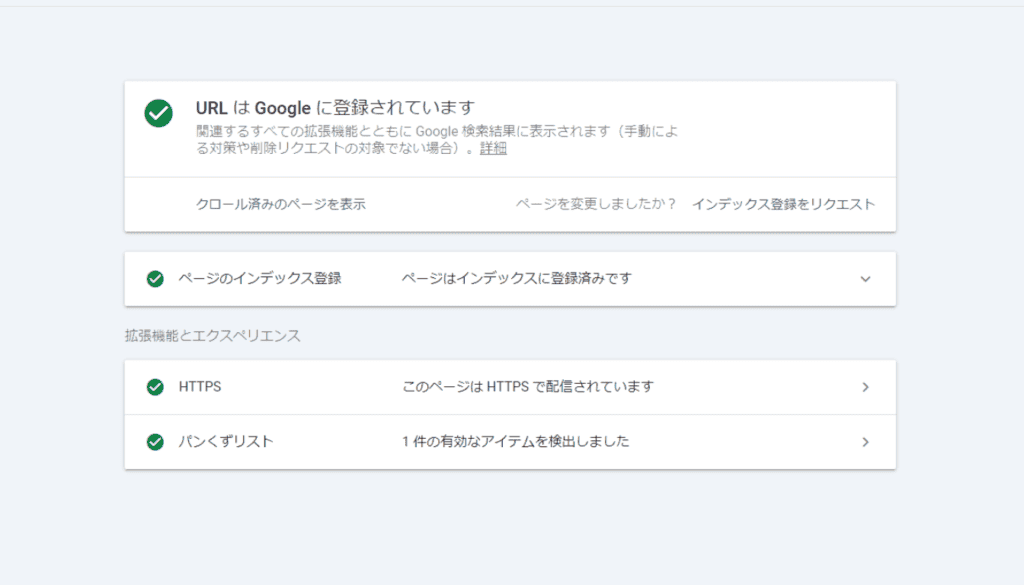
If it's indexed, your blog posts will appear in Google search results.
Conversely, if it is not indexed, no one will read it. Even if you Google it, your blog post won't come up
The reason why your blog or site is not getting more traffic is becauseBecause it's not indexedIt may be▼

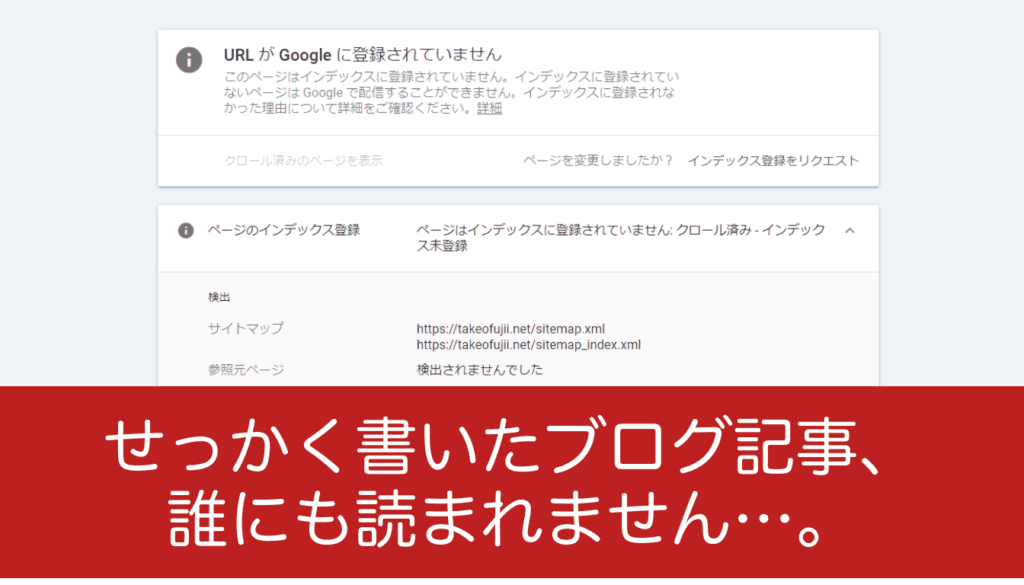
Being indexed will help Google search find your page.
For example, if you write a blog post with the content of "delicious ramen" and the article is indexed, people who are looking for delicious ramen will see your article.
Conversely, no matter how good an article you write, if it is not indexed, it's over.
Even if you write 1,000 articles or 10,000 articles, if you don't index them, access is almost zero. No one will read it, and access will not increase forever.
What is URL Monitor?

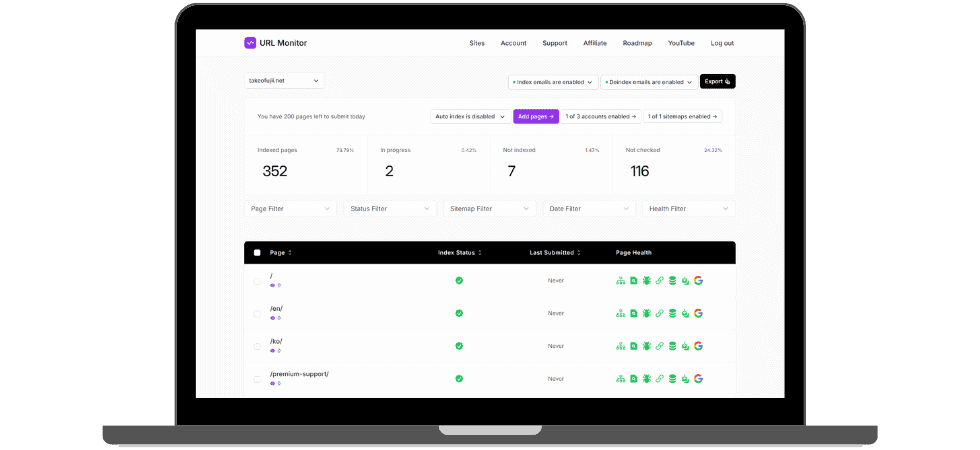
URL Monitor is a super powerful SEO tool.
Articles and pages on your site,Promote automatic and indexed by GoogleI will do it.
This is an SEO tool that works to ensure that the blog posts you create are well displayed in Google searches.
Featured features of URL Monitor
"URL Monitor helps you get your blog indexed."
… yes, I don't understand what it means. If you don't index it, your blog posts won't be read by anyone. Access does not increase. I can't make any money.
… However,What specific functions do they have?I will explain them one by one.
Automatic Sitemap Sync
At firstURL Monitor keeps a check on your sitemap.
If you run a blog, you may have experience、、、。
Every time I publish a new article, I open the Google Search Console and apply for indexing... It's too troublesome, isn't it?
With URL Monitor,Index requests can also be fully automated.

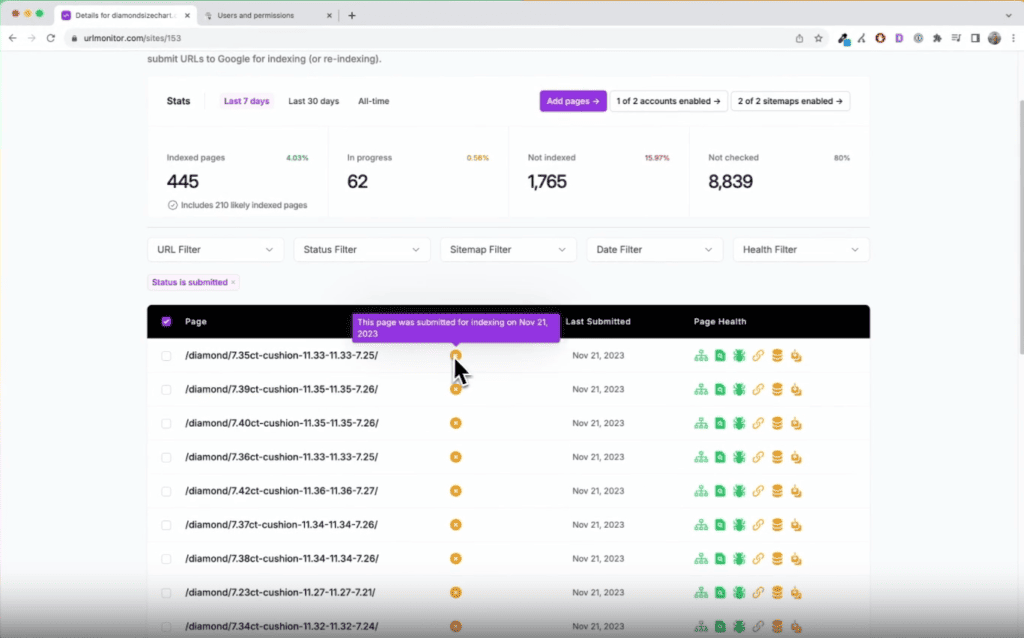
In other words, you just write a blog post and publish it. The rest is to throw it at URL Monitor.
It will automatically work to make your article appear in Google search results.
It regularly patrols your sitemap, syncs it to Google Search Console, and automatically indexes new articles as they are published.
Managing Index Health for Multiple Sites
Imagine. What if you run multiple blogs 、、、 5 or 10、、、。
Can you monitor hundreds or even thousands of articles on all those blogs? It is impossible to monitor every article and page to see if it is indexed.
With URL Monitor,You can manage multiple sites and their articles in one dashboard.
You don't have to manually find unindexed articles.
With URL Monitor, you can see unindexed articles at a glance.

Reporting & Downloading Results
No index... In other words, pages and articles that are treated as low-quality by Google.
I want to download this information and share it with other team members...
That's okay too. In the upper right corner of the URL Monitor, you will find the "Export" button. Just press this button.

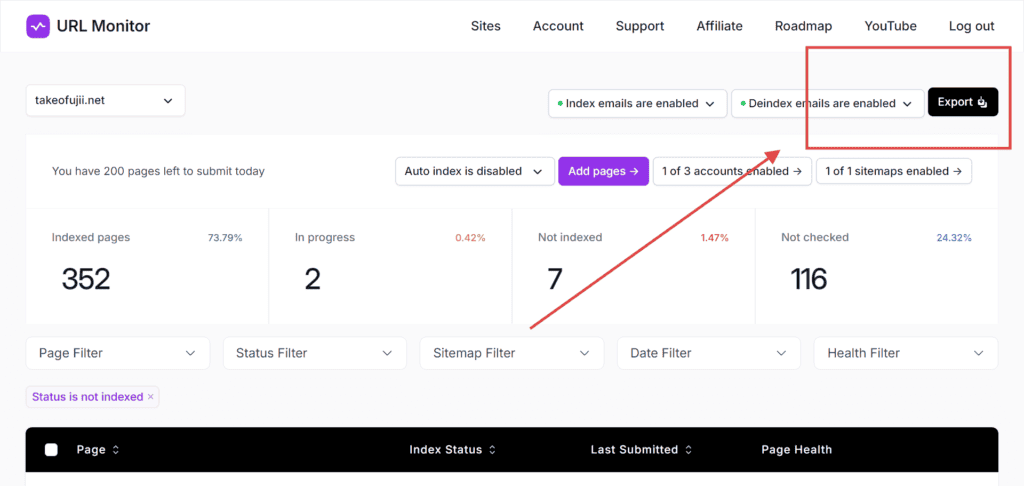
You can automatically download all current non-indexed pages in CSV file format.
The image below is the CSV file that I actually downloaded.

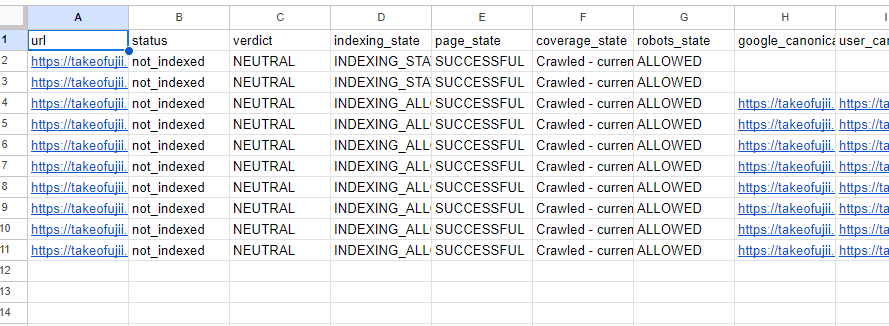
status, you write "not-iundexed".
These articles are not indexed. In other words, it is treated as low-quality by Google and does not appear in search results.
You can download and save these data.
You can also receive weekly email reports on the status of your index to check your progress. That means you don't even need to access URL Monitor.
You'll receive your blog post's indexing results via email every week.
How to register for URL Monitor [AppSumo]
This section explains how to register for URL Monitor.
If you purchased on AppSumo, please follow these steps.
There are a few caveats. Please be careful not to overlook any reading.

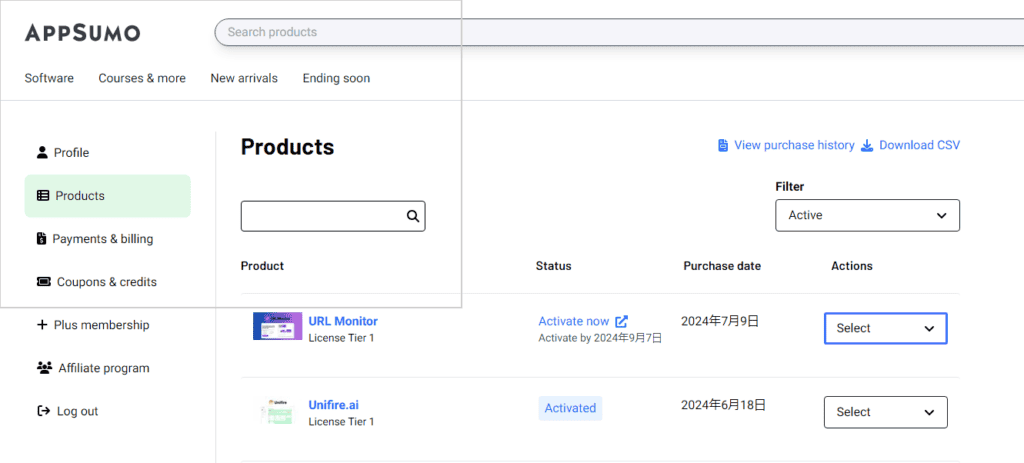
The first thing you need to do is go to the AppSumo Product page. Find the URL Monitor you purchased.
If you press the Actions option on the right, multiple items will appear. Select the top "Redemption information" ▼

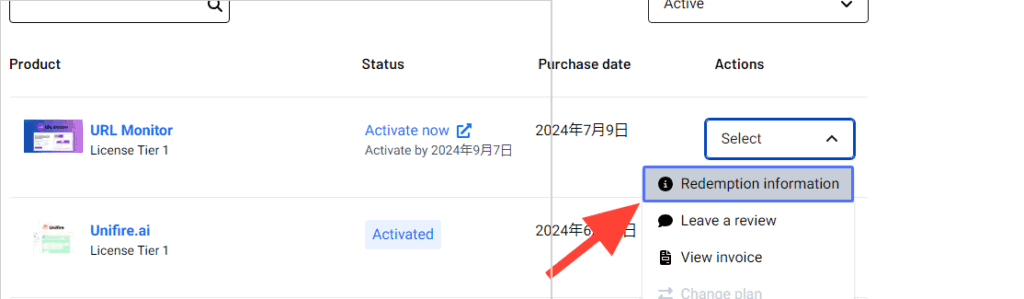
Go to the redemption page.
Press the middle button (Activate now) on this page.

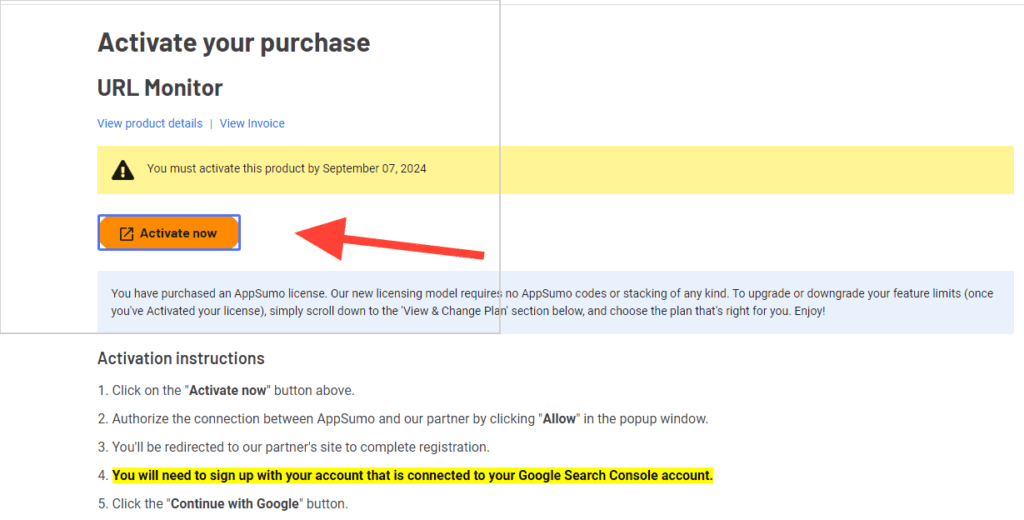
Then a pop-up will appear.
Press the "Allow" button▼

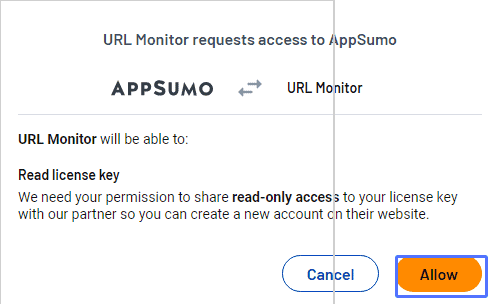
Pressing the button will automatically take you to the URL Monitor site.
Integrate URL Monitor with Google Search Console
The first thing you will see is to log in to Google Search Console.
Press the button.

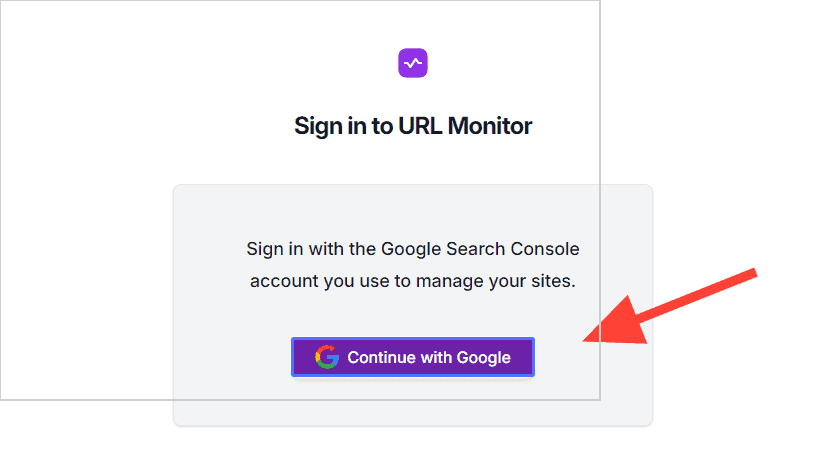
Pressing the button will automatically bring up your Google account login.
Select the Google Search Console account that is linked to your website here.

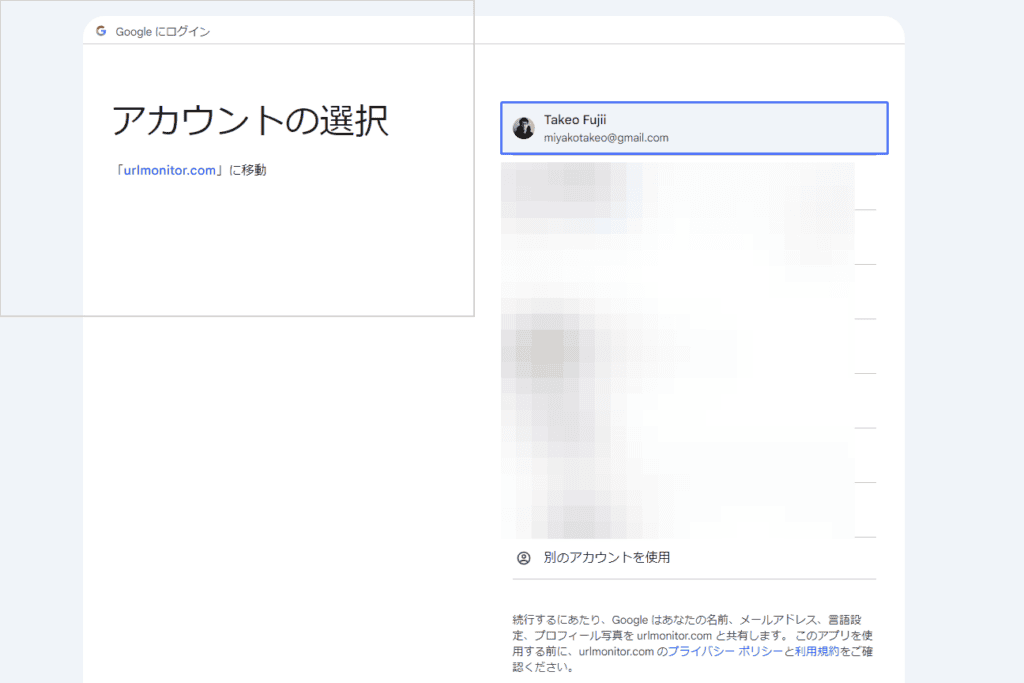
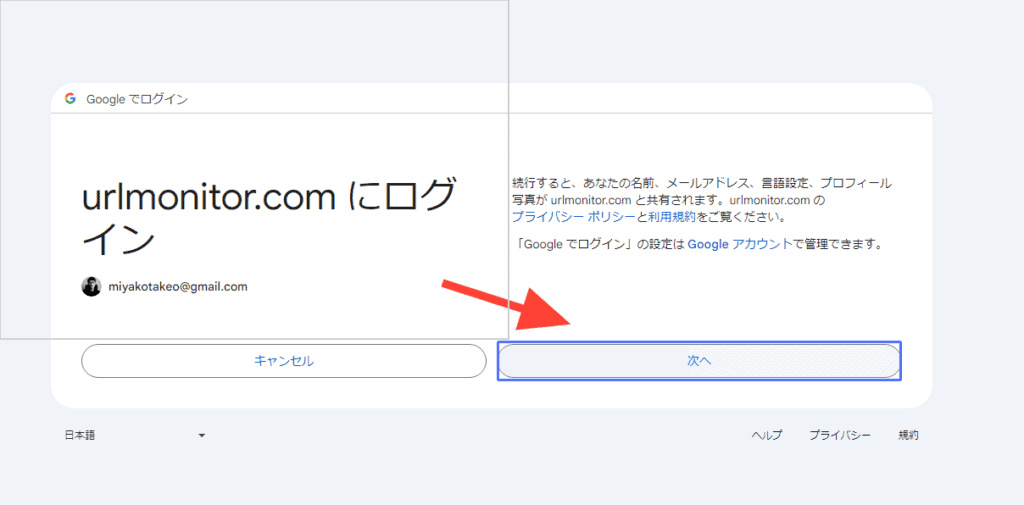
Once you have selected your account, you will see a page called "Log in to urlmonitor.com".
Here we press "Next".


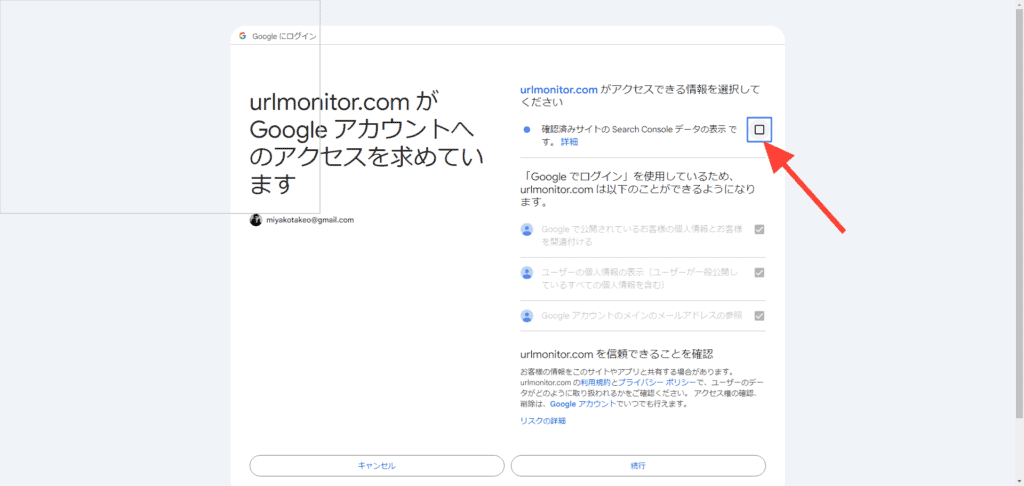
You will be prompted to "Select the information you have access to", so check "Show Search Console data for verified sites".
Once checked, press the Continue button.

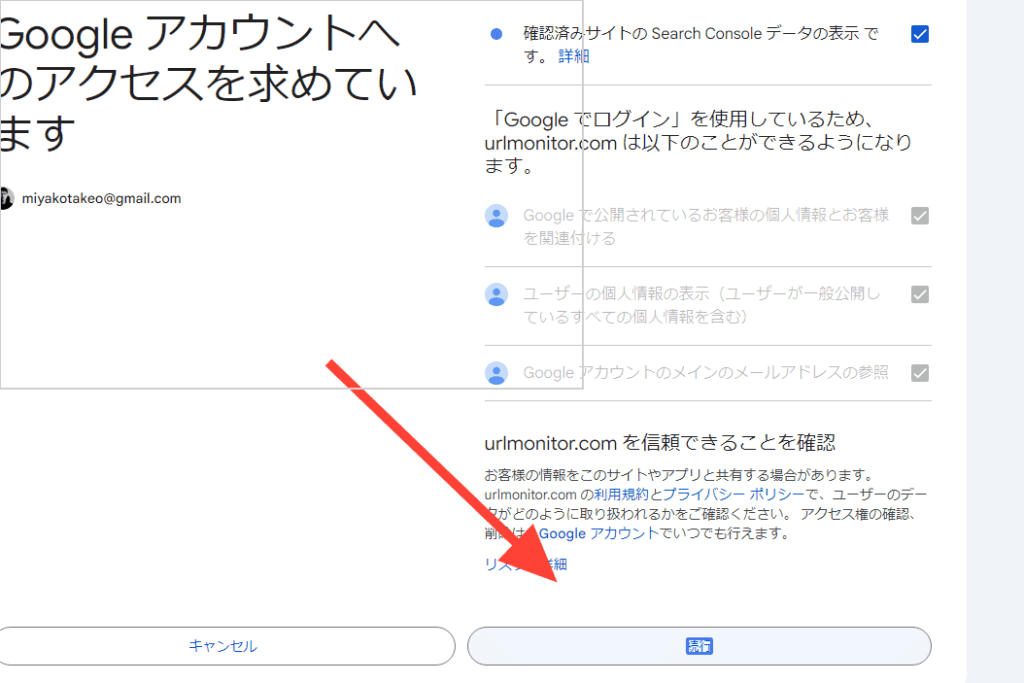
The Google Search Console data and URL Monitor will automatically complete the integration.
Steps to connect URL Monitor with your site
Automatically navigates to the Sites page. This is where you will see all the site URLs in your Google Search Console.

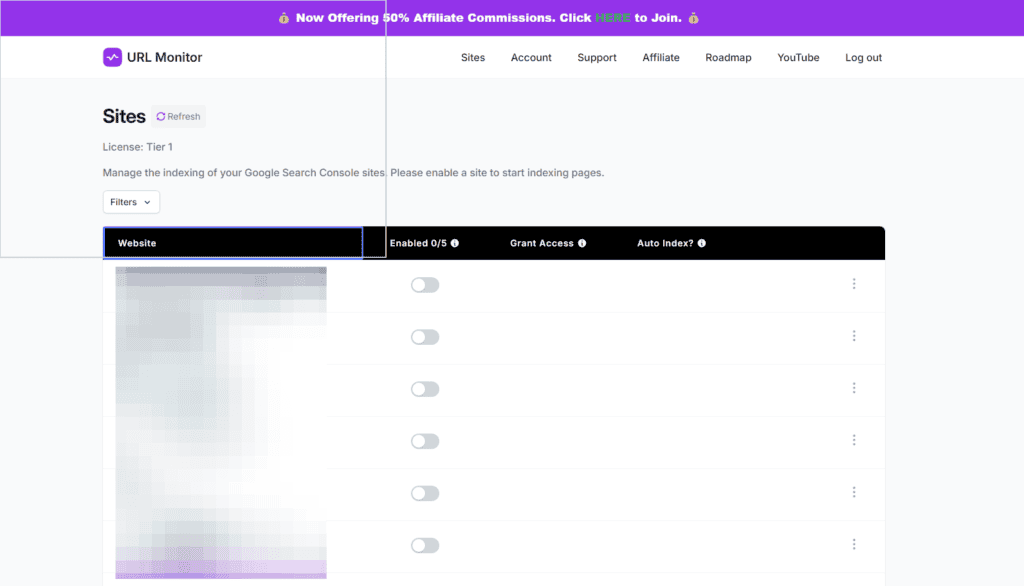
Select the site you want to integrate with URL Monitor
The site URL is unchecked. Turn this on.
By doing this, URL Monitor will be able to index and check the status of the site.
When turned on, a button for "Details" will be displayed▼

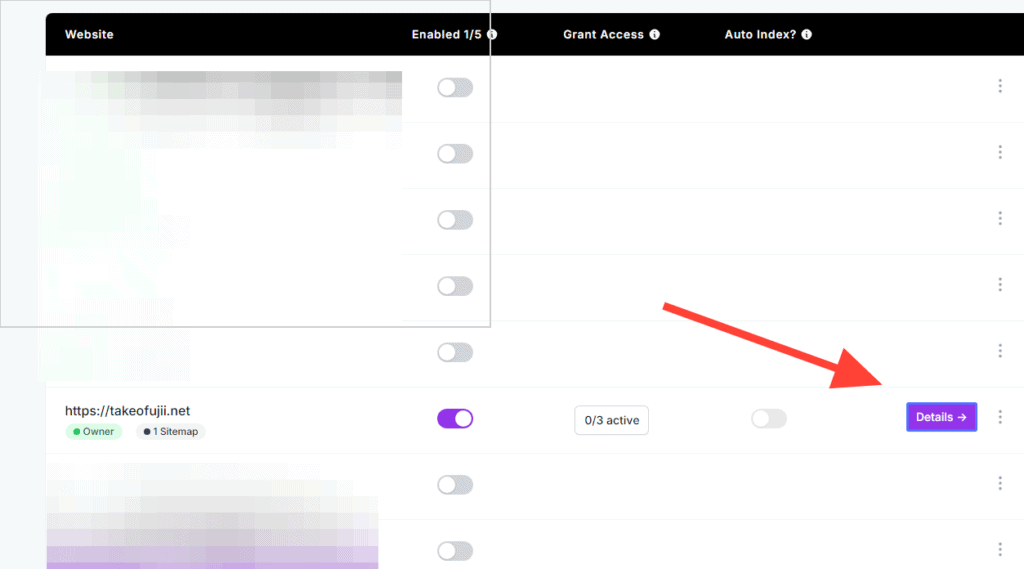
Press this button.
This will open a pop-up window. Here you will see three email addresses.
First, copy the first email address here.

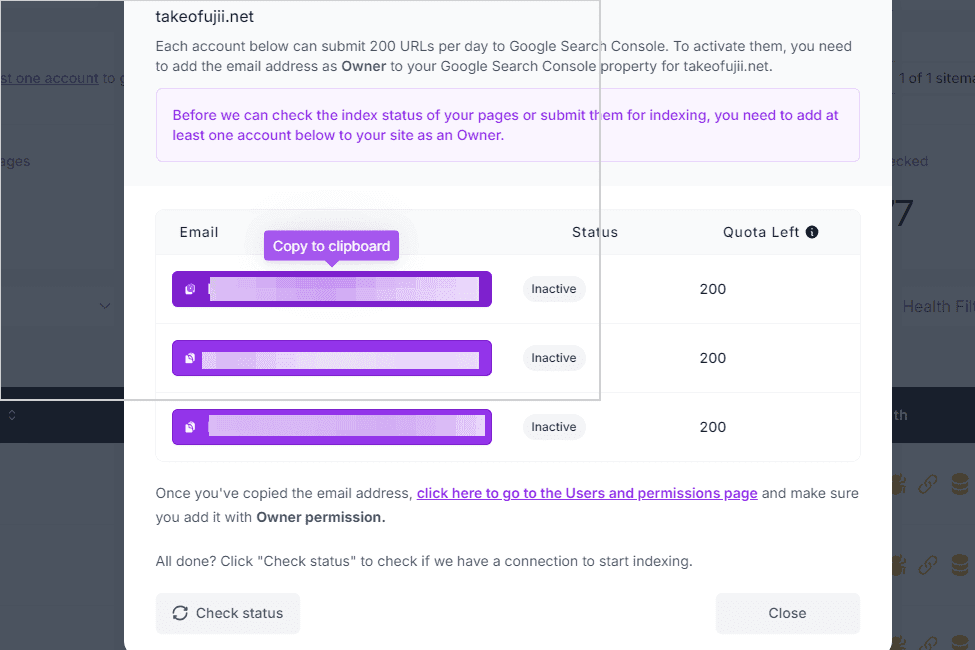
Pressing the copy icon will automatically copy your email address to your clipboard
After copying, press the link below. Please check the image below for the location of the link.

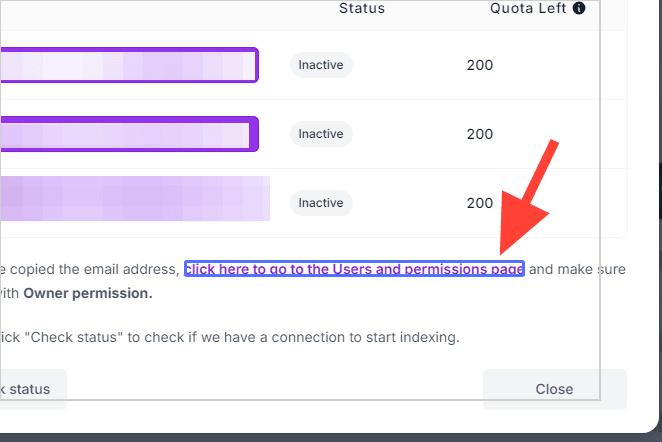
Pressing this link will automatically take you to the Google Search Console.
When the page opens, press the "Add User" button.

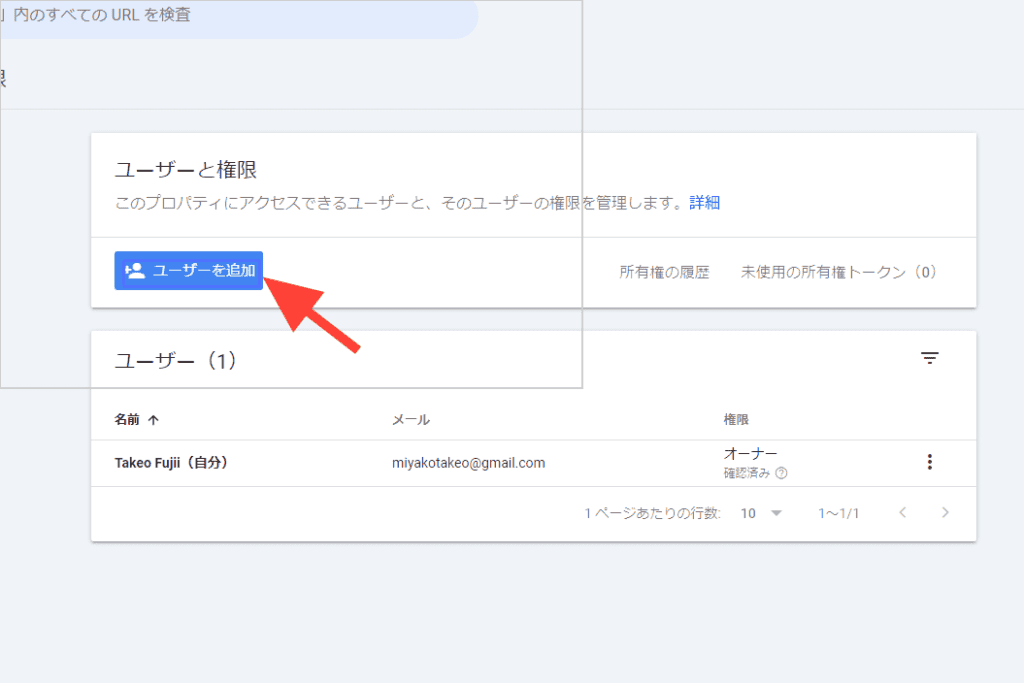
In the email address input area, paste the email address you copied earlier.
Then change the permission to "Owner".
In the image below, it is "full", but please set it to "owner".

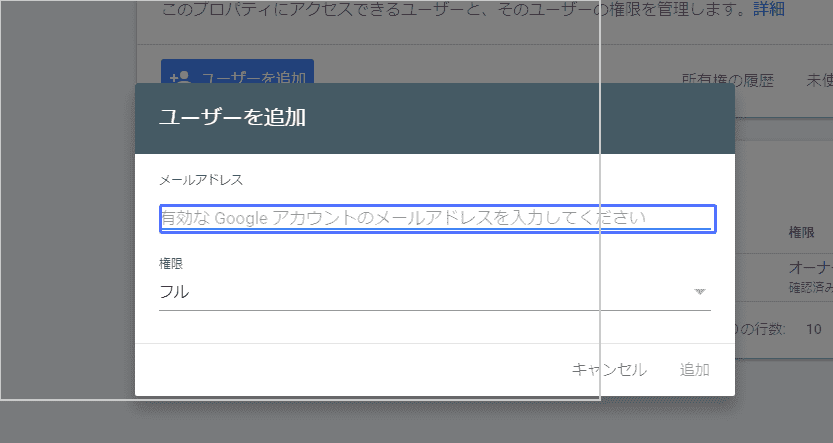
And add it. This will add new users. Make sure that the permission is set to "Owner"▼

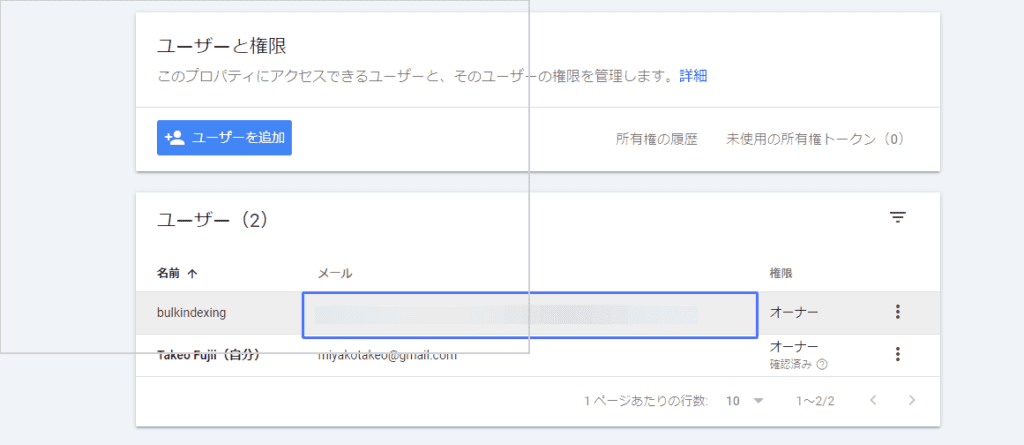
Once this is done, return to the URL Monitor page again.
There is a "Check status" button in the lower left corner. Press this button.

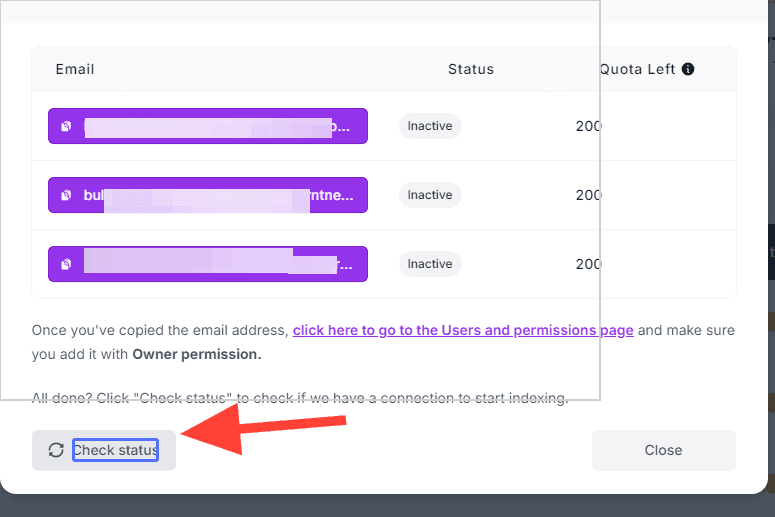
It is checked whether the link is possible.
If the integration is fine, the Status will change to "Active".

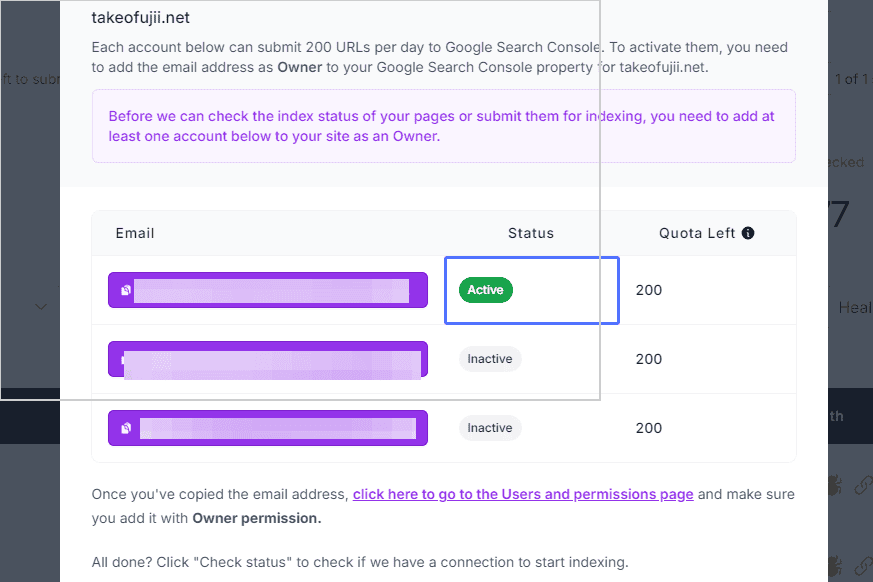
At least one will need to add the email address as a new user.
Once you have added it, press the "Close" button.

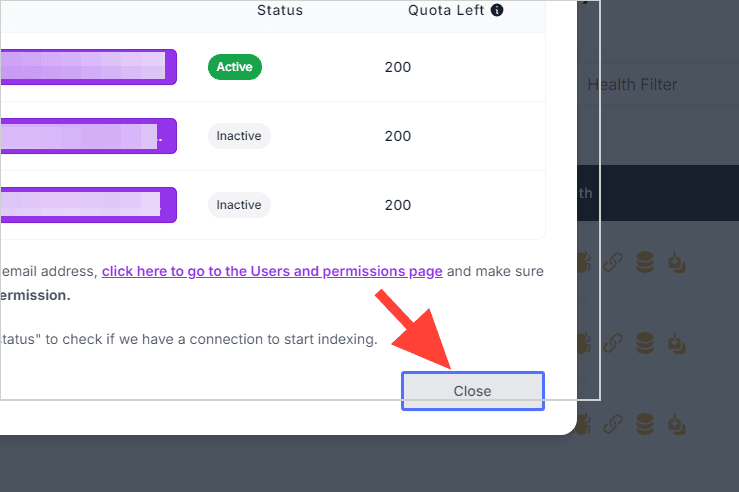
You have now set up the link between URL Monitor and the Search Console.
Check your site's indexing status with URL Monitor
Press the "Details" button. Then, the index status of your site will be checked in order from the top.
Please see the image below.

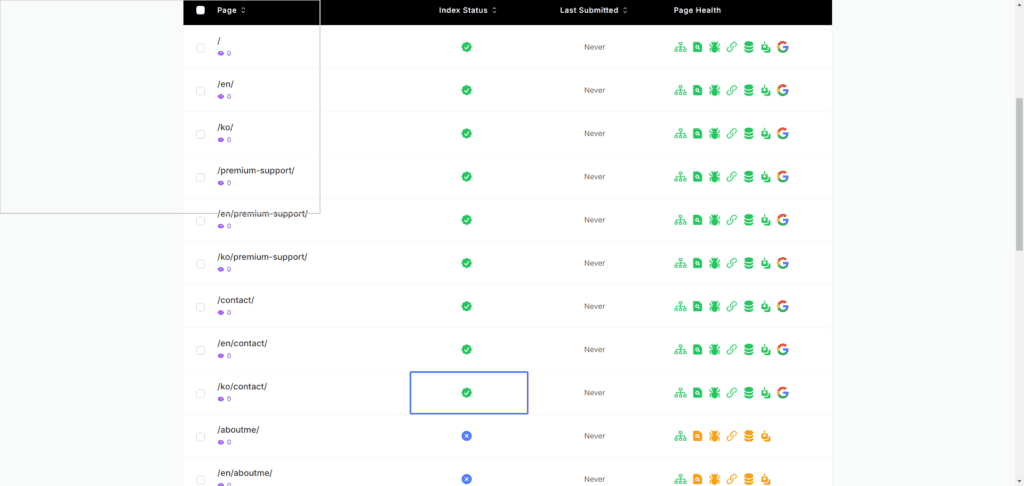
If the index is fine like this, the "Index Status" item will be a green icon.

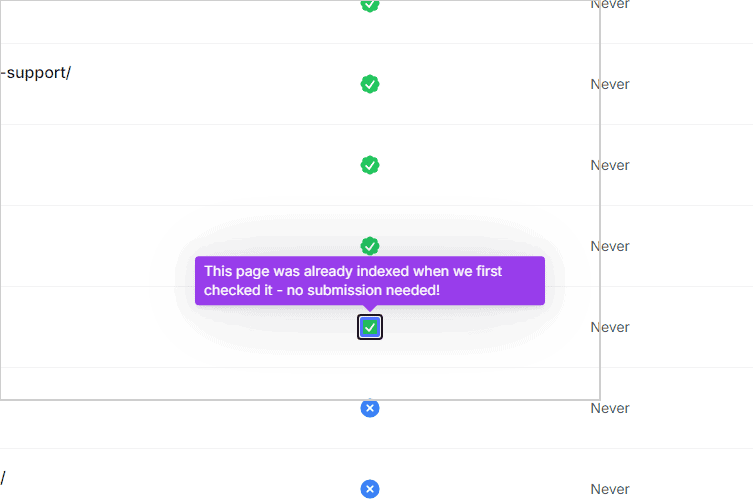
It also automatically checks whether it is indexed.
If the page is hundreds of pages, it will take at least one hour. However, even if the URL Monitor page is closed, it will be automatically checked. It's okay to just close the page.
Steps to index Noindex pages in URL Monitor
Press "Status Filter" at the top of the URL Monitor.

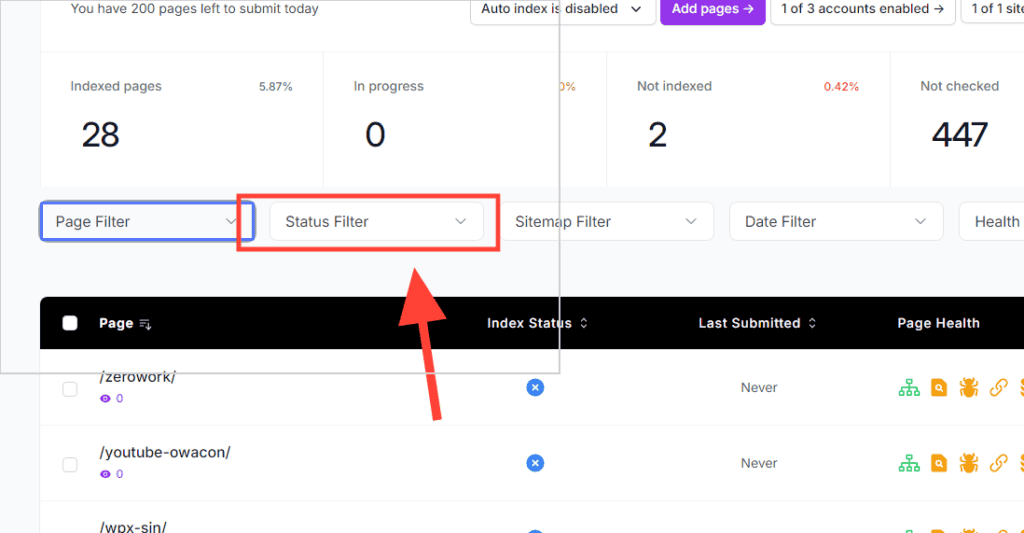
Then a few items will appear.
- In progress
- Indexed
- Indexed by URL Monitor
- Likely indexed
- Not indexed
- Not checked
- Queued
Among these「Not indexed」Press

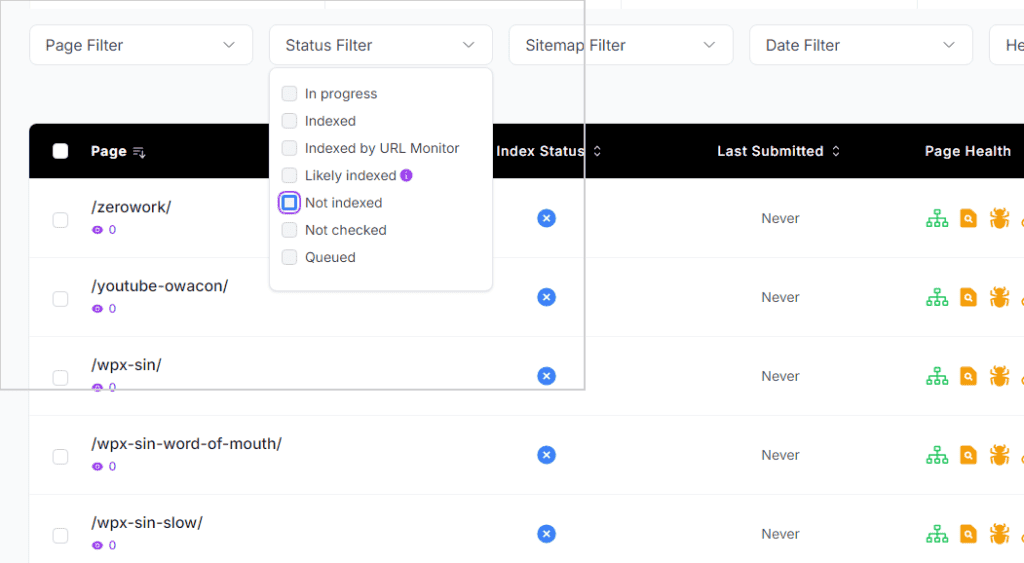
This will only see pages that are not indexed.
Pages that are not indexed have a red × icon with "Index Status".
Press the checkbox in the top left.

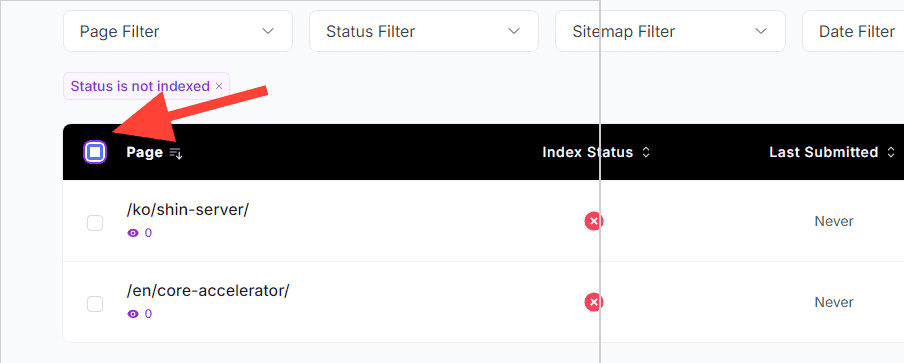
You can select all pages in the No Index state.
Then press "Submit X pages for indexing".

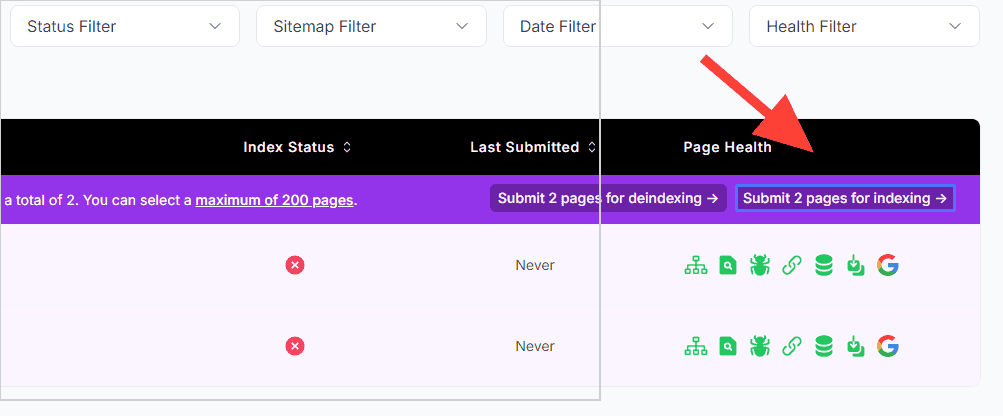
Now all index applications are complete. You don't have to do anything else.
All pages are indexed in URL Monitor.

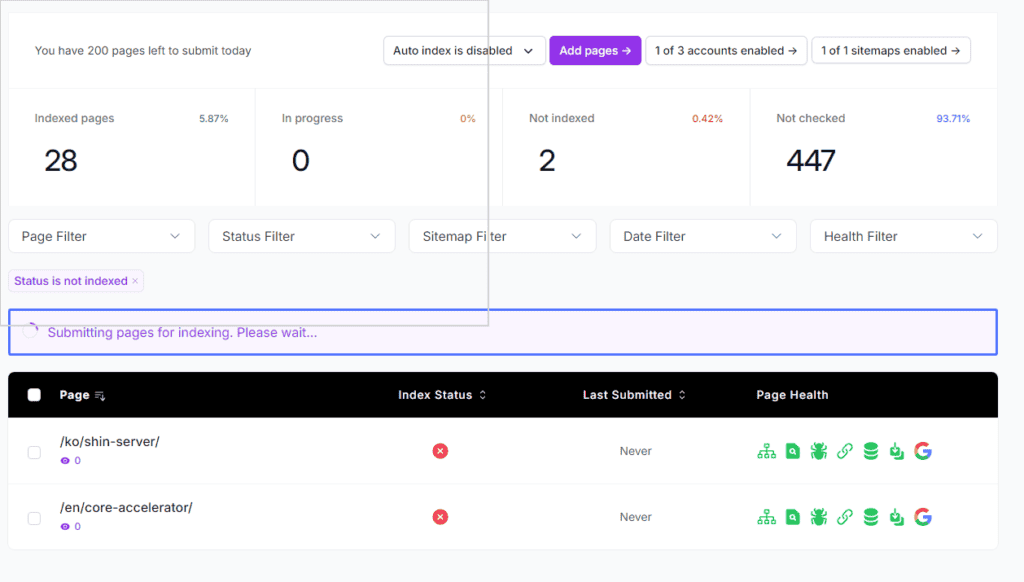
Check the index status from Page Health in URL Monitor
You don't have to open the Google Search Console every time to check, "Is this page properly indexed...".
URL Monitor allows you to check the index status of all multiple pages together.
Check "Page Health" on the right side. Please see the image below.

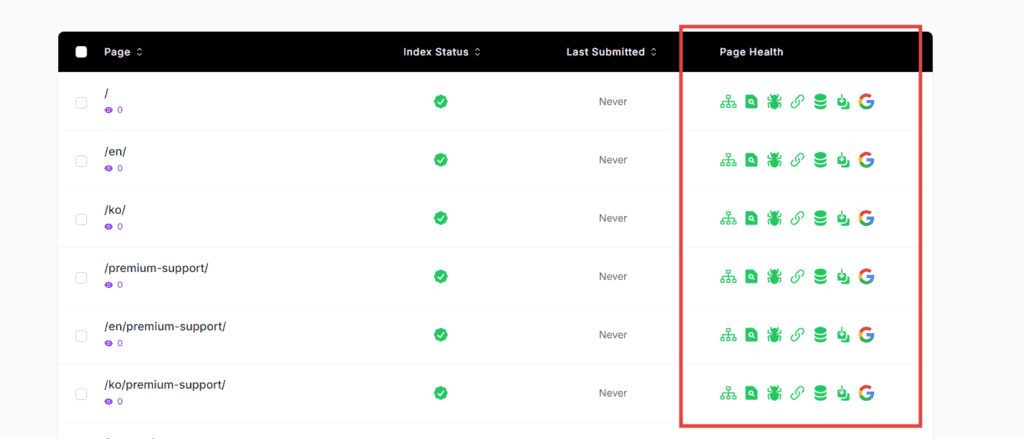
This area summarizes the index status of each page.

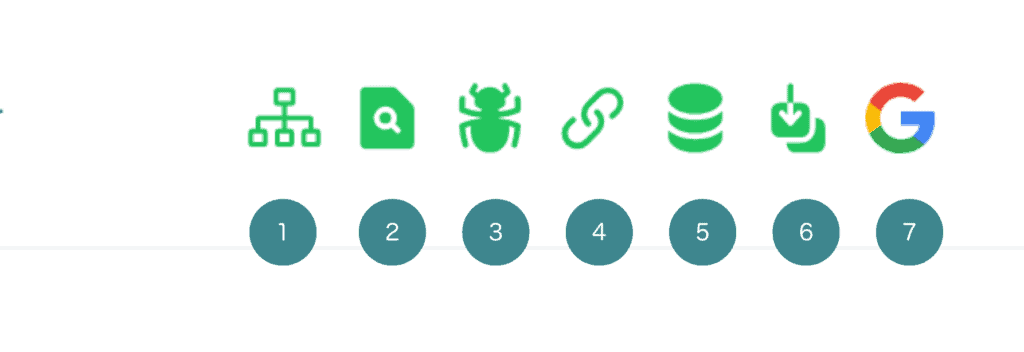
See below for a description of each icon. You can compare it with the image above to see what each icon indicates.
- Is this page included in the sitemap?: to see if the page is included in the sitemap.
- When was it checked?: You can check the date and time of the last check.
- When was it crawled: Know when Google last crawled.
- Canonical URLs of your and Google's choice: Knows which canonical URLs you specify and which canonical URLs Google recognizes.
- Is it an indexable page?: Check if the page is indexable
- Did Google get the page content?: Verify that Google correctly retrieved the content of the page
- Perform URL Inspection in Google Search Console: Press to go to Google Search Console and directly check URLs.
Is URL Monitor safe?
The most worrying thing is the safety, "Is this tool okay?"
As a result of actually using it, your SEO rating may drop, or your pages and articles that have been displayed until now may become unindexed、、、。
Just imagining it is disgusting.
First of all, URL Monitor isSecurely index without abusing Google APIs.
Therefore, it is not a tool that deceives and exploits Google's search engine.
It takes several days to perform indexing, so you can do it safely without overloading Google.
URL Monitor Pricing Plans
It usually costs $15 per month. About 2,400 yen per month. If you use it for one year, it will cost about 28,800 yen per year.

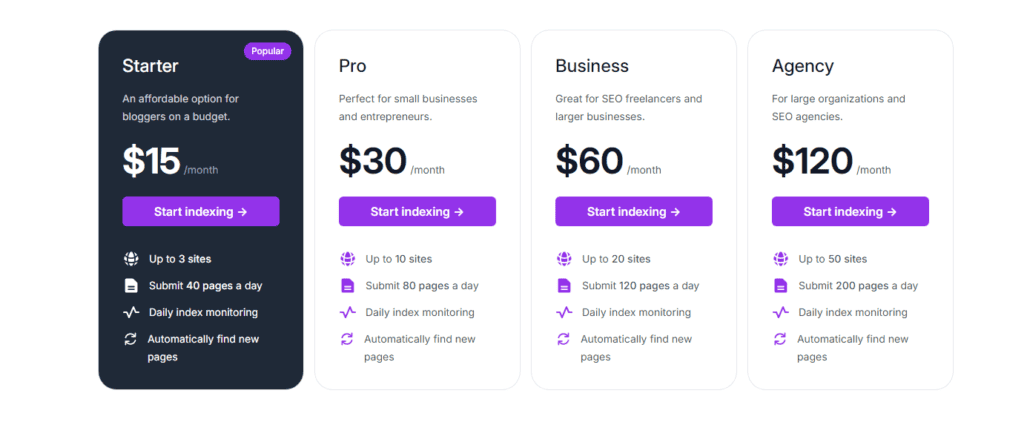
However, you don't have to keep paying 28,800 yen every year.
Currently, this tool is running a special campaign.

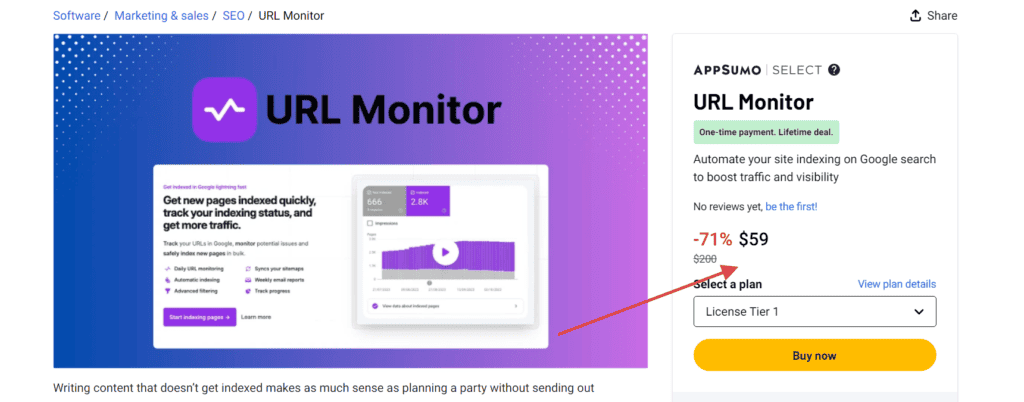
Surprisingly, in Japan yenYou can get it for a one-time purchase of about 9,500 yen. *Current USDJPY rate.
I only pay 9,500 yen once. It's a one-time purchase. You can get it with a one-time payment with no monthly subscription costs.
Click here for the special offer.
60-day money-back guarantee
Even if bloggers, affiliates, and writers work hard to write blog posts, it is meaningless if no one reads them.
Even if you do your best to create a featured image or a long blog post, it is meaningless if it is not indexed.
When you purchase this tool with this limited-time special offer, you will receiveYou only need to pay once and continue to use this tool semi-permanently at no additional cost.
Don't you think this investment is a very cheap investment?
60-day money-back guarantee
By the way, there is also a 60-day money-back guarantee.
If you're not satisfied... It means a full refund.
This means that there is no risk that you will use URL Monitor. Try URL Monitor.
Conclusion
Even articles created with AI are not hated by Google. The problem is quality.
With URL Monitor, your blog posts will be indexed quickly and get more traffic.
If you use the special campaign, you can purchase it for about 9,500 yen.You only need to pay once and continue to use it forever.
Don't miss this opportunity.
60-day money-back guarantee
There is also a 60-day money-back guarantee, so there is no risk. If it doesn't fit, you can get a refund.
Try URL Monitor today to get more visits to your blog.
URL Monitor FAQs
- I'm worried about whether I'm able to purchase it safely on AppSumo.
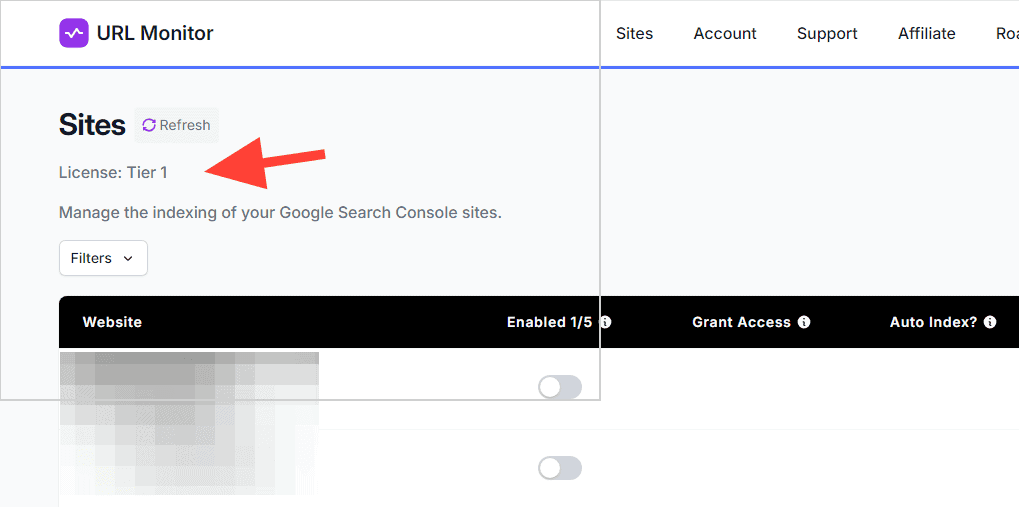
After logging in, open the https://urlmonitor.com/sites. If it has been successfully redeemed, it will be displayed as shown in the image below.


In the "License:" place you should see the plan you purchased. In this case, please rest assured that it has been redeemed safely.
We plan to revise this article further in the future. If you have any questions, please write them in the comments section below this article.


















Up to 71% off! Moreover, a special campaign is being held where you can get URL Monitor with a one-time purchase. How to get it at an impossible price that is "super" cheapClick here