


Hello, this is Fujii. In this article, we will talk about Chrome extensions that allow you to use high-precision voice input.How to use "Voice In"I will explain.
In 2023, ChatGPT came into play. Writing with AI has become more common than ever.
In fact, when combined with these AI tools, a very powerful tool is "Voice In".
In this article, we will explain how useful the Chrome extension "Voice In" that allows voice input is useful.
What is Voice In?

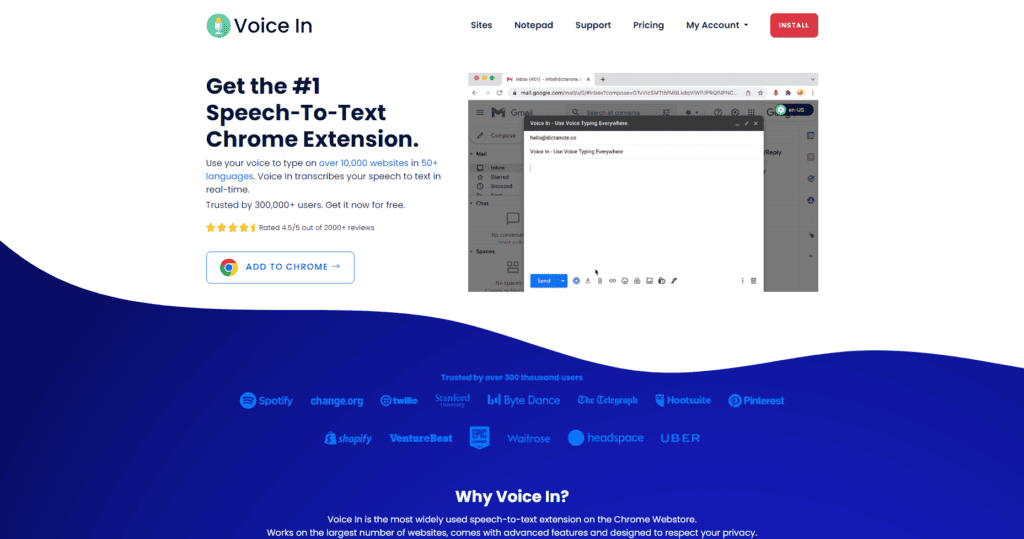
First of allVoice Inis a dictation extension that you can use in Google Chrome.
This extension allows you to make high-precision voice input on web pages.
It's free
You may have used keyboard typing to write until now. However, more than keyboard typingVoice input is a natural and fast way to convert speech to textis.
In fact, this sentence you are reading now is also written using Voice In.
It can be used for a variety of things, such as writing blogs, creating social media posts, and exchanging chats.
It can also transcribe audio into text in real time, making it very easy and convenient.
Features and Benefits of Voice In
Now, we will explain the features and benefits of this Voice In.
Picks up words with high accuracy
The first thing that surprised me about using Voice In was that"Accuracy of speech recognition"is.
Actually, I have used various voice input apps so far.
I won't put my name out here because it would interfere with business, but I also bought and used expensive voice input tools that cost more than 10,000 yen out of my own pocket.
However, the words I spoke into the microphone were not recognized well, so I uninstalled it from my computer because it was quite difficult to use.
Compared to that,Voice In is free, but the recognition accuracy is high.The words spoken into the microphone are output as sentences.
To be clear, there are few other voice input tools that are so high-profile.
Free to use

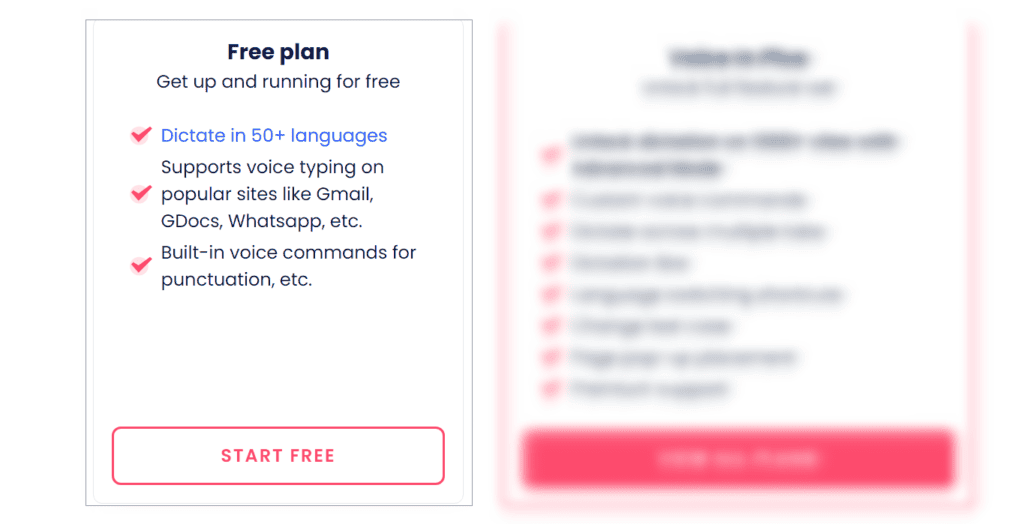
And Voice InFreeis. There are paid plans, but you can use the free version without subscribing.
To be honest, even the free version is more than enough. In fact, I also wrote this sentence in Voice In, but I use the free version.
So, if you are reading this article, I would like you to install and use it for free right now.
This speech recognition is accurate, easy to use, and free. I'm surprised.
Ease of use on Google Chrome

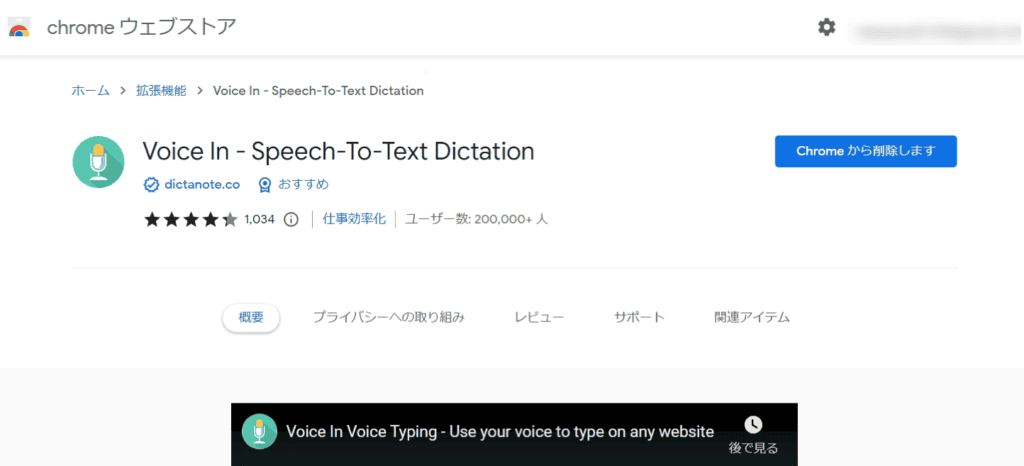
Voice In is an extension for Google Chrome. In other words, install and use it in your browser.
And when you use it,Just click the button onceis. You can easily dictate it.
Even a cheap microphone can be used
Also, a cheap microphone will suffice.
You don't need an expensive microphone to do voice typing. Unlike 10 or 20 years ago, you can now get a high-quality microphone for less than 5,000 yen.
Rest assured that even a cheap microphone can be used for voice input with high accuracy.
Multilingual support

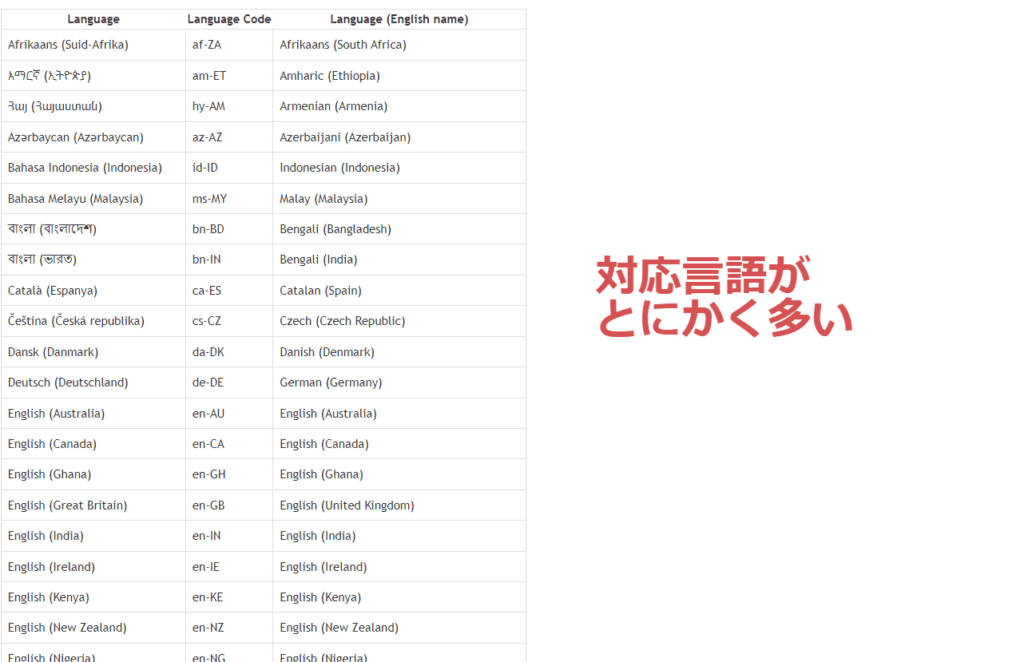
And in fact, Voice In supports more than 50 languages. Of courseIt is also available in Japanese.
I also sometimes exchange emails in English. However, you are not good at keyboard typing. Sometimes I get the word wrong. Therefore, I also use Voice In when typing English.
For now, I'm trying English and Japanese, both of which read audio with great accuracy and convert it to text.
Here's what about the free plan. We will explain the features available in the paid plan later.
How to use Voice In
Now, let's explain how to use Voice In. Let's install it first.
How to install Voice In
Voice In is a free extension that allows voice typing on Google Chrome. Therefore, you need to use Google Chrome to install it.
Or it can be used with Chromium-based "Brave" and SIdeKick.
I will explain the steps to install Voice In.
FirstGoogle Chrome Web StoreInstall Voice In for free on your website.
And let's add Voice In to Google Chrome. Once you have added it, pin it in the menu.

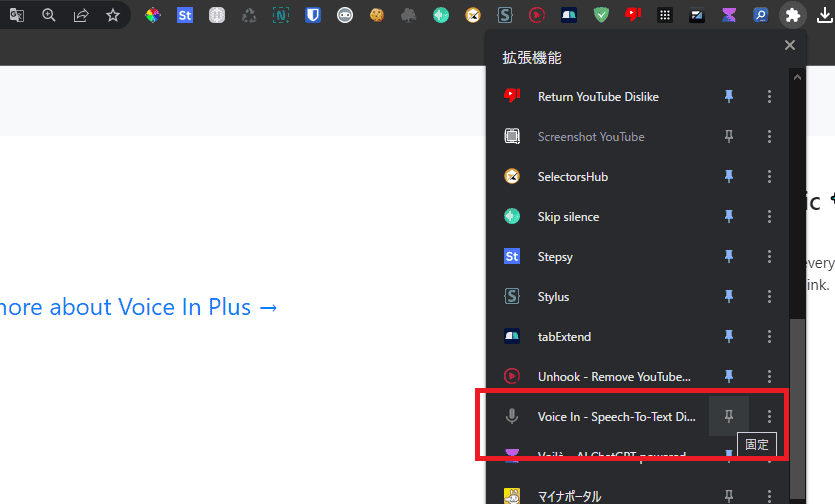
The microphone icon is now displayed in the menu.
You have successfully installed Voice In.
How to set up Voice In
Learn how to set up Voice In.
Right-click the icon that you pinned to the menu. Then select "Options" and click on it.

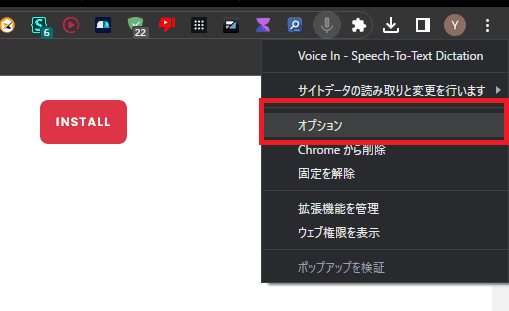
This will take you to the Voice In settings screen.

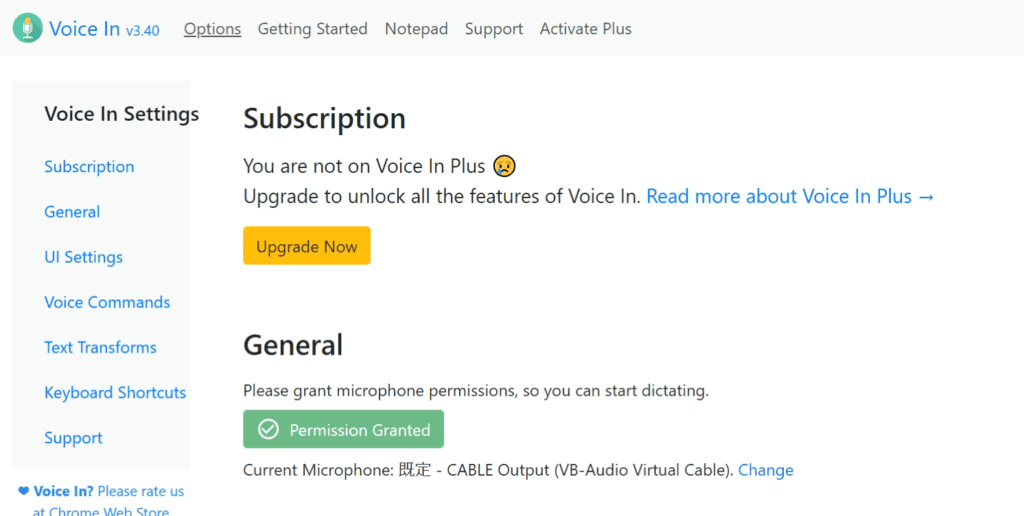
It is written in English, but it is easy to set up. We will explain the basic setup method.
Change language: Voice typing settings in Japanese
First, select "Japanese" in the "Select your dictation language & dialect" field to enable voice input in Japanese.


If you are being voiced in English for some reason, please change the settings from this item.
Set up sound effects


You can set Sound effects. Optional.
- None (no sound effects)
- Activated
- Deactivated
- Activated and deactivated
I don't want to make sound effects, so I'm setting None.
How to dictate in Voice In
There are two ways to activate Voice In to voice typ.
- Press Alt+L on your keyboard at the same time
- Click on the microphone icon
You can launch either way. When launched, the icon will change color to red.


This is when Voice In is in active mode.
With the icon turned red, you can speak into the microphone and the words can be typed as sentences.
If you want to finish dictating, click the icon again. The color of the icon will switch from red to gray.


This state means that Voice In is turned off.
Available sites and languages supported by Voice In
Voice In supports more than 50 languages. Of course, it is also available in Japanese.
Another point is that you can use voice input on various sites. Let me give you an example. Here are the main sites available on Voice In:
- Gmail
- Google Docs
- YouTube
- Slack
- WordPress
This is an example.
I myself am currently using Voice In on my WordPress site to write this article.
You can use Voice In on any website. Voice input is very easy.
Features of the paid plan "Voice In Plus"
Voice In is more than enough to use even with the free plan.
However, if you upgrade to a paid plan (Voice In Plus), you can use even more features.
So, here are some features that are only available in Plus.
Custom Voice Commands
With the paid plan,Custom voice commandsYou can create a

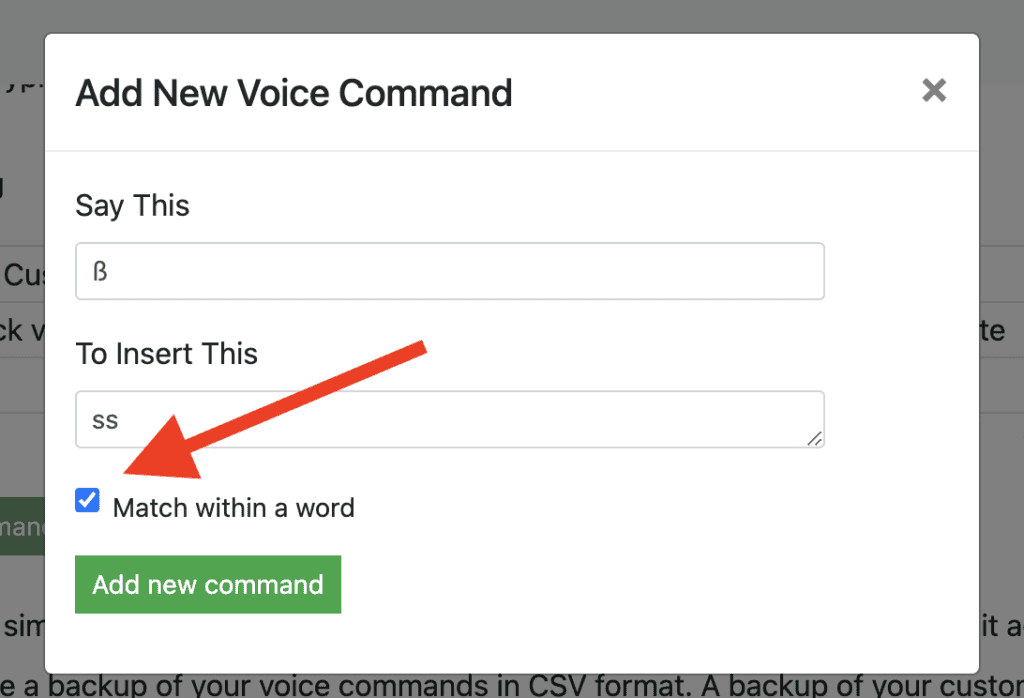
If you say a specific phrase through voice input, it can automatically enter specific words, which is very useful when typing proper nouns such as product names, service names, and people's names.
For example, you can set your own voice commands, such as entering "." when you say "Maru" or "," when you say "Ten".
It greatly improves the efficiency of writing sentences.
Advanced Mode
Voice In is available on many websites, even in its free version. However, some sites are not available. It is limited.
Upgrading to the paid version unlocks Advanced Mode. As a resultUnlimited voice typing on any website.
Advanced Mode means that you can voice input on any site, including Notion, Hubspot, Twitter, Slack, Teladoc, Salesforce, Zoho, Zendesk, and more.
Dictate Across Multiple Tabs
The free version of Voice In is a bit difficult to use. That isSwitching to other tabs forces voice typing to stopThat's right. This is a little difficult to use.
Therefore, when you switch to another tab, you will have to manually launch Voice In again. It's quite a hassle.
If you upgrade to the paid version,Switching to another tab will not interrupt your voice typing.This means that you can freely switch to other tabs while typing your voice.
You can switch tabs to search and browse other pages without interruption, which greatly improves the speed of writing by allowing you to type in voice without interruption.
Dictation Box
Some of you may encounter websites where Voice In doesn't work. Useful functions in such cases「Dictation Box」is.

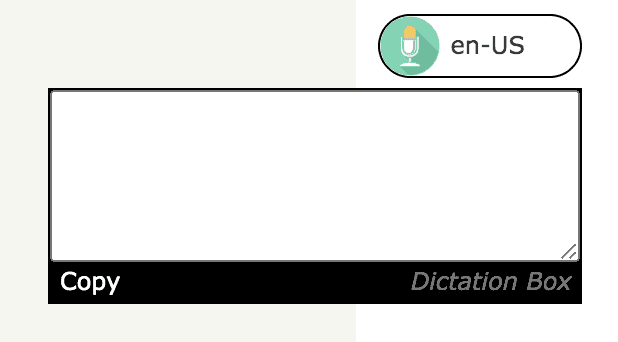
You can display a text box within the page and transcribe text with voice input within that box.
Dictation Box opens a text box on the page, so you just have to speak to that text box. It's easy to use
Once the voice input is complete, you can press "Copy" to copy the text and paste it freely.
Language Switcher
Upgrading to the paid version makes it easier to switch languages than the free version.

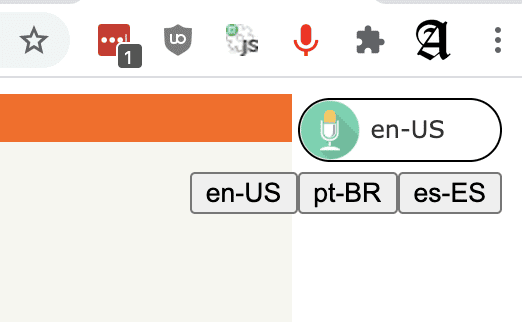
You can easily switch to other languages using buttons and keyboard shortcuts, which is very useful if you use multiple languages.
Voice In Plus (Paid Plan) Pricing Plans

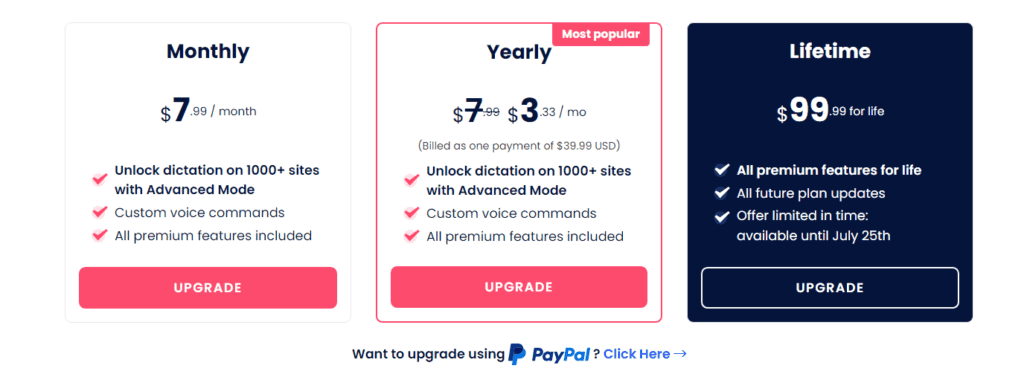
There are three paid plans for Voice In: Monthly, Yearly, and Lifetime. Each has a different price.
| Monthly | Yearly | Lifetime | |
| Price | $7.99 / Month | $3.33 / Monthly Conversion | $99.99 / Buy |
| When converted to Japan yen | Approx. 1,100 yen | Approx. 460 yen | Approx. 14,000 yen |
Even though it's paid, it's very cheap. You can use it at an affordable price.
SimplyYou don't have to use the paid version all of a sudden.Use the free version first. To be honest, you can use it enough for free▼
Which plan do you recommend?
If you are thinking, "I think I'll just use it for one month," Monthly.
And if you decide to try the free version and try it for a year from the beginning, go for Yearly.
The fees are completely different even if you pay monthly and annually. If you are deciding to use it for the long term from the beginning, we recommend choosing Yearly. It's a great deal.
Lifetime is not expensive? Actually...
If you are going to use it for at least two years,We recommend purchasing Lifetime as a one-time purchase.
At a glance, it is over 10,000 yen. It looks quite high. That's higher.
However, once you pay once, you will not incur any costs in the future, so you can use it after 3, 5, or 10 years without additional costs. In the long run, it is the best deal.
All plans have different payment methods,All the functions you can use are the same.
No matter which plan you choose, you'll get access to all the features of Voice In Plus. For those of you like me who don't want to pay a fixed monthly fee, Lifetime is a good one-time payment.
I also plan to buy Lifetime after writing this article. After purchase, I will add more to this page.
Voice In FAQs
We have compiled a list of frequently asked questions and answers to Voice In. Please see below.
Is there a free trial?
A free plan is available. It's free forever. There is no cost of a single yen.
You may be reading this article with suspicion, saying, "It's not a big deal anyway...".
I would like you to install and use it for free at least once.
Also, if you like the free version, you can also consider the paid version (Plus). The paid version also has a 5-day free trial period. It's fat.
How do I pay for Voice In Plus (paid)?

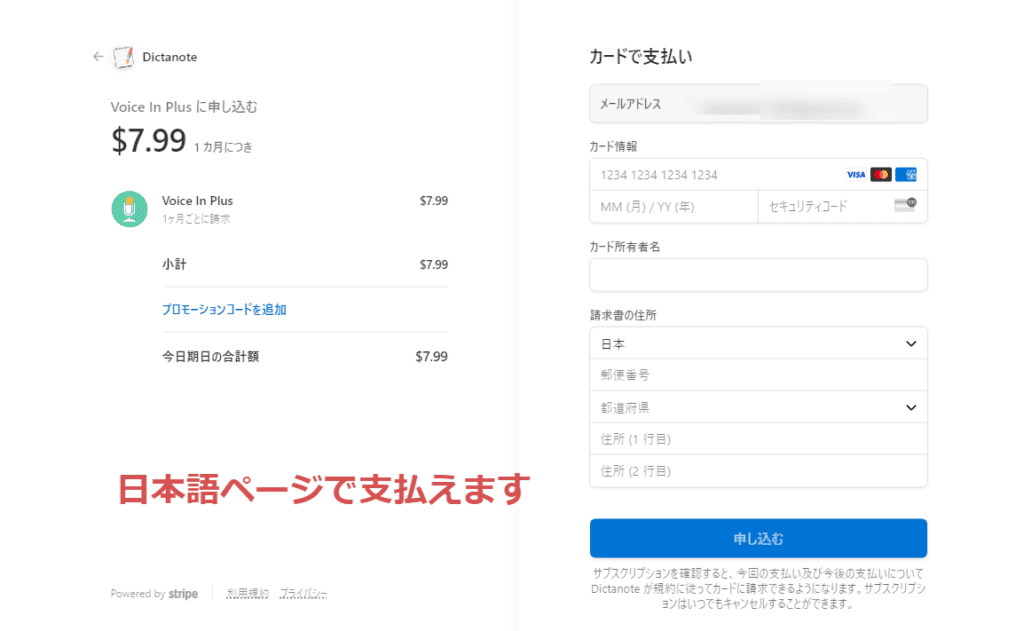
There are two payment methods. We also accept payments from Japan.
The first is a credit card.
"Are you paying with a card? Instead of paying directly with Voice In, you can use the payment system of Stripe, the world's largest online payment processor, and pay securely with bank-grade encryption.
We accept most major debit and credit cards, including Visa, MasterCard, Maestro, American Express, Discover, JCB, Diners Club, China Union, Apple Pay, and Google Pay.
The second is PayPal. We also accept PayPal payments. If you are not comfortable paying with a credit card, we recommend paying with PayPal.

When I pay on overseas sites, I also pay with PayPal.
How do I change my payment information?
If you are subscribed to Voice In's monthly or annual plan and want to cancel soon, we will explain how to cancel.
At firstAccount SettingsPlease visit.
If you want to cancel a recurring payment, click "Cancel Subscription" in your account profile on the same page.
Follow the instructions to proceed with the process and you can cancel your recurring payment instantly.
Can I move my license to another account?
Yes, it is possible. If you want to change the ownership of your license, contact Voice In support directly.
Once the process is complete, you can use your license in your new account.
Is Voice In safe?
I would like to post the official announcement of Voice In.
We care about the security of your data. Here's what Voice In does to protect your data:
The audio is transcribed directly within the browser.Audio recordings and transcription data are not sent to Voice In's servers.
The data required for Voice In includes:
Email address to identify your account (optional)
If you're a paying user, your name to identify your payment information and voice commands (stored so you can access them on other devices)
Voice In also complies with the European General Data Protection Regulation (GDPR). You have the right to access, rectification and deletion of your personal data. For more information, please email support@dictanote.co.
What permissions do I need to use Voice In?
To use Voice In, you need to useYou need permission to access the microphone.The microphone is used for voice input purposes. Voice In doesn't use a microphone if you're not recording.
Voice In Summary: How to use and useful functions
Voice In is available on Google ChromeUseful Google extension for high-precision voice typingis. The following is a summary of what we have explained in this article.
- Voice In is free to install.
- Much more powerful than paid voice typing apps
- Supports more than 50 languages. Real-time voice typing on over 10,000 sites
- Upgrade to a paid plan for more advanced features and custom voice commands
I myself use Voice In on a daily basis. Therefore, we are also considering a paid plan. … Rather, I will sign up after writing this article.
I plan to purchase it after writing this article. The free version is too amazing.
This is a recommended voice typing app.
First of all, try installing and using it for free. No matter how much you use it, it's free, so don't worry.
Free to use
If you want to make text input more efficient in your work or personal life, Voice In is truly recommended.
It's definitely worth using, so think you've been tricked and try the free version once.



















Next, let's use Voice In to voice input.