


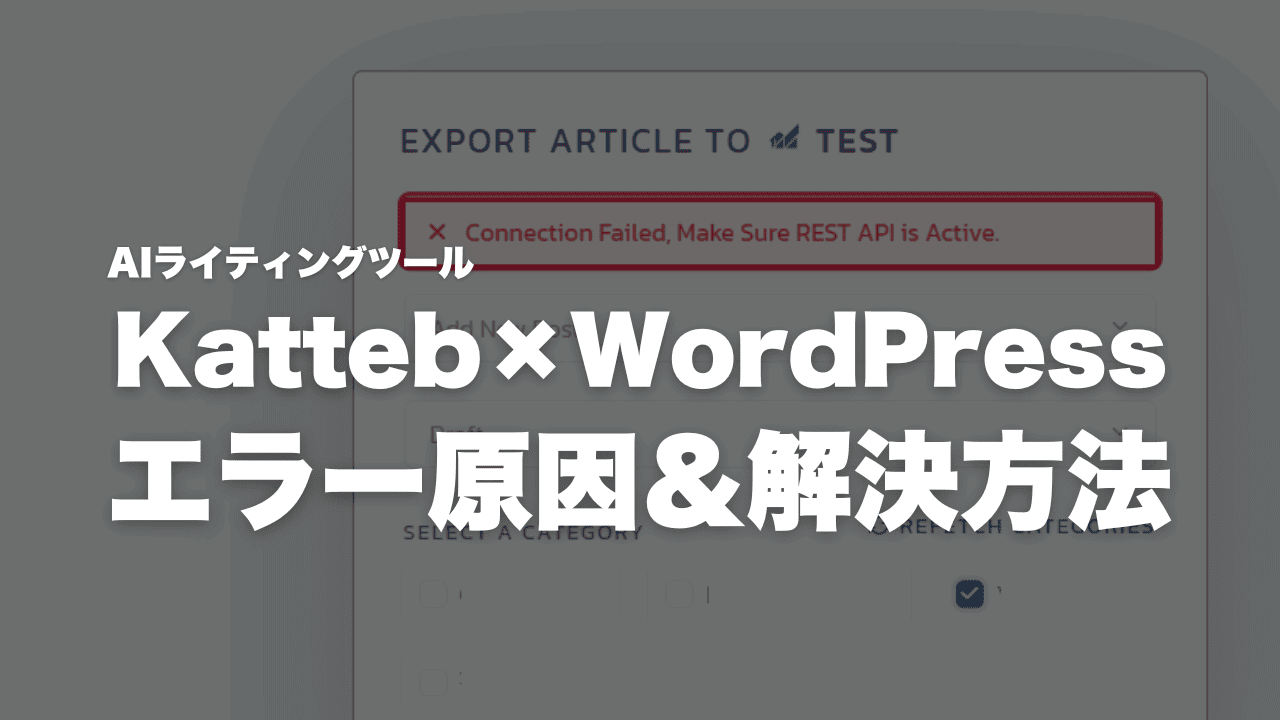
Hello, this is Fujii.How to Connect AI Writing Tool Katteb with Your WordPress SiteI will explain.
This article also explains how to resolve errors that occur when integrating with WordPress.
If you are asking "What is Katteb?" first, please see the article below.


Why can't Katteb and WordPress work?
Katteb can be integrated with WordPress sites. By collaborating,Upload blog posts written with Katteb directly to WordPressIt is possible.
It's a very useful feature, isn't it?
However, sometimes you try to integrate Katteb with WordPress and fail.

To explain the cause first,
- The setup steps are incorrect
- Caused by the security settings of the rental server
- Caused by the security plugin you put in WordPress
There are a lot of these cases.
First of allSteps to Connect Katteb with WordPressI will explain it to you.
You'll want to say, "I know that."
But in fact, I make a mistake"Pitfall" pointsThere is. Please check it again.
Steps to Connect Katteb with WordPress
First, open Katteb Writer and click on the button labeled "Export."

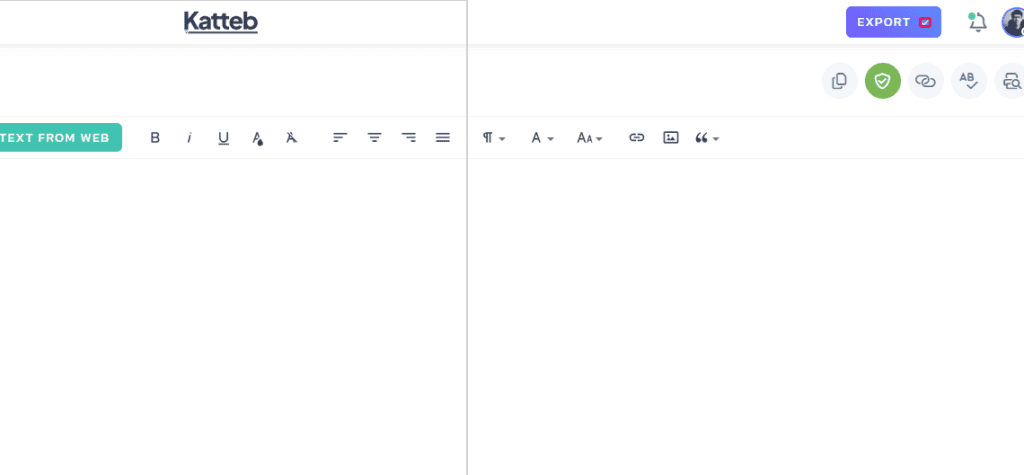
Then click on "Export to Website".
Then click "Add Website".

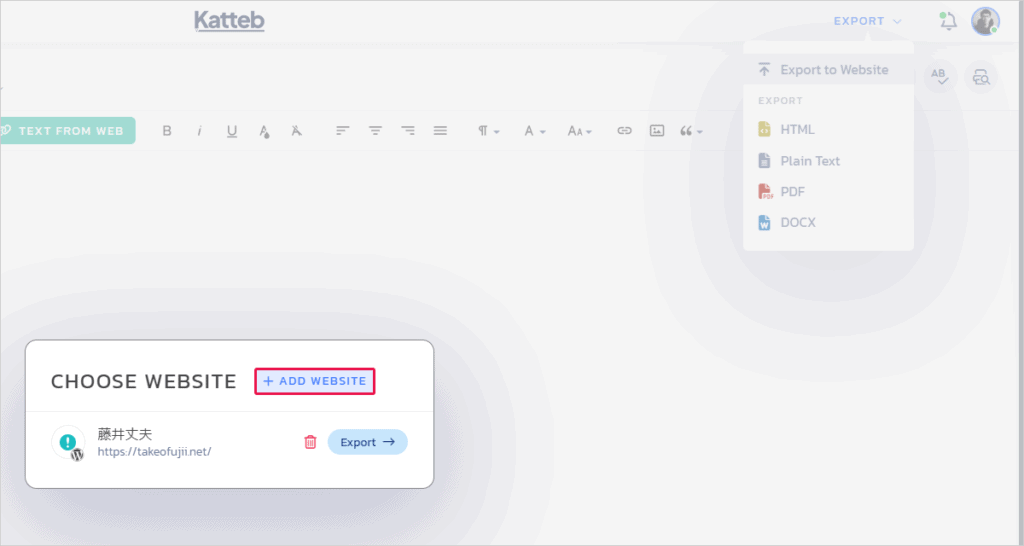
From here, you can add a new WordPress site to your website.
Let's set up the integration with your WordPress site.
A pop-up like the one below will open.

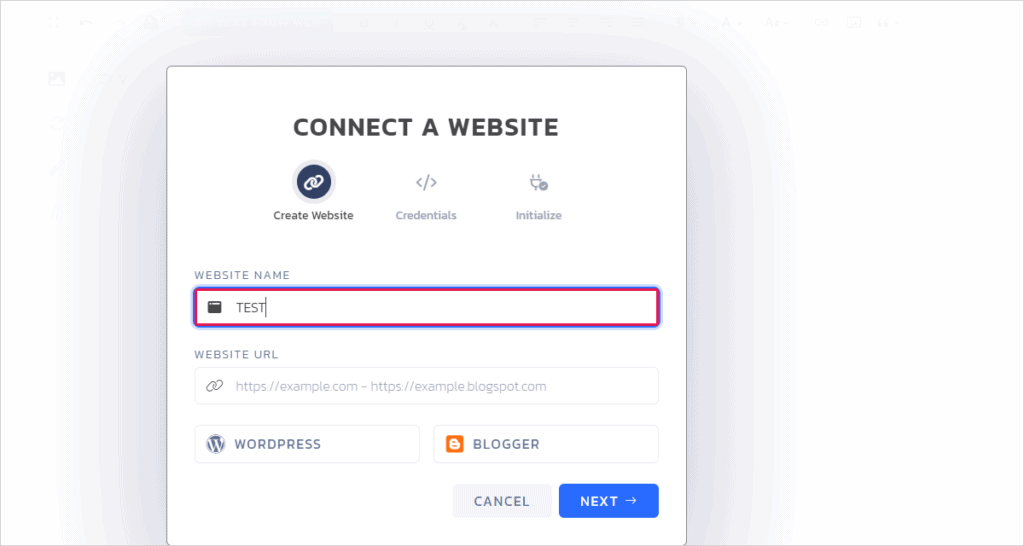
- Website Name: Enter a name for your website.
- Website URL: Enter the URL of your WordPress website.
*Example of entering the website URL: In the case of my site, it is https://takeofujii.net/.
Then select "WORDPRESS."

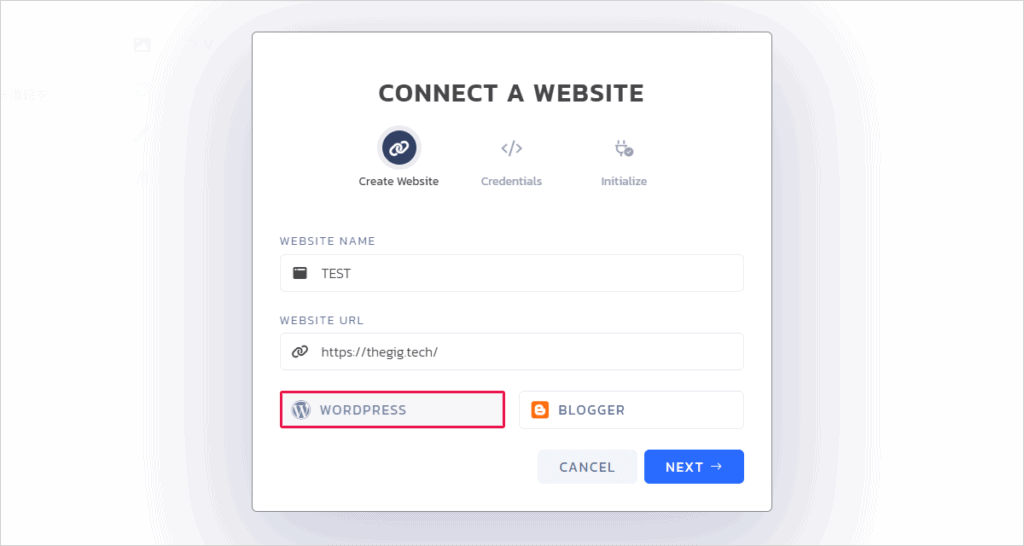
Click the "NEXT" button.
Go to the following settings:
Here, enter the email address or username you will use to log in to your WordPress site.
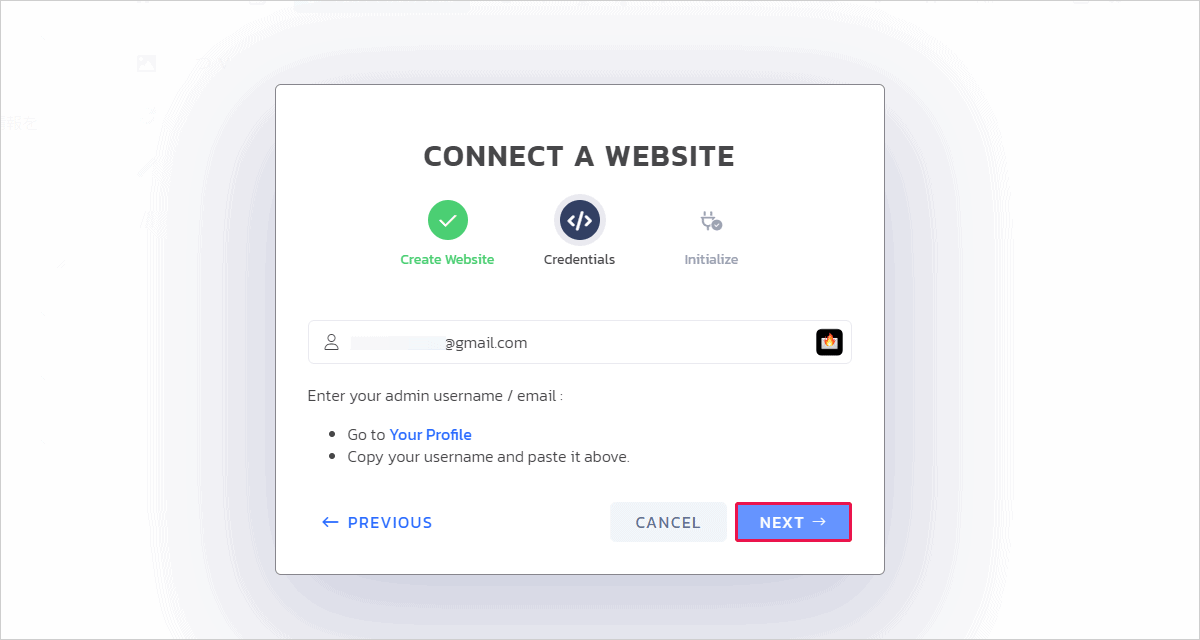
Once you have entered your input, click the "NEXT" button.
The APPLICATION PASSWORD settings are displayed.
In fact, this is the most common point to make mistakes. Read on carefully.

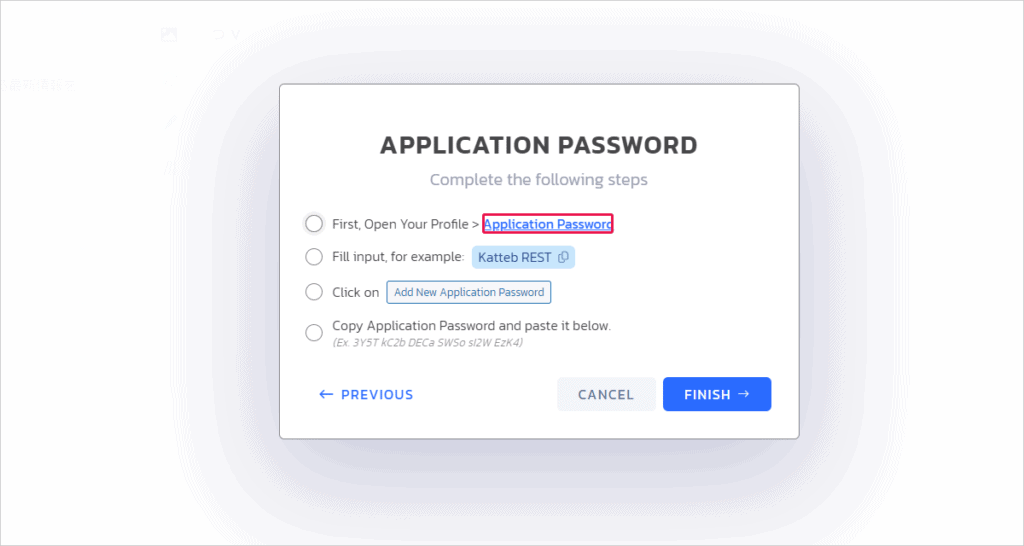
- Open your WordPress profile page
- Open Application Password
- Set a new application password name (feel free to enter it)
- Click Add New Application Password
- Copy the displayed application password
- Paste it with Katteb and click the "FINISH" button
A rough summary is like this. We will explain in detail now.
First, log in to your WordPress admin.
Then create an application password.
To create an application password, go to the WordPress admin sidebar and click on the User > Profile.
Then scroll down to see the application password settings.

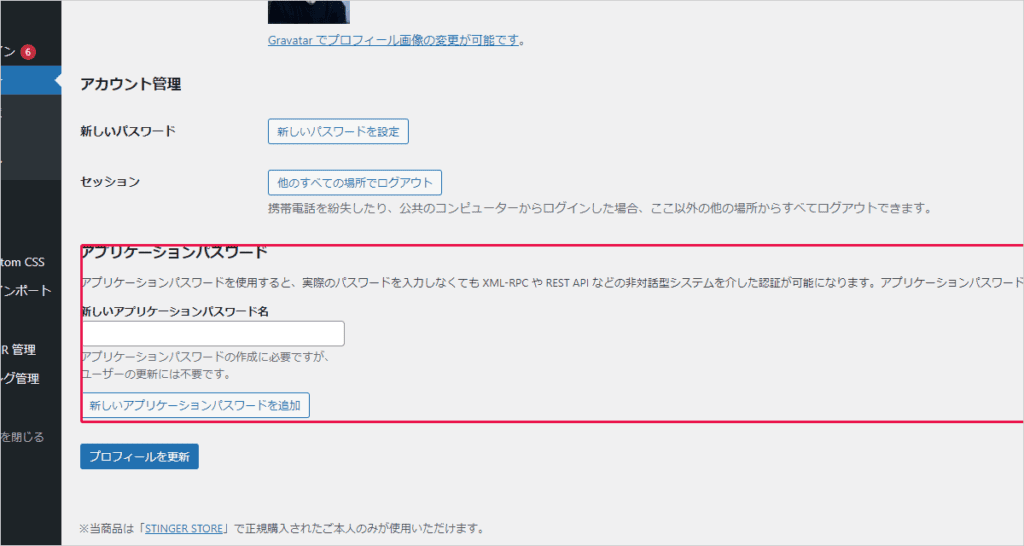
Feel free to enter your new application password name first.
I think it would be a good idea to set it to "Katteb" so that you can see what you have set.
Then click the "Add New Application Password" button.

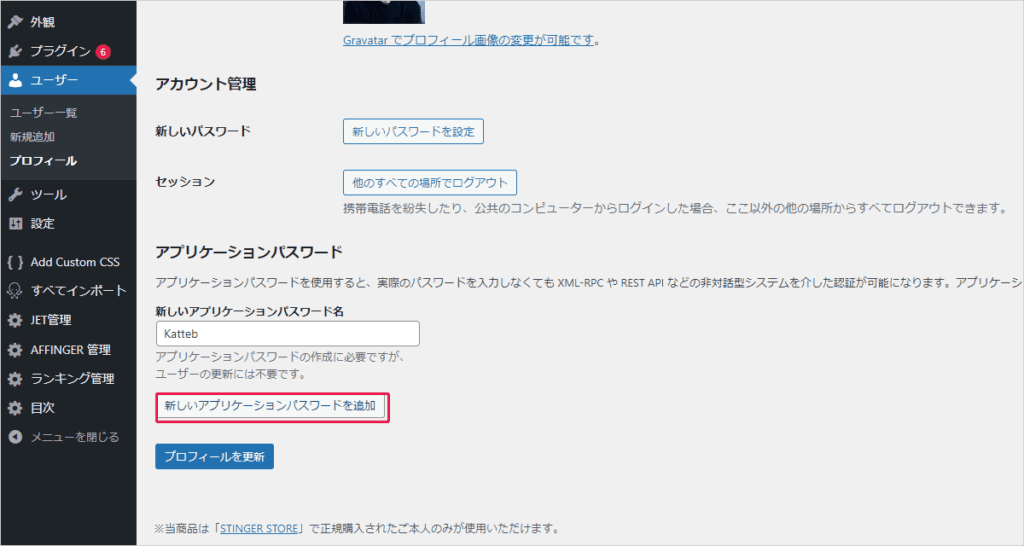
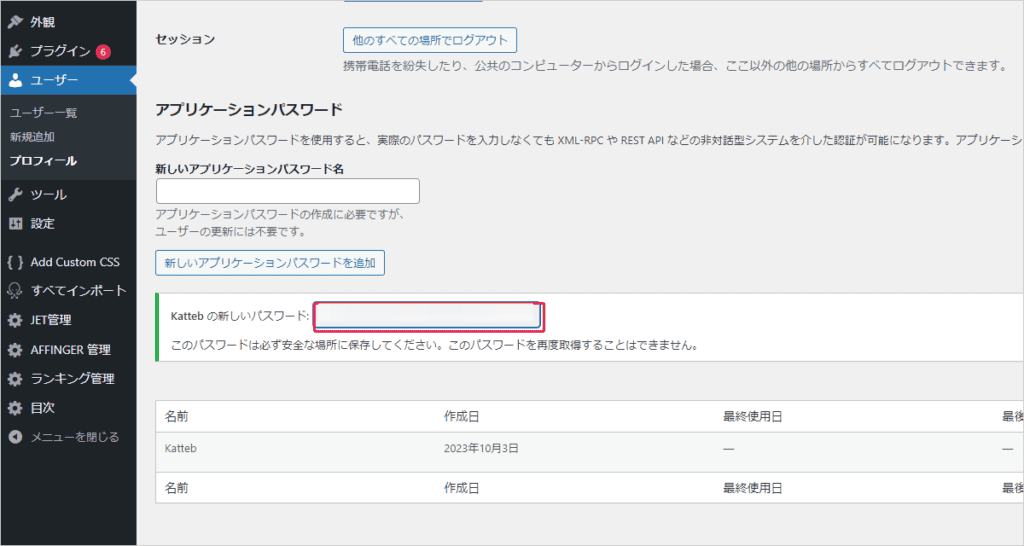
You will see your new application password. Please copy it.

Go back to Katteb and check all the boxes.
This will show you an item where you can enter your application password.
Paste the application password you just created here.

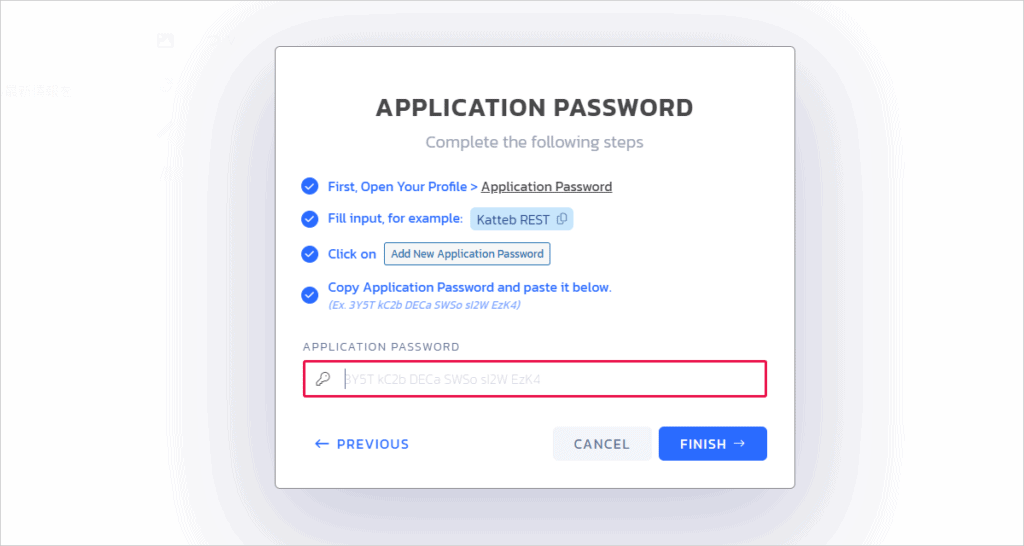
This usually completes the site addition without any problems.

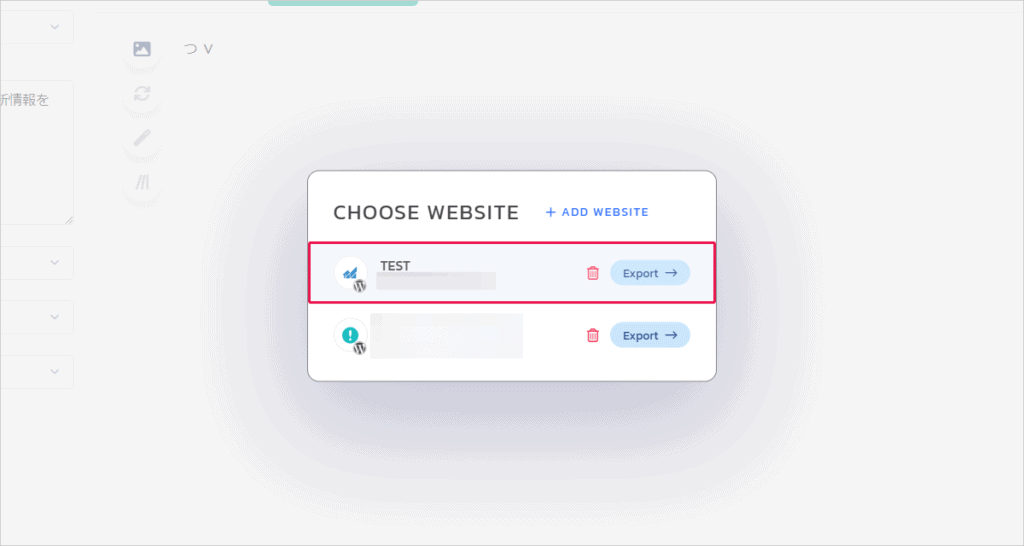
If Katteb and WordPress don't work well here, read on.
How to get rid of the error you see in Katteb
Sometimes you get an error when trying to integrate Katteb with WordPress. However, don't worry, the error can be easily fixed.
We will explain how to actually eliminate the error.
Enter the application password
There is one point to check first.


What you enter here is not the password you use when logging in to WordPress. Application password.
It's quite easy to make a mistake here. In fact, many people end up entering their WordPress login password.
You will need to create and enter a new application password.
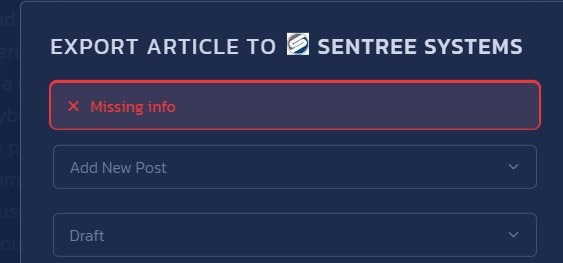
When "Missing info" is displayed
Next, the error "Missing info" that occurs when you try to integrate Katteb and WordPress.
This problem occurs due to:
- Incorrect setup steps
- REST API inaccessible
Most of them are one of these.
Check if WordPress information is wrong
If your connection to WordPress doesn't work,Missing or incorrect WordPress login information is often the cause.
Please take another look at the steps we have discussed above.
Now, if that doesn't work, let's review the REST API settings.
This will solve most of the problems.
Check REST API settings
If you follow the steps correctly and still cannot connect,Is the REST API disabled?Let's find out.
This is why integration with WordPress often fails.

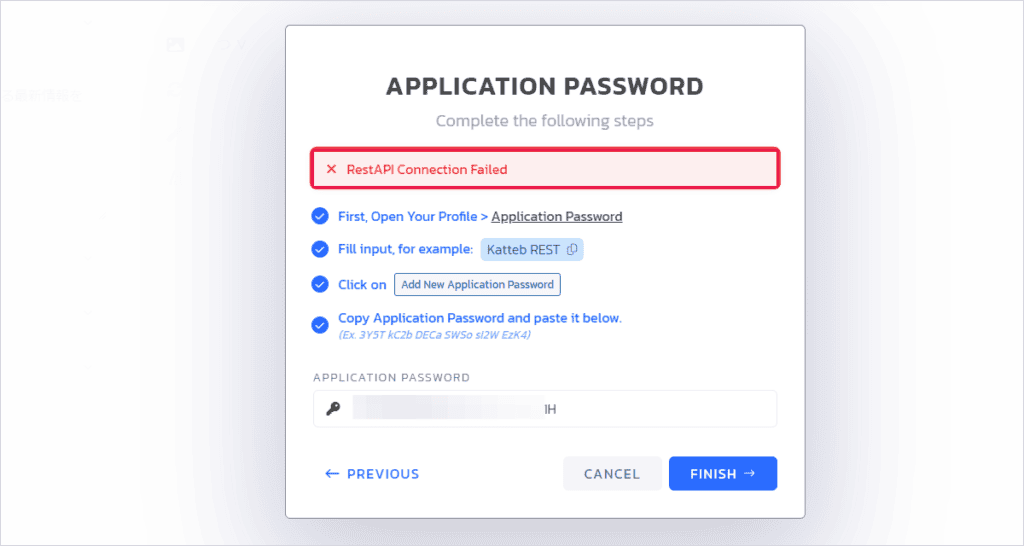
Japan rental servers have very good security. There are settings that block access from overseas and prohibit fraudulent activities.
One of them isREST API Access Restrictionsis.
I will explain in the case of the thin rental server I use.
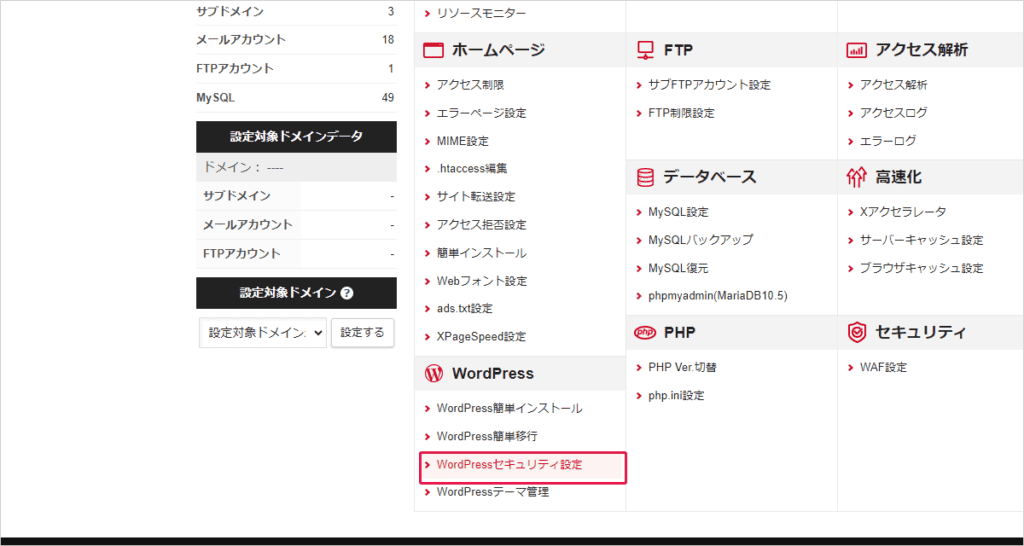
Open the Rental Server Admin screen. Among them was "WordPress Security Settings".
Other rental servers should have similar security settings. In many cases, you can configure the REST API from the security settings page

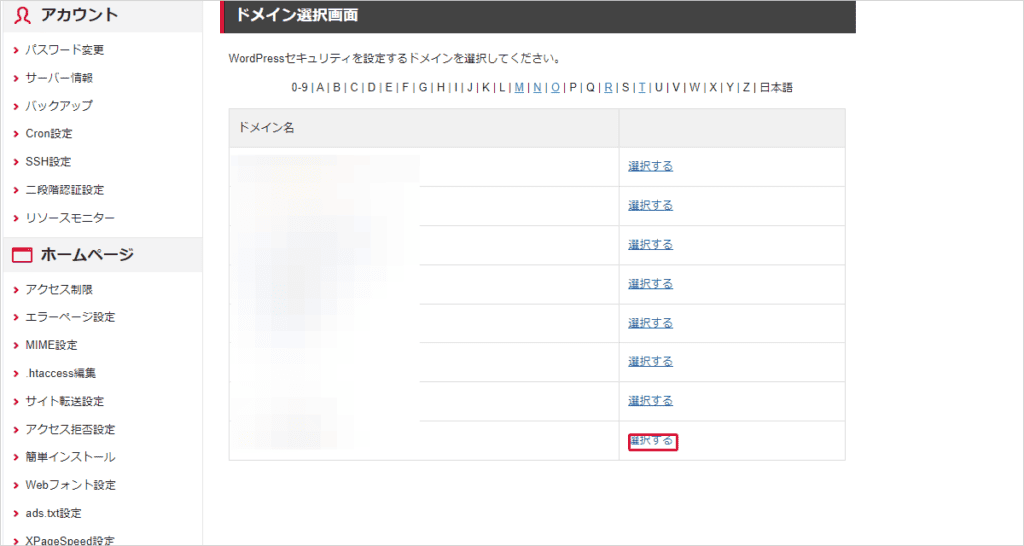
Choose the WordPress domain name you want to integrate with Katteb.

The security settings are displayed.
In the case of a thin rental server, the item "REST API Access Restrictions" was turned on. OFF.

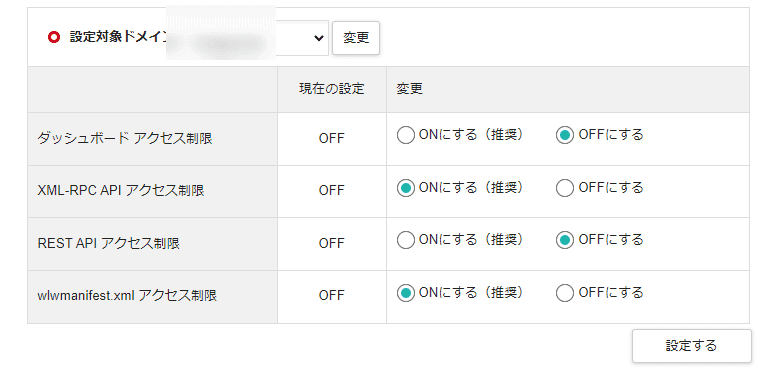
You can now integrate Katteb with WordPress without any problems.
If this still fails, please turn off "Dashboard Access Restrictions" as well.
Katteb Unable to Post to WordPress Error
Even though you can integrate Katteb with WordPress, you may still fail when you actually try to post to WordPress.

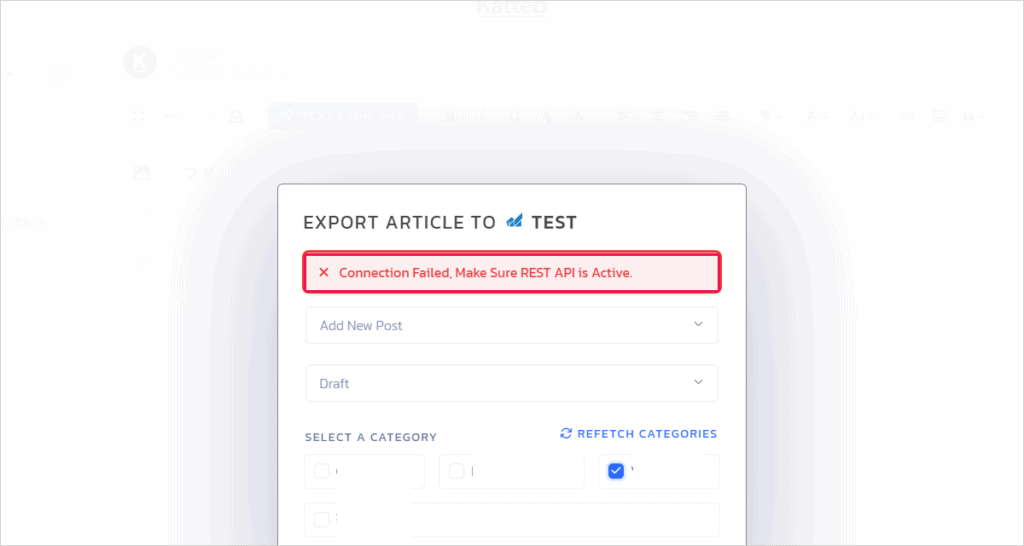
If you get this error, you can use theConfigure WordPress and Katteb all over again.And try again and it should work.
- Items entered in Katteb and settings
- Rental Server Security Settings
In most cases, these things are wrong or security reacts and it doesn't work. When I actually saw the errors of several people, they were all the same cases as above.
You should also check out WordPress security plugins
In rare cases, it can also be caused by a security plugin within WordPress.
I reviewed the security settings on the rental server,This is caused by a security plugin installed in WordPressIt is possible that Katteb may not be able to integrate with WordPress.
If you think of one, you can try temporarily disabling the security plugin you have installed on WordPress.







![WP Rocket Pricing Plans Explained! How to get it cheaply? [Latest in 2024]](https://sp-ao.shortpixel.ai/client/to_webp,q_lossy,ret_img,w_485,h_273/https://takeofujii.net/wp-content/uploads/2024/02/How-to-buy-wprocket-485x273.png "WP Rocket Pricing Plans Explained! How to get it cheaply? [Latest in 2024]")









Latest Comments