



If your WordPress site displays slowly, visitors will leave without reading it. It's also undesirable for SEO.
However, even if you look at how to speed up the display speed, it is often difficult to improve.
So in this article,How to Dramatically Speed Up Your WordPress Site's Display Speed (Speed)I will explain.
It's actually not difficult to improve display speed and create a visitor-friendly website. There aren't many reasons why WordPress is slow.
First, let's take a look at the disadvantages of a slow WordPress site.
- 1 Disadvantages of slow WordPress display speed
- 2 Measure your site's display speed
- 3 (1) Reduce and optimize image files
- 4 (2) Try uninstalling Chrome extensions
- 5 (3) Organize your WordPress plugins
- 6 (4) Change your WordPress theme
- 7 (5) Keep your server's PHP version up to date
- 8 (6) Change the specifications (performance) of the server
- 9 (7) Optimize your site's CSS and JavaScript
- 10 (8) Set Lazy-load
- 11 (9) Enable caching
- 12 What are the dangers of speeding up WordPress
Disadvantages of slow WordPress display speed


First, let's explain the "problems" that can occur when WordPress sites display slowly.
- Reduced usability
- Google ratings get worse
- Sales drop
Marketing Agency'sportentAccording to the contract, the closing rate is the first 5 seconds. It is desirable that the page loads in 0-4 seconds, and the closing rate decreases by an average of 4.42% for every 1 second of page load time.
AlsoKISSmetricsAccording to a survey by 47% of visitors expecting a website page to load within two seconds, 40% of people leave a website if it takes more than three seconds to load.
You can see this by looking at these two data. A slow display speed on your WordPress site can cause stress for your visitors and significantly reduce sales.
Measure your site's display speed


Before speeding up the display speed, firstMeasure the current display speed of your website.
Even if you actually make improvements, you cannot take appropriate improvement measures unless you know the display speed of the site.
Also, the display speed may be fine if left alone or should be improved immediately. It's a problem if it takes 10 seconds from loading to page display.
However, you don't have to worry if it takes 1 or 2 seconds from loading to display.
First of all, the page measurement tool provided by Google "PageSpeed Insightsto measure your site's display speed.
The display speed is determined by the score in an easy-to-understand manner. When I measured the top page of my site, the result was the following.




Mobile scored 67 points. The computer score is 96 points.
What this score indicates is that the display speed of the page viewed on a smartphone is slow. (It's a little slow at the moment, so you can leave it alone.)
It's easy to understand because it's displayed in scores like this.
So let's measure your website as well. I will post the score criteria.
- 0~49 points = red dots
- 50~89 points = average
- 90 points ~ 100 points = excellent
This way of classification is fine. If your website is in a red dot state, you need to improve it. Here are 9 ways to speed up the display speed.
Let's take a look at each one.
(1) Reduce and optimize image files
The first thing you should try to improve the display speed of your WordPress site is"Reducing the weight of image files on the site"is.
Image files uploaded directly to WordPress are heavy. This means that if you place a large image file on a page, the page will load more slowly.
So I use a plugin that automatically lightens the images I upload to WordPress. There are many image optimization plugins, but among them, IShortPixelin WordPress.


- Average file compression: 65.05%
- Disk space saved by ShortPixel: 32.1 MB
- ShortPixel Bandwidth Saved*: 313.49 GB
On average, we were able to reduce the image size by 65%.
If you make the image lighter, it will inevitably deteriorate and become grainy. This is the same for other image lightening plugins. However, if you look closely at ShortPixel, you can hardly see the image deterioration.
RESULTED SMALLER IMAGES ARE NO DIFFERENT IN QUALITY FROM THE ORIGINAL.
https://shortpixel.com/
The ShortPixel also states that "there is no difference in quality between the original image and the original image even if the image is lightened."
ShortPixel is free for up to 150 cards per month. So if you don't want to upload a lot of images, the free version is enough. I have to reduce the weight of about 9,500 = 10,000 images every month, so I use a paid plan.
Paid plans are also available starting at $4.99 per month. You can cancel your subscription at any time, and you won't be upgraded on your own. Try it out on the free version first and upgrade to a paid one if needed.
For a detailed explanation, please see the article below.
>> Image Compression Plugin ShortPixel Usage and Complete Guide
(2) Try uninstalling Chrome extensions
If you use Google Chrome like I do, you should definitely check your Chrome settings.
I thought the site was heavy, but in reality it is just heavy speed on my browser.
- Delete cache
- Delete all history
- Try disabling extensions one by one
- Close all tabs
Please practice all four of these things. In my case, I had Adblock in the extension. As a result, the editing screen of the article slowed down and did not move to Matmo.
In addition, the site itself became lighter at once when I did a so-called super reload of "clearing the cache and hard reloading".
Chrome users should check it out.
(3) Organize your WordPress plugins
The next task you should do is to organize your WordPress plugins.
There are many useful plugins in WordPress. Talented developers continue to create useful plugins. However, if you add plugins just because they are convenient, you will end up installing plugins you don't need in WordPress.
Plugins that you don't need are still installed even though you don't expect to use them in the future. This means that you will install WordPress plugins in vain, which will make your website heavy. Such cases are common.
The solution is simple. Disable and remove any WordPress plugins you are not using.
How much does the site speed change when the plugin you are using is enabled or disabled? If you activate one plugin and your site speed is heavy, then that plugin is the cause of the heavy speed.
Make sure to disable WordPress plugins you don't use, as well as disable them. Leaving plugins you don't use increases security risks. In other words, the danger increases.
>> [Danger] Why can't you add too many WordPress plugins?
I wrote more about it in the article above. I myself have experienced malware infiltrating WordPress sites and destroying them. Be sure to read it.
(4) Change your WordPress theme
Changing your WordPress theme is one option.
This is because some WordPrss themes are heavy. WordPress themes with too many features or elaborate designs tend to slow down the display speed.
In that case, you can set your WordPress theme toJust changing to a lighter theme will dramatically speed up your site's display speedI will.
First, let's check if your current WordPress theme is causing slow display speeds.
To check it,Google PageSpeed InsightsLet's measure with .
By measuring how much page speed changes before and after changing your website's WordPress theme, you can tell if your WordPress theme is slow.
(5) Keep your server's PHP version up to date
Many of you reading this article must have launched a WordPress website with a hosting provider.
In that casePHP version of the rental serverCheck it out. WordPress runs on a language called php.
If your PHP version is outdated, it will also slow down your overall site performance.
Conversely, setting your PHP version to the latest not only improves display speed but also significantly improves security within your server.

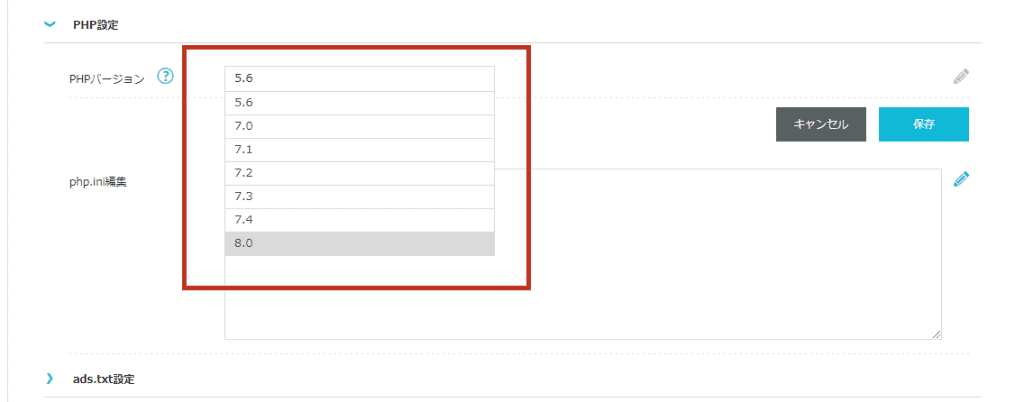
You should be able to check the PHP version from the panel in the server. *If you are unsure, please contact the rental server company you have a contract with.
Don't forget to back up your website before making any changes to PHP.
(6) Change the specifications (performance) of the server
I won't give a specific name because it will interfere with business, but the rental server I contracted in the past had low specs and was busy installing WordPress.
I remember actually trying to use WordPress, but it was too slow, and I couldn't use it properly and I had to re-contract another rental server.
Be careful with cheap rental servers. If the specs are low, the display speed will drop all at once.
Currently, I run our site on Mixhost. Mixhost has a wide range of features to help you speed up your site, so if you're unsure, we recommend it.
(7) Optimize your site's CSS and JavaScript
I don't recommend it casually, but it is extremely effective if used properly. That's what you put in a plugin that optimizes your site's display speed.
Even if you just compress CSS, HTML, or JavaScript, you can dramatically improve your site's display speed. Site speed can be improved by stopping, compressing, and removing unnecessary features that slow down the site's display speed.
As a plugin to optimize the display speed of those sites, I have introduced the following plugin.
- Autoptimize
- WP Super Cache
Both are free. If you're using a LiteSpeed web server, you can use the LiteSpeed Cache plugin to explode your site.
In that case, it may explode too quickly and lead to the collapse of the site's layout. Please use it with great care.
If you're willing to spend money to improve your website's performance, WP Rocket is the best choice over the two above.
(8) Set Lazy-load
Have you ever been reading other websites and the images loaded with fluffy images every time you scroll?
This isLazy loading of imagesIt is called. It is also called Lazy-load.
This mechanism can go a long way in improving your site's display speed.
In the first place, there is a case where there are too many images on the page as a reason why it is difficult to display the page. If there are many images on the page, it will try to display all the images at once when the page loads, which will slow down the display speed.
Therefore, by setting the "image loading delay", you can display one image each time you scroll. As a result, the page loading speed is dramatically improved.
I use Autoptimize, which I introduced above. In the Autoptimize configuration item, there is a "Lazy-load of images".

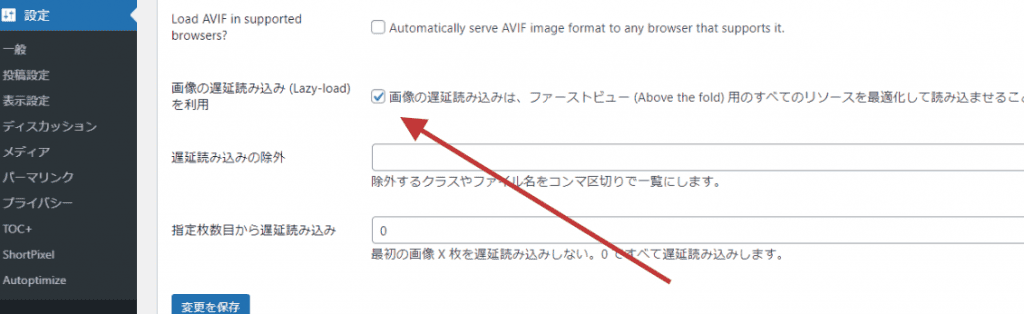
Just check this box and lazy loading will be done automatically.
(9) Enable caching
Slow display speed websites haveIntroducing the caching functionI recommend it.
The structure of the website is to display the page every time a visitor visits the page.
For visitors, it takes an enormous amount of time to display the page every time they visit.
In such cases, the caching function is effective.
By implementing the caching function, you can store the loaded page information inside the server. This way, you won't have to do it again the next time you access it.
How to Enable Caching in WordPress
Implementing caching in WordPress is a quick way to use a WordPress plugin.
This site is operated by the rental server "Mixhost". In Mixhost, you can implement the caching function by simply adding a plugin called LiteSpeed Cache.
Some hosting providers also allow you to enable caching without a plugin.
If you are using "Conoha WING", you can set the cache in the control panel.


In this way, caching functions can be easily implemented in plugins and server settings.
"Layout collapse" with cache function
However, there is a caveat. Keep in mind that by implementing caching features, errors may occur on your site.
The caching function is easy to install and an effective way to improve display speed, but be sure to make a backup before introducing it.


I also use the cache function on this site, but I failed to set the cache function and the layout of the site temporarily broke (although it was easily fixed by reverting the settings).
When using the caching function, be sure to test the load several times. Even if the display speed is faster, if the layout is broken, it is the end of the story.
What are the dangers of speeding up WordPress


In this articleHow to Speed Up Your WordPress SiteI explained. Most WordPress sites should improve their display speed using the methods discussed in this article.
You don't have to do all the methods discussed here. If you think that the image file is heavy, try to improve it by reducing the image size.
I explained it at the beginning of the article.Site display speed is also important for improving usability.Just by improving the display speed, the traffic rate on your site will increase, and the CV rate of your page will also increase.
Please try to work on it.








![How to use Pretty Links and discount sale information [2024]](https://sp-ao.shortpixel.ai/client/to_webp,q_lossy,ret_img,w_485,h_273/https://takeofujii.net/wp-content/uploads/2022/11/pretty-links-485x273.png "How to use Pretty Links and discount sale information [2024]")












Leave a Reply