


In this articleHow to use and set up the latest version of WP Rocket in 2024We will explain it in an easy-to-understand manner with images.
All right. I myself love WP Rocket. It's very simple to use.
Let's set it up together.
- 1 What is WP Rocket?
- 2 WP Rocket Pricing Plans
- 3 How to buy WP Rocket cheaply [coupon code]
- 4 WP Rocket Dashboard [Settings]
- 5 CACHE
- 6 FILE OPTIMIZATION
- 7 MEDIA
- 8 PRELOAD
- 9 ADVANCED RULES
- 10 DATABASE
- 11 CDN
- 12 HEARTBEAT
- 13 ADD-ONS (Add-ons)
- 14 IMAGE OPTIMIZATION
- 15 TOOLS
- 16 What to do after setting up in WP Rocket
- 17 Other settings (WP Rocket)
- 18 Summary: How to use and configure WP Rocket
What is WP Rocket?

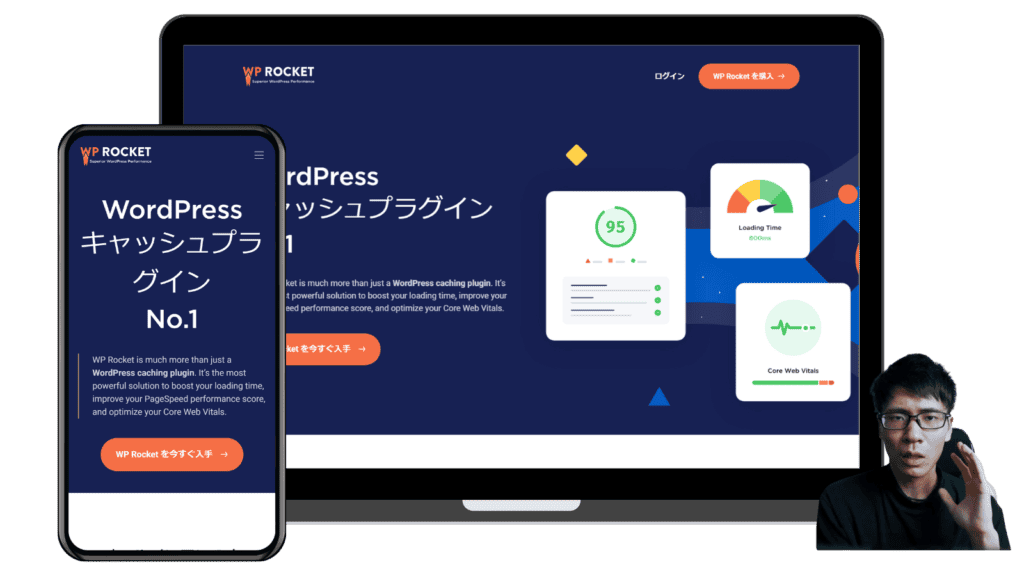
WP Rocket is a paid WordPress caching plugin designed to improve the display speed and performance of your WordPress website.
This plugin will automatically run 80% of the recommended methods to improve the speed and performance of your WordPress site.

No technical knowledge or coding skills are required. It is characterized by being very simple and easy to use.
This article explains how to set it up.
How does WP Rocket's effect and page speed change?
I actually have WP Rocket installed on this blog as well.
The page display speed before the introduction is as follows.

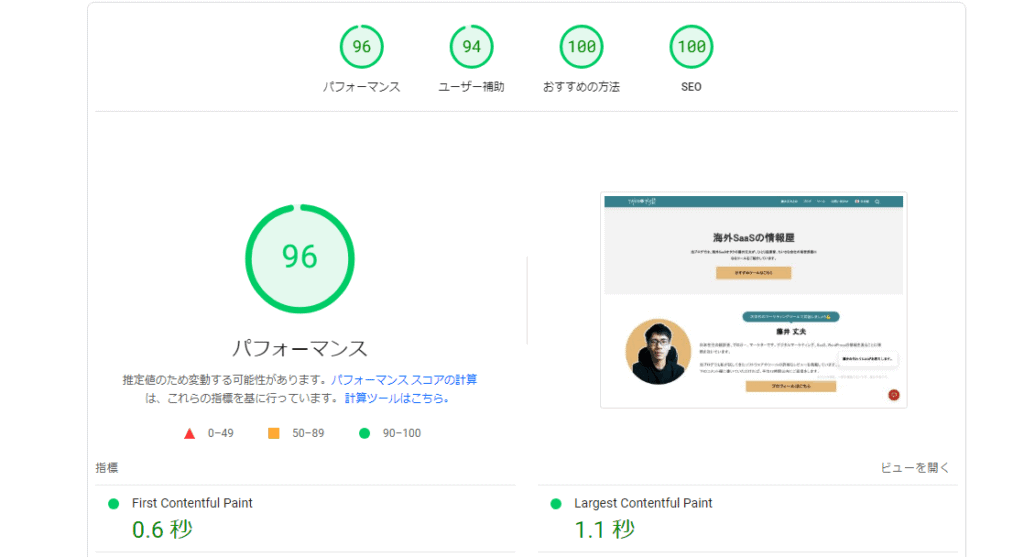


The page display speed on the desktop is fast. But on mobile, it's very slow, isn't it?
After installing WP Rocket, here's what you need to do:

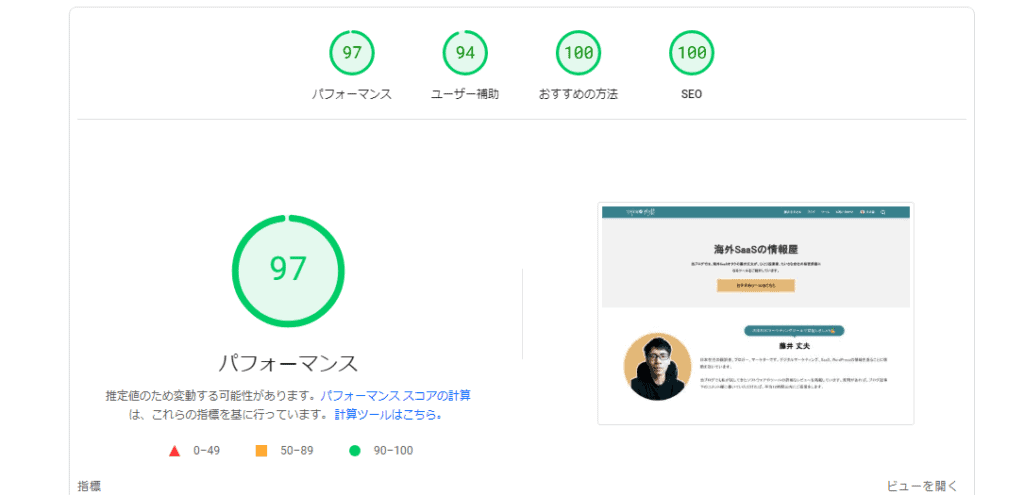

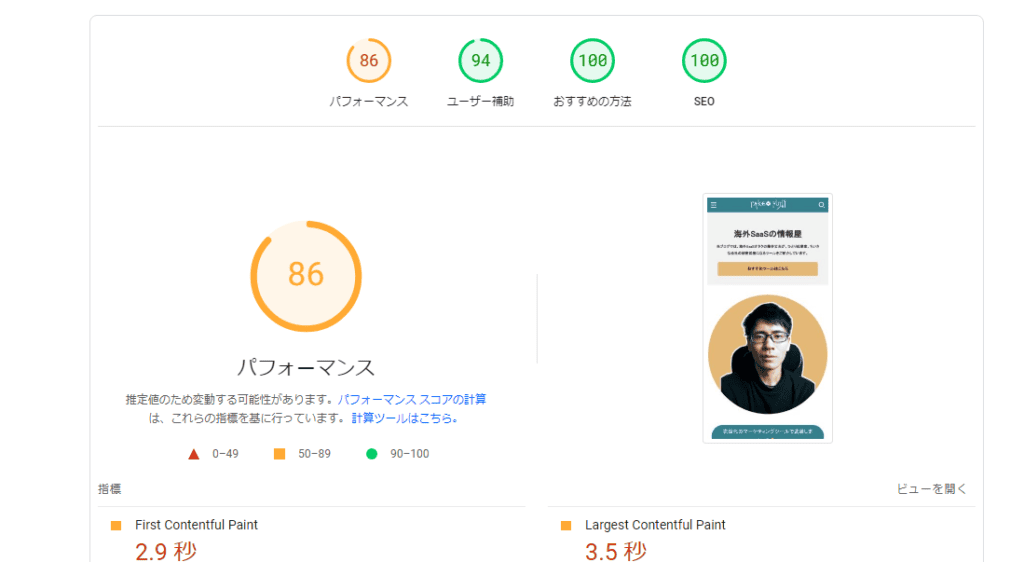
- Desktop: 96→97
- Mobile: 47→86
Page viewing on mobile is faster.
WP Rocket offers a number of powerful performance optimizations for you. Caching, file optimization, lazy loading (LazyLoad), database optimization, using CDN (Content Delivery Network), controlling heartbeat APIs, mobile caching, preloading, etc.
These features make pages display faster and improve site loading speed.
WP Rocket Pricing Plans


We will explain the pricing plans.
WP Rocket pricing starts at $59 per year and has three plans depending on the number of sites supported.
WP Rocket's pricing plans are summarized in the table below.
| Plan | Annual Fee (USD) | Annual Fee (JPY) | Installable |
|---|---|---|---|
| Single | 59 | 8,809 | 1 site |
| Plus | 119 | 17,766 | 3 Sites |
| Infinite | 299 | 44,675 | Unlimited sites |
- Single Plan ($59 per year)
- Plus Plan ($119 per year)
- Infinite Plan ($299 per year)
All plans include the same features. The only difference is the number of sites where WP Rocket can be installed.
30% off renewals after the first year.

![WP Rocket Pricing Plans Explained! How to get it cheaply? [Latest in 2024]](https://sp-ao.shortpixel.ai/client/to_webp,q_lossy,ret_img,w_485,h_273/https://takeofujii.net/wp-content/uploads/2024/02/How-to-buy-wprocket-485x273.png "WP Rocket Pricing Plans Explained! How to get it cheaply? [Latest in 2024]")
For a detailed explanation, please see the article above.
How to buy WP Rocket cheaply [coupon code]
You might think that WP Rocket is expensive.
But you can buy it cheaply. WP Rocket offers coupon codes.
How to Claim WP Rocket Coupon Codes


Here are the steps to receive your coupon code:
- Visit WP Rocket's official coupon page.
- Enter your email address in the form to receive the coupon
- Press the button that says "I'll sign up now".
- You will receive a confirmation email. Press the "Yes, I want to subscribe" button in the email.
- You can receive exclusive coupon codes.
After receiving the coupon code, select a pricing plan on the official WP Rocket website and proceed to the payment page.
Enter the coupon code on the payment page and hit the "Apply" button to apply the discount.


With a 10% discount on the regular pricing plan, you can use a coupon code to save on WP Rocket.
See below to see how to receive it with illustrations.


Things to keep in mind about using coupon codes at WP Rocket
However, when you receive a coupon code,You will automatically be subscribed to WP Rocket's email newsletter.
If you don't want to receive email newsletters, you can unsubscribe by clicking on the "unsubscribe" link in the email from WP Rocket
Does WP Rocket have a money-back guarantee?
In WP Rocket,A 14-day money-back guarantee is offered.
You have 14 days of purchase to request a refund if you feel that WP Rocket is not suitable for your site.


This money-back guarantee is designed to give you peace of mind if you buy WP Rocket and then try the plugin out and feel that it doesn't suit your needs.
How to Use WP Rocket's Money-Back Guarantee
To request a refund, you must contact WP Rocket's official support within 14 days to initiate the refund process.
This money-back guarantee is an initiative to ensure that users can try WP Rocket risk-free, and it is offered as part of enhancing customer satisfaction.
With this money-back guarantee, you can try WP Rocket with confidence.
WP Rocket Dashboard [Settings]

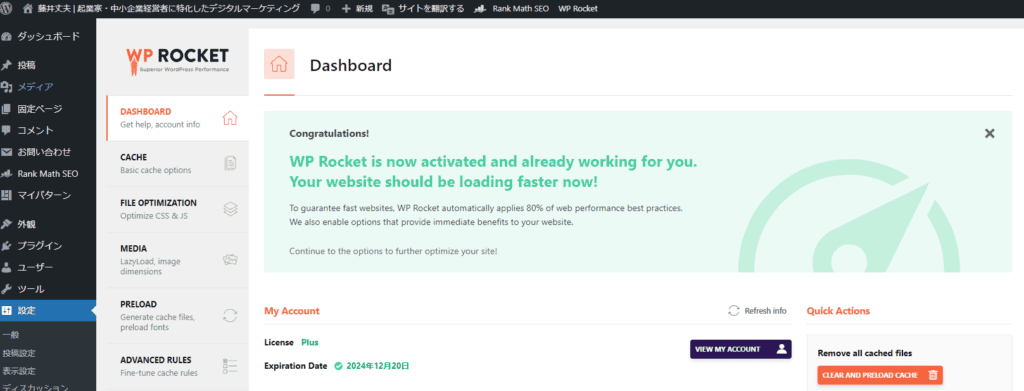
So, let's set up WP Rocket without further ado.
WordPress Dashboard > Settings > WP Rocket > Dashboard
Open in this order.
This will open WP Rocket's dashboard.
My Account


The first thing you will see on this page is My Account.
- Lisence: Your License Type
- Expiration Date: Expiration Date
You can check it.
By pressing the "VIEW MY ACCOUNT" button on the right side, you can log in to WP Rocket and check your account information in more detail.
RocketCDN
RocketCDN is a fast content delivery network (CDN) service provided by WP Rocket.
What Can RocketCDN Help You Do?
In a nutshell, it's a feature that can help improve your site's display speed.
It caches your site's content on servers around the world to serve content from the server closest to your visitors.
This will improve your site's loading speed.
RocketCDN works with WP Rocket to deliver your site's static files (images, CSS, JavaScript, etc.) at high speed.
- Advanced caching features and optimizations
- Responding to the surge in access
- Security measures
You can expect these effects.
My Status


I have it turned off.It does not need to be activated. Optional.
Information such as the theme and other activated plugin information and server type will be sent to WP Rocket.
They don't send any information such as domain names, email addresses, IP addresses, or third-party API keys.
However, there is no benefit to activating it, so it's okay to turn it off.
The following items do not need to be configured, so skip them.
- Getting Started
- Frequently Asked Questions
CACHE
Let's get into the WP Rocket setup.
Select "CACHE" from the left sidebar.


Configure the cache settings on this page.
Mobile Cache


Check Enable caching for mobile devices.
Mobile Cache is a cache optimized for mobile devices.
It is used to improve the speed of pages loaded on smartphones.
User Cache


Turn off "Enable Caching for logged-in WordPress User".
If you're logged in to WordPress, then this is a setting that controls whether or not you want to enable caching for that user.
When you are logged in, you may see individual content and information. Therefore, if caching is enabled, the logged-in user may not see the appropriate content.
By turning it off,It ensures that you are always provided with the latest content.
Cache Lifespan


"Cache Lifespan" is set to 24 hours.This number is arbitrary.
The reason I set Cache Lifespan to 24 hours is to optimize site performance and caching efficiency.
By setting a cache expiration date, you ensure that old cache files are regularly deleted and that the latest content is cached.
FILE OPTIMIZATION
Next, configure the file optimization settings.
If you are using other similar WordPress plugins, make sure that your settings do not overlap with those plugins. Examples; Autoptimize and so on.
Your server may also provide optimization features. For example, the thin rental server I use offers a unique acceleration function called "XPageSpeed".


Turn off these features. It overlaps with WP Rocket's settings.
CSS Files
First, configure the CSS optimization settings.
Minify CSS files


Turn on Minify CSS files.
This setting is there to improve the speed of the page.
Reducing the size of your CSS can help your site load faster and make it easier for visitors to browse.
Especially for visitors who browse on their smartphones, the loading speed of the site is very important.
Excluded CSS Files


Excluded CSS Files do not require any specific configuration.
This feature allows you to specify the URL of the CSS file that is not subject to Minify. This setting allows you to exclude certain CSS files from minimization.
Certain CSS files will not be minimized and will now load on your site in their original form.
Optimize CSS delivery


Optimize CSS Delivery is onI will do it. AndRemove Unused CSS.
This feature optimizes your site's performance. Eliminate render-blocking CSS.
You can also choose "Remove Unused CSS", which removes unused CSS, which improves the loading speed of your site.
JavaScript Files
Next, configure JavaScript optimization.
If JS fails to be configured, there is also a risk that other plugins will not work or display properly.
Therefore, set it up carefully.
Minify JavaScript files


Turn on Minify JavaScript.
This feature is for reducing the size of JavaScript files.
This feature removes excess white space and comments from JavaScript files, minimizing file size.
Combine JavaScript files is off.
It combines internal, external, and inline JavaScript files on your site to reduce HTTP requests.
Your site's display speed may increase. However, this feature is not suitable for some sites, so I have turned it off.
Load JavaScript


Check "Load JavaScript deferred".
This is a feature that delays the loading time of your site. Delay JavaScript that blocks rendering.
By lazy loading JavaScript,Page display will now take precedence.
It will allow your site visitors to browse your pages without stress.
Delay JavaScript Execution


Check "Delay JavaScript Execution".
This setting delays the loading of JavaScript files until the user's action (scrolling, clicking, etc.).
By delaying the loading of JavaScript files until the user interacts with the page, you can expect the first page to appear faster.
Turn off "One-click exclusions".
By using this feature, you can select the files and plugins you want to avoid lazy loading with just one click.
This time I will turn it off.
Excluded JavaScript files


No special configuration is required.
If you want to exclude JavaScript, enter "Excluded JavaScript files" under it. (Often used when Load JavaScript is faulty)
MEDIA
Next, configure the MEDIA settings. We mainly optimize images and videos.
LazyLoad (lazy loading)
LazyLoad loads images and videos that visitors don't need to see immediately when they view your site, but only when they appear on their screens.
Enabling it will help your site open faster.
When you set up LazyLoad in WP Rocket, you can choose whether to use this feature or not for each of the important images on your site and the images used in the background.


- Enable for images is on
- Enable for CSS background images is on
- Enable for CSS background images is off
It is set up like this.
In the above configuration, we apply LazyLoad to the image and CSS background image.
On the other hand, I don't apply LazyLoad to iframes or videos.
Add missing image dimensions


Check "Add missing image dimensions".
The reason for this setting is that if the image you're inserting doesn't have width and height attributes, the layout of the page may change.
If an image does not have width and height attributes, there is a risk that the image will change size when the page loads.
This can change the layout of the page.
Therefore, you can set the setting to automatically add width and height attributes to the image to ensure that the image size is fixed when the page loads and prevent layout breakdowns.
PRELOAD
One of the features of WP Rocket is a technique for optimizing page loading.


Turn on Activate Preloading.
When you enable WP Rocket, it automatically saves all URLs from within your sitemap to your database.
As a result, the cache is always preloaded.
- Speed Up:
- Reduced Server Load
- Improve SEO
These effects can be expected.
One of the features of WP Rocket is a technique for optimizing page loading.
Preload Links


Turn on Preload Links.
This setting allows visitors to download the page when they hover over the link, reducing load times
Prefetch DNS Requests


I don't set it in particular.
It is a function to speed up the loading of external files, especially effective on mobile networks. Enabling this feature will improve the loading speed of external files.
Preload Fonts


I don't set it in particular.
Allow browsers to detect fonts in CSS files more efficiently. Font loading speed is improved.
Note that the font must be hosted on your domain or the domain you specified in the CDN tab.
ADVANCED RULES
It is a further applied setting. No configuration is required.
Never Cache URL(s)


This setting specifies the URLs of pages and posts that should not be cached.
For example, a custom login/logout URL.
Use it to exclude pages from the cache.
Never Cache Cookies


This setting prevents the page from being cached if a particular cookie is set in the visitor's browser.
You can disable caching if that cookie is set by specifying a cookie ID.
Never Cache User Agent(s)

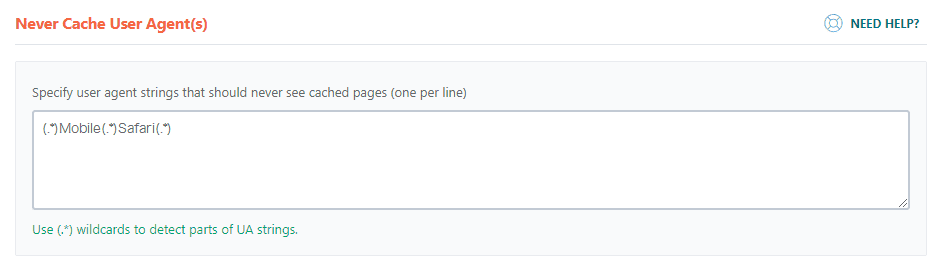
This setting prevents the page from being cached if it contains a specific user agent string.
For example, you can disable the cache for visitors who are using Safari on their phones.
Always Purge URL(s)


Use this setting when you need to clear the cache of a specific URL when you update a specific post or page.
Cache Query String(s)


A setting that forces caching for a specific GET parameter.
On pages that serve different content depending on the GET parameter, you can enable caching for specific GET parameters.
DATABASE
Set the settings to delete unnecessary data in the database.
Post Cleanup


Turn them all on.
Revisions: Checks to delete the revision history of articles and pages. It saves database space.
Auto Drafts: Automatically created drafts are deleted. No unnecessary drafts remain in the database, and the database is cleaned.
Trashed Posts: Automatically deletes posts that exist in the trash from the database.
Comments Cleanup


Turn them all on.
Spam Comments: Spam comments are permanently deleted. Spam comments disappear from the database.
Trashed Comments: Comments moved to the trash are permanently deleted. No unnecessary comments will remain in the database.
I had set WordPress to "Mark comments with URLs as spam", so all comments with URLs were automatically deleted. If you have this setting, turn off Spam Comments.
Transients Cleanup


Turn on All Transients.
Temporary options (transients) are removed. These are automatically regenerated by the plugin as needed. It is safe to delete.
Database Cleanup


Turn on Optimize Tables.
Simply put, it is a function that cleans the database, makes good use of space, and increases speed.
- Organize tables in the database
- Remove wasted space
- Streamline data placement
Doing this will make the database work faster and also reduce the disk space required.
Automatic Cleanup


Schedule Automatic Cleanup is optional, but"Weekly Frequency" is fine.
Database cleanups are performed regularly at a frequency of one week. Your database is always organized.
CDN
Many peopleNo configuration required.


WP Rocket's CDN feature stores your website's static files (CSS, JS, images, etc.) on servers around the world to speed up your site and delivers these files from the server closest to your visitors when they visit them.
This feature improves the loading speed of your website.
- Lots of site traffic
- Visited by visitors from all over the world
In that case, you may want to consider it.


It also omits the setting of Exclude files from CDN.
HEARTBEAT


Turn off Control Heartbeat.
The Heartbeat API in WordPress is a feature that allows for regular communication between WordPress and your browser.
It enables real-time synchronization of information.
Heartbeat is useful
An easy-to-understand example is auto-saving WordPress posts. It will automatically save your posts every 60 seconds.
This is a safe function even in case of any trouble, such as closing the page by mistake.
It also plays a role in preventing conflicts when multiple people are editing the same content. (It is also used for dashboard notifications and session information updates, etc.)
This is a useful feature, but if there are many users logging in, the server will be under a high load.
In my experience, Heartbeat doesn't slow down your site that much.If there are no special circumstances, I think it's okay to turn it off.
ADD-ONS (Add-ons)


Add-on settings.No special configuration is required.
If you are using Cloudflare or Sucuri, you can set it up from this page.
WP Rocket users who don't use these don't need to set it up.
IMAGE OPTIMIZATION


One of the cons of WP Rocket. Well in fact"They don't even compress image files."That's the point.
If you want to compress image files, then you need to use another WordPress plugin for image compression.
The recommended plugin for WP Rocket is Imagify.
A convenient plugin that compresses the file size of image files in WordPress without degrading quality.
You can compress up to 200 images per month for free. But you need to sign up for a free account. I won't set it this time.
By the way, my recommended image compression plugin is ShortPixel. I also use ShortPixel on this blog▼


TOOLS
Tools does not set it.
On this page, you can configure the settings of WP Rocket.


You can export and import WP Rocket settings freely.


Also, if you encounter a glitch with your current WP Rocket, you can use Rollback to revert to a previous version.


You don't need to set up "Update Inclusion and Exclusion Lists".
Simply put, it's a feature that manages "what to do" and "what not to handle" in a list. I will omit it because it does not require any configuration.
What to do after setting up in WP Rocket
Once everything is set up, go to Dashboard > Quick Actions.
Displayed on the pageQuick ActionsCheck the


Press Remove all cached files.


The cache has now been removed. Then press Remove Used CSS Cache.


This will remove the CSS cache.


Thank you for your hard work in setting up.
Try measuring the display speed of your WordPress site.
Free PageSpeed Insightsto measure the display speed of your WordPress site.
Other settings (WP Rocket)
Other details of WP Rocket are explained. Whether or not you set this setting will not affect your site's performance.
But if you want to make WP Rocket display a little simpler, read on.
From the left sidebar of WP Rocket, clickOutside of DASHBOARDOpen the settings.


Then, in the upper right corner of the page, you will see the notation "Show Sidebar". It should be "ON" by default.


You can turn off the right sidebar by turning it to OFF.


If you want to keep WP Rocket simple, you should definitely give it a try.
Summary: How to use and configure WP Rocket
Thank you for setting up WP Rocket.
If I were explaining them one by one, it would have become very long.
However, the setup itself was very easy. It should have been done in about 3 minutes.
The settings in this article will improve the display speed of your WordPress site.
If you don't have WP Rocket yet, please take a look at this article▼
Discount coupon code available!
If you set it in WP Rocket but the speed doesn't change/decrease
In many cases, setting up WP Rocket this way should improve the speed of your pages. However,
- Unchanged
- Slow
If so, there are some things I would like you to check.
- Server-side configuration
- Other WordPress Plugins
- WordPress Theme
Sometimes plugins related to caching or delayed JavaScript execution can cause problems.
Please check it once. If your site's display speed still doesn't change, we recommend contacting WP Rocket support.

















I want you to explain it in Japanese in an easy-to-understand manner.