



In this article, we will tell you in detail why thin rental servers are slow and how to improve them to make them faster so that you can use them comfortably.
I myself have been a user of Shin Rental Server since October 2021, and I am proud to be able to give solid advice based on my experience using many domestic rental servers.
- 1 Thin rental server is the fastest in Japan
- 2 1) Use the X-Accelerator
- 3 2) Turn on server cache settings
- 4 3) Turn on browser cache settings
- 5 4) Compress and optimize images
- 6 5) Increase PHP version
- 7 6) Change WordPress Theme
- 8 7) Clean up and remove WordPress plugins
- 9 8) Disable WEB fonts
- 10 9) Change your plan (if it still doesn't improve)
- 11 Supplement: Perform virus and malware diagnostics
- 12 Summary of causes and improvements of thin rental servers
Thin rental server is the fastest in Japan
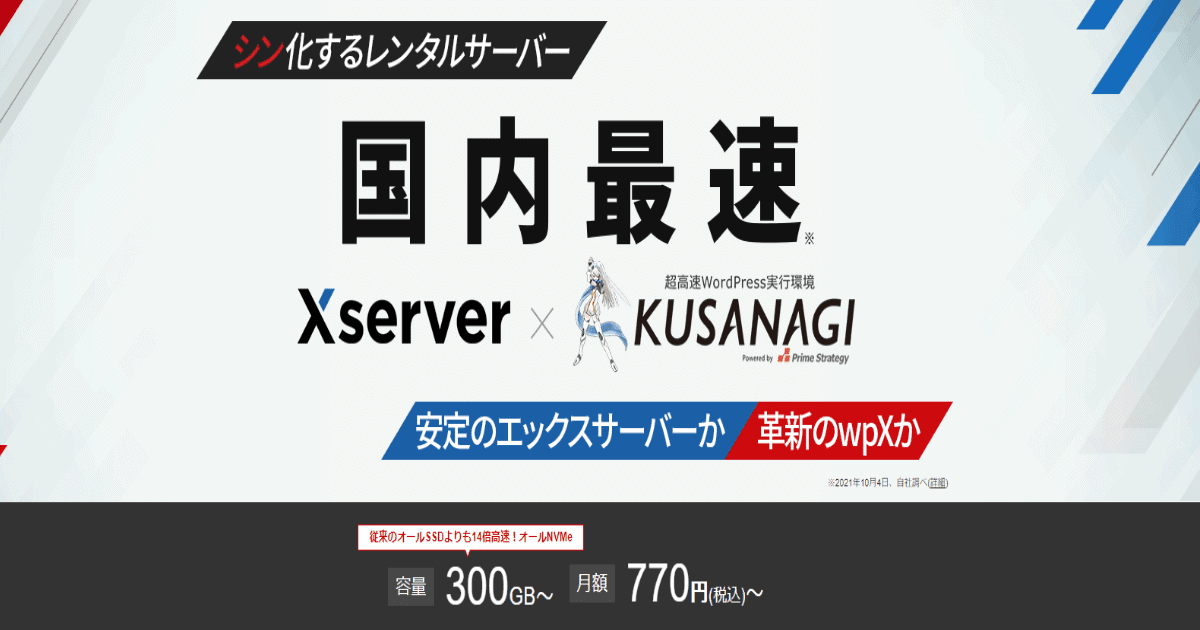
Shin Rental Serveris the fastest rental server in Japan because it has higher performance than X servers. The latest technologies are actively introduced.
For more information, please see the following explanatory article.
>> [2023] Thorough explanation of the functions, reputation, and usability of thin rental servers
The technology before being introduced to X Server is also prioritized by Thin Rental Server.
Therefore, the problem of "slow" on thin rental servers isIt is unlikely that there is a problem on the server side.
Why is Thin Rental Server slow? Possible causes
So, what causes thin rental servers to be slow?The website you are operating may be under high load or overwhelmed by scriptsIt is possible.
If you are using it beyond normal usage cases, it can put a load on your server. There are also several reasons why your WordPress site might be slow.
From here9 Improvements to Speed Up Your Thin Rental ServerI will explain in detail. By all means, let's check and improve one by one.
1) Use the X-Accelerator
Thin Rental Server has a great feature called X Accelerator.
What is an X Accelerator?
This is done without any complicated configurationUnique features that allow you to easily speed up and stabilize the speed of your websiteis.
Specifically, it improves loading speed by remembering pages and content that have been viewed once. This acts as a cache server.
In particular, the more pages you visit, the greater the effectiveness of the X Accelerator.
If you have a lot of traffic to your website's articles and pages, you can expect an amazing speed boost just by using this feature.
It is available on all plans of Thin Rental Server and is easy to set up.
How to set up the X Accelerator

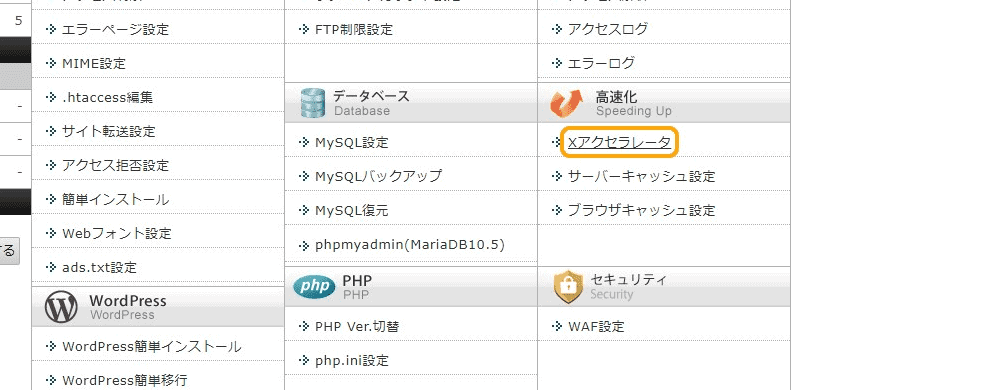
First, from the thin rental server management screen, click on the Speed >> X Accelerator.

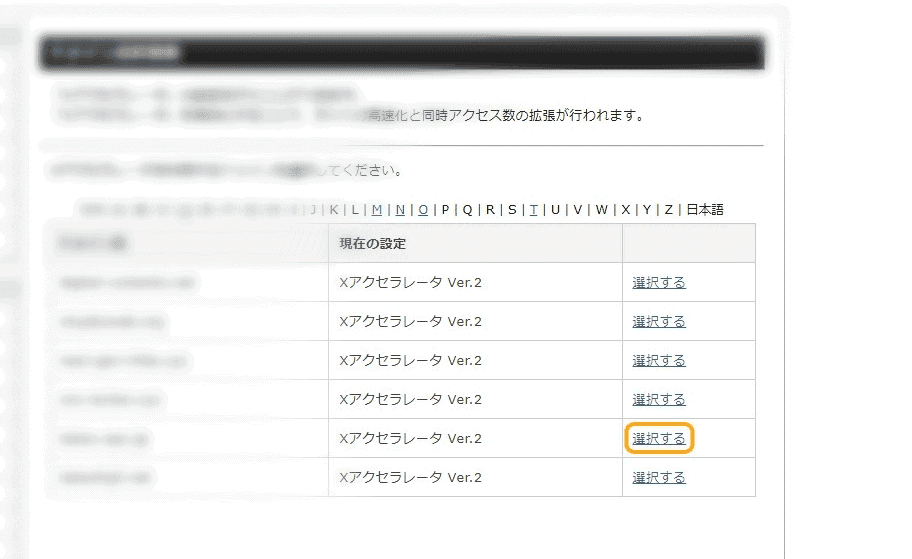
Next, select the domain where you want to implement the X-Accelerator and click "Select".

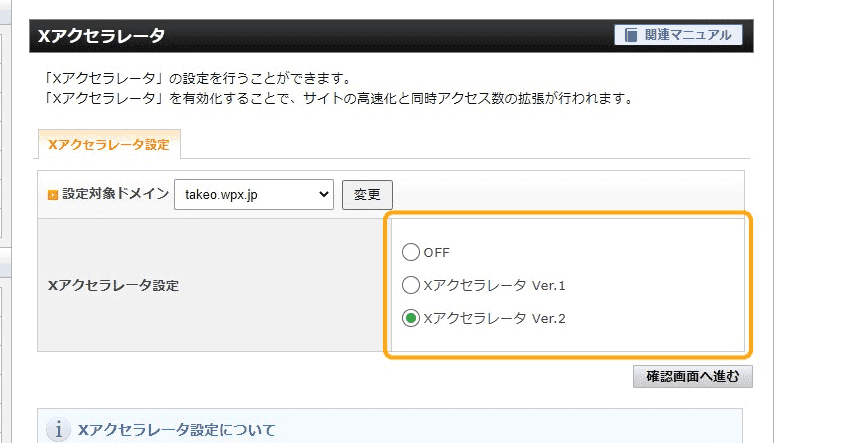
Next, choose from the X-Accelerator settings. Then click "Go to confirmation screen".
By setting it up in this step, you can deploy the X Accelerator.
2) Turn on server cache settings
Also, as a thin rental server setting,Server cache settingsBy doing so, there is a possibility that it will be accelerated.
Server caching settings allow you to remember all the files on your website so you don't have to generate new data.
As a result, you can display past displayed pages at high speed. It also increases the speed of page display, so it is essential for SEO.
This server cache function also only needs to be set once. If you leave it alone, the server cache function will automatically work.
How to set up the server cache function

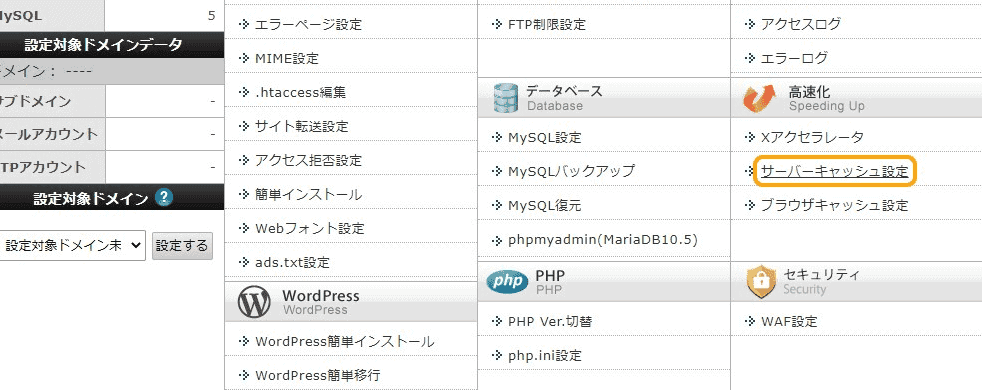
First, from the thin rental server management screen, click Speed >> Server Cache Settings.

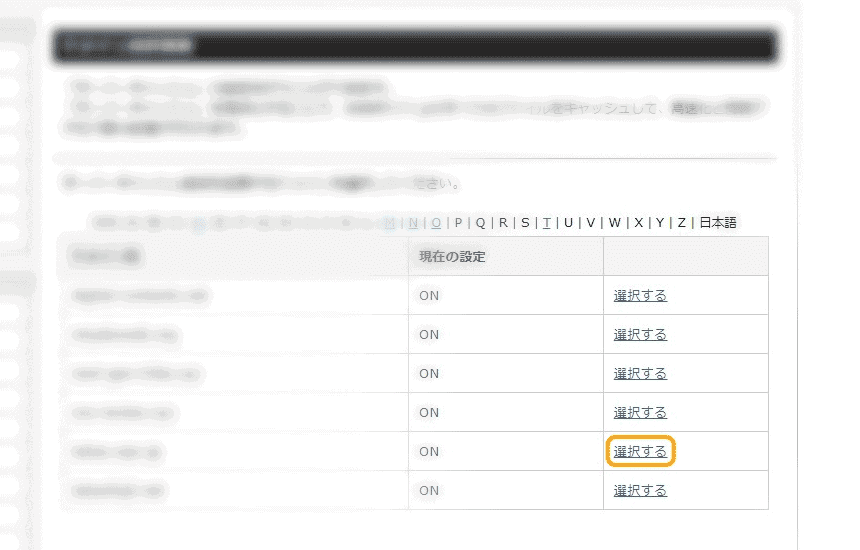
Next, select the domain where you want to deploy the server caching feature.

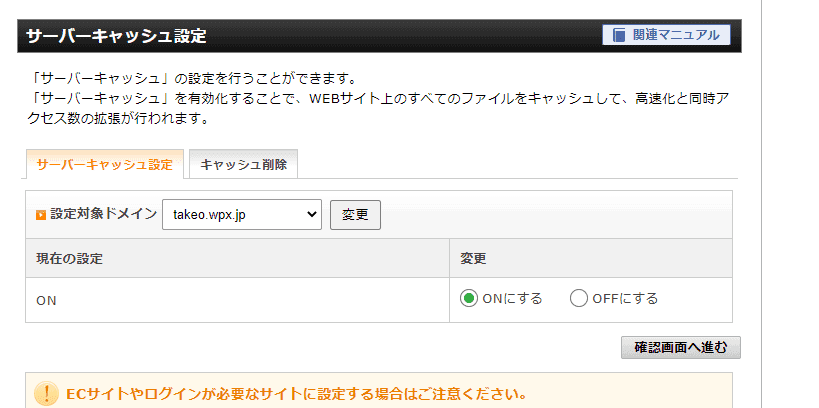
Specify the server cache function to "turn on" and proceed to the confirmation screen.
This step will enable the server caching feature.
3) Turn on browser cache settings
Shin rental server hasBrowser caching functionIt is also available. When this setting is enabled, it will be displayed using the browser's cache.
For example, if you are accessed by Google Chrome, you can view your site using the cache that exists in Chrome.
Since there is no need to access the server and load data each time, the display speed of the site is faster.
This browser caching function can be activated with one touch from the management screen of the thin rental server.
Just by setting this up, you can expect to improve the display speed of your site.
How to set up the browser cache function

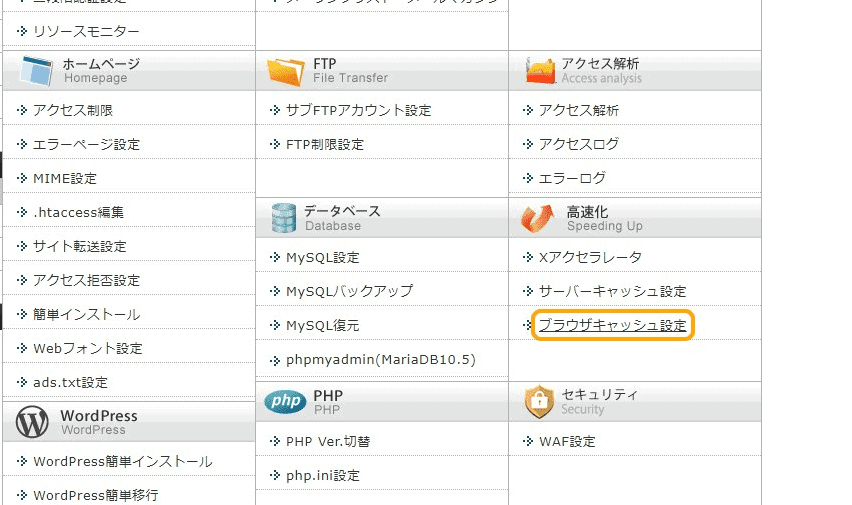
From the admin screen, click Speed >> Browser cache settings.

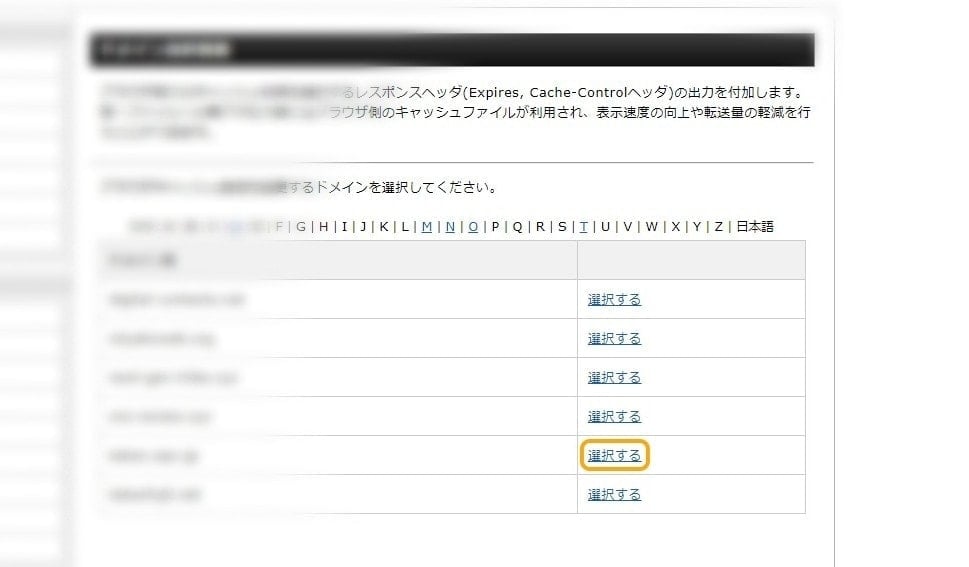
Select the domain that you want to use browser caching settings for.

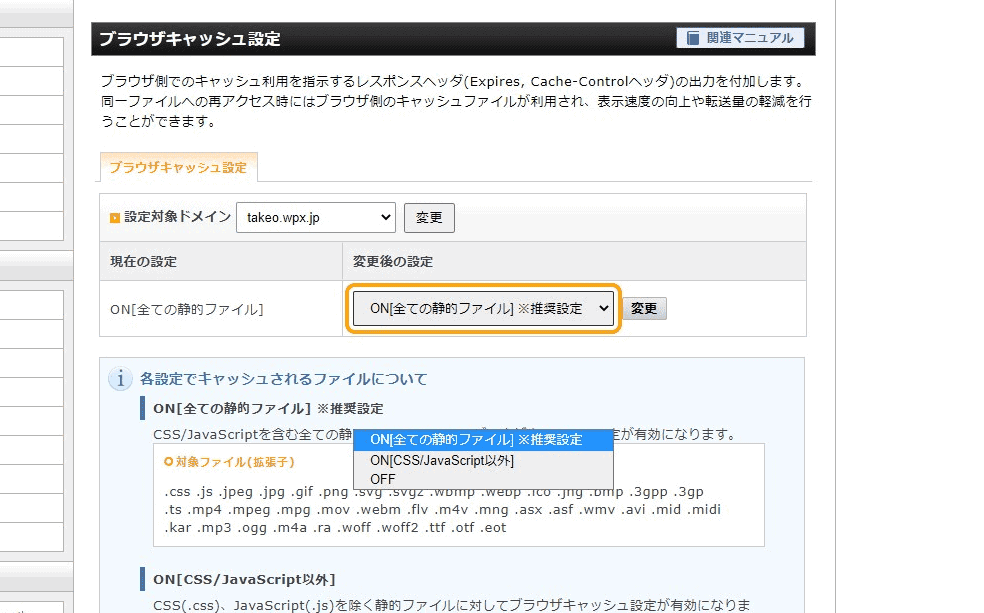
Turn on the browser cache setting. If in doubt, we recommend using the recommended settings.
4) Compress and optimize images
Do you have a lot of images in your WordPress website articles? In fact, using images often slows down the display speed.
If you use a lot of images, be sure to compress them.
By compressing the file size of images (such as PNG and JPEG) in WordPress, you canThe display speed is greatly improved.
Image compression is the reduction of the amount of data in an image file by removing unnecessary data that is invisible to the naked eye.
To put it simply, it means that the image size is lightened even though the appearance remains the same. Image compression improves the display speed of your site.
How to Compress Images in WordPress
We will explain how to actually compress images on this site. In my caseImage compression plugin "ShortPixel"I am using it.
SHortPixel reduces the size of your image files. Please see the image below.

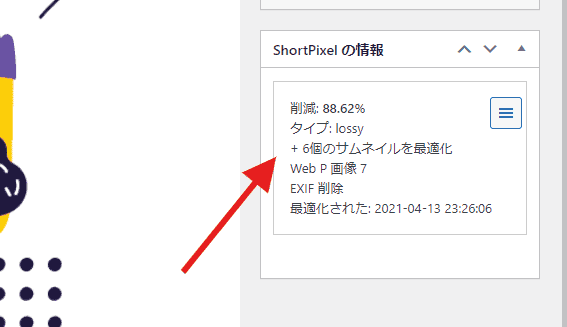
The data capacity of a single image file was cut by 88%. When image compression is performed, the file size is reduced to this extent.
However, the image quality does not deteriorate when viewed with the naked eye.
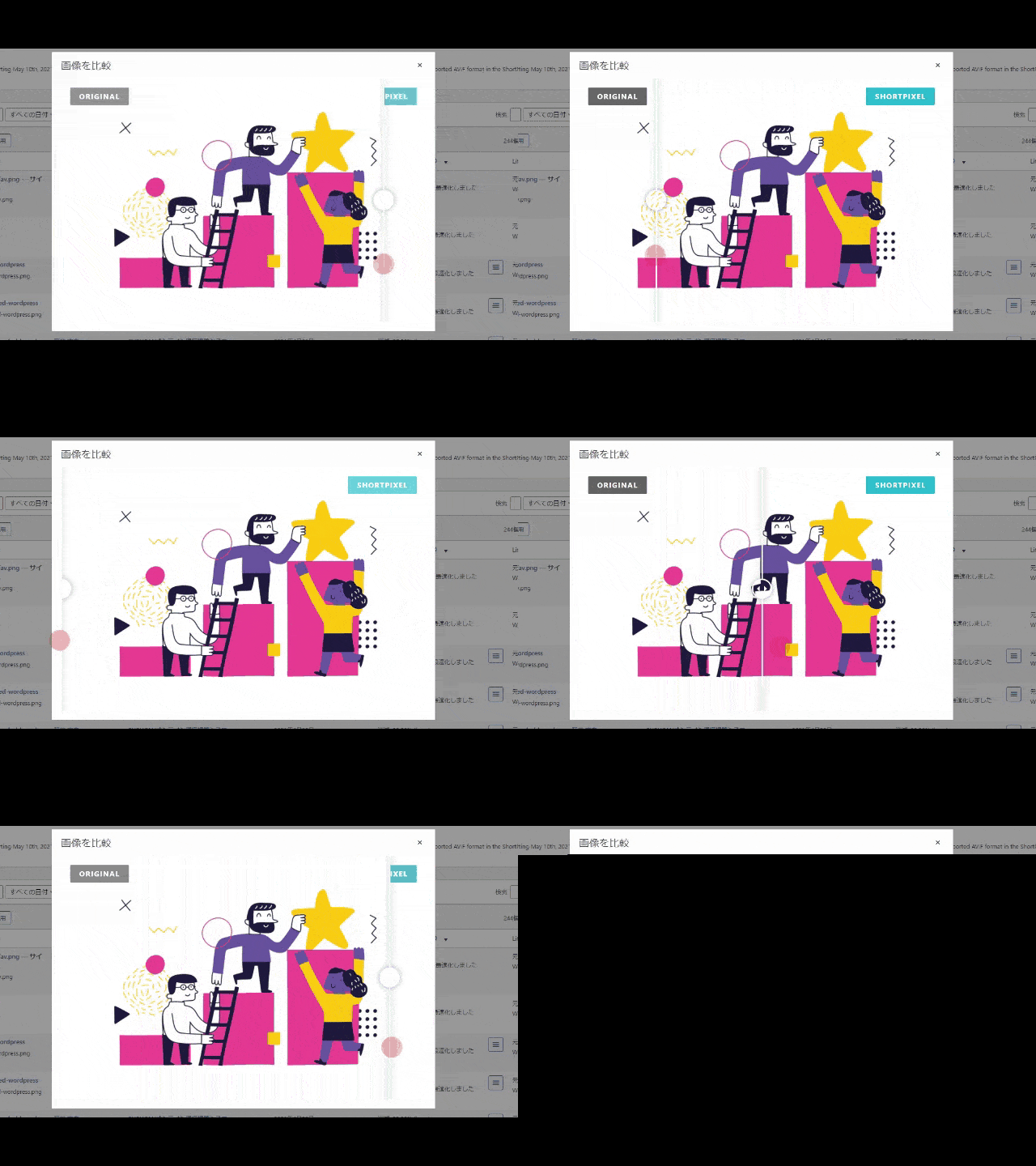
In this way, by using ShortPixel, you can reduce the amount of excess data while maintaining high image quality.
It is also free to use. Detailed usage and explanation areThis articleI wrote on it.
5) Increase PHP version
Slow WordPress display speed. In such cases, upgrading the PHP version will lead to faster display speed.
If you are currently setting up an older PHP version on a thin rental server, we recommend upgrading the version.
What is PHP
Here's a simple explanation of PHP. PHP is an essential program to run WordPress.
This PHP will be upgraded. If you are using an older version,
- Slower processing speed
- Site glitches
- Weakened security
There are risks such as this. Therefore, upgrading PHP versions is important for running a WordPress site with peace of mind.
Of course, most people who use thin rental servers have PHP applied to the recommended version, so you shouldn't need to upgrade the version.
Check the PHP version on the thin rental server only once.

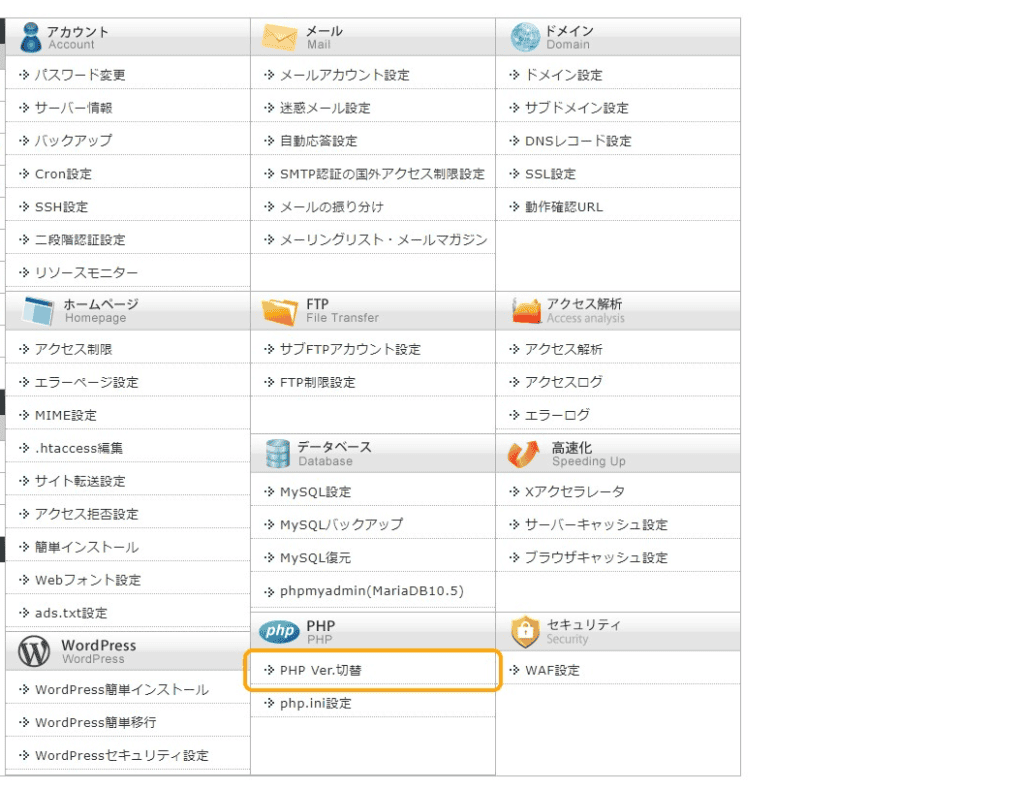
Click the PHP >> PHP ver switch in the admin screen.

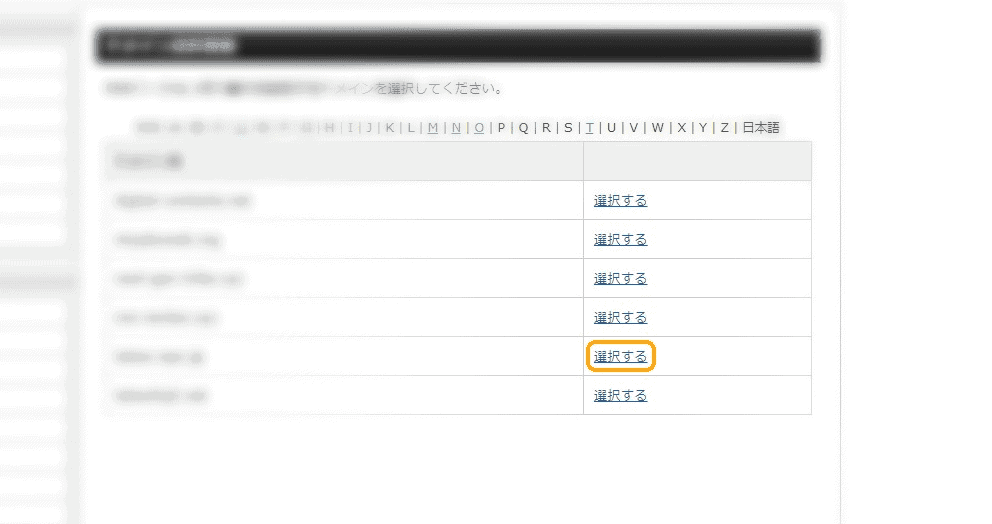
Select the domain you want to upgrade your PHP to.

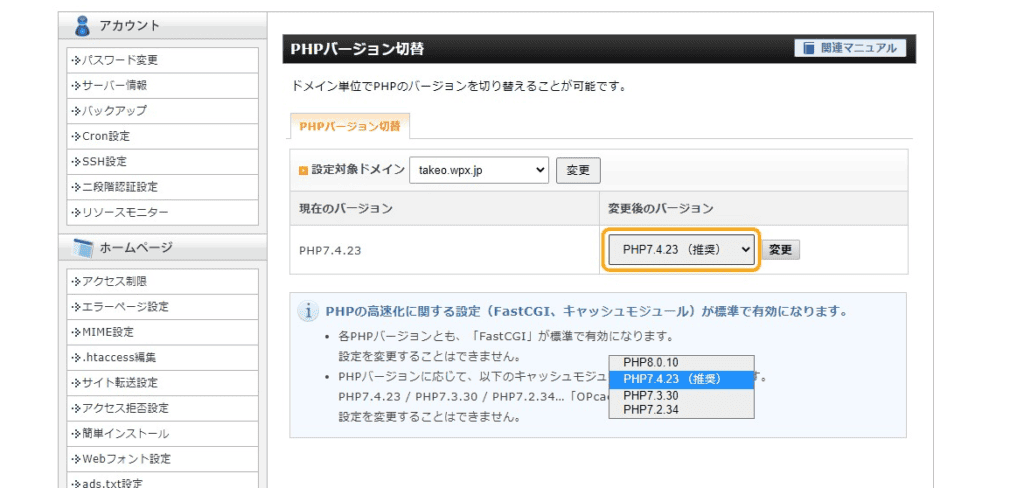
You can change the PHP version. We recommend using the PHP version recommended by Thin Rental Server.
6) Change WordPress Theme
In recent years, there has been a surge in the number of highly functional WordPress themes. Even free themes have functionality comparable to paid themes.
However, you need to be careful with feature-rich WordPress themes.
Does a high-performance WordPress display slow?
This is because "many functions = site tends to be slow". I can't generalize, butThe more features, the slower.
I myself have used both domestic and international themes. Highly functional WordPress themes are feature-rich, but they are often heavy-duty.
Even if the theme is "SEO-ready", if the display speed is slow, SEO measures will be useless. Display speed is a top priority for SEO.
Measuring the display speed of your WordPress theme
It's easy to weigh your WordPress theme. Change to a different theme,Google PageSpeed InsightsLet's measure the speed with .
If you change your WordPress theme and get faster display speeds, you are a hit.
If you are looking for a fast-speeding WordPress theme, you can refer to this article. I have carefully selected and introduced five themes that I recommend.


7) Clean up and remove WordPress plugins
If you search for "WordPress plugin recommendations", you will be introduced to many useful plugins. However, if you add plugins as recommended, the display speed will be slower.
So, if your WordPress site is slow, you can use theIt's also important to review your plugins.
How to measure the impact of plugins
You can use the WordPress plugin P3 (Plugin Performance Profiler) to measure how much load each plugin is putting on your website. Removing heavy plugins will improve the display speed.
If changing your server settings doesn't help, consider reviewing your plugins.
The dangers of using too many plugins are explained in detail in this article. Please take a look.


8) Disable WEB fonts
Many operators use web fonts to change their design, but font files are large and can take a long time to load.
The Japanese font function of Shin Rental Server has been optimized,Be careful when using Google Font or your own fonts.
Subset of web fonts is essential
When using your own web fonts, subset them (a method of reducing weight by extracting only frequently used fonts). However, the file size remains reasonably large.
If possibleIt is better not to use web fonts.If you are design-oriented, it is preferable to use fonts, but if you are focused on speed, refrain from using fonts.
Since we use a lot of heavy plugins on our site, we try not to use web fonts to avoid slowing down the display speed.
9) Change your plan (if it still doesn't improve)
In Thin Rental Server,Upgrading your plan will also improve performance.If the previous methods don't improve your display speed, you may want to consider changing your plan.
However, there is one caveat. Thin Rental Server claims to be "the fastest in Japan" and has high performance even on the cheapest basic plan.For most websites, the Basic plan is sufficient.
What to check before changing your plan
If it is not a heavyweight site, the speed will not slow down.
Before you change your plan, identify the cause of your slowness. If you don't know the cause, migrating to another company's server won't solve the problem.
Because the thin rental server boasts one of the top speeds in Japan,It is likely that there is a cause other than the server configuration.
There is a high possibility that migrating your site to another company will not improve, so let's review the cause first.
Supplement: Perform virus and malware diagnostics
Believe it or not, I have actually had my site infiltrated by malware. One day, suddenly,The site was slowing down.
"Why is it slow when the website is supposed to be lightweight with few images?"
When I looked it up with FTP software, it was a wonderful malware invasion. A large number of English pages were being generated.
Thin rental server is fully anti-malware

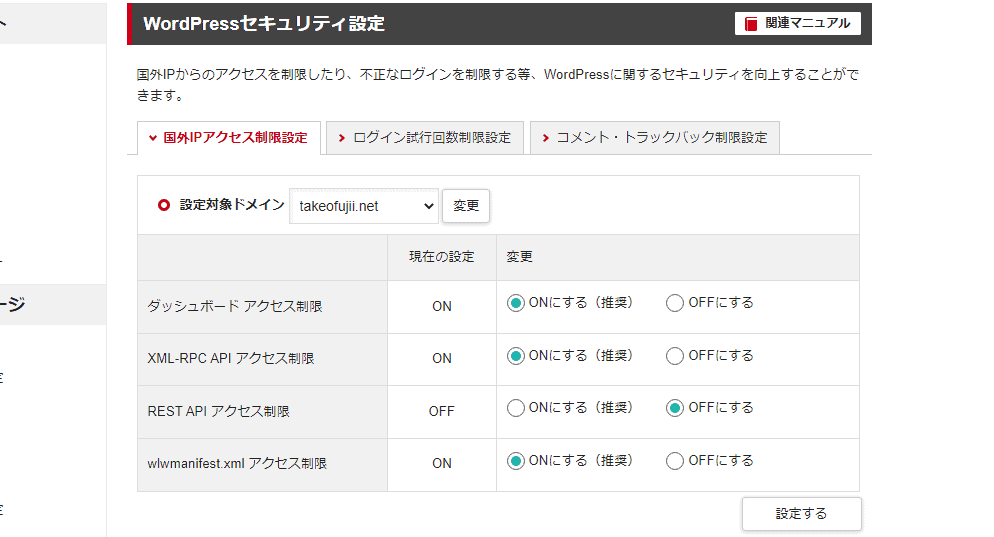
At that time, I was using a different rental server,Thin rental servers have excellent security features.
Therefore, it is unlikely that they will be easily infiltrated by viruses and malware.
However, if you bring a virus yourself, security will not help either. If you have recently brought foreign files to your server or changed your settings, you should also check for possible malware.
Of course, if you don't have a clause that comes to mind, or if you can decide that it's unlikely, you can ignore it.
How to set up security features

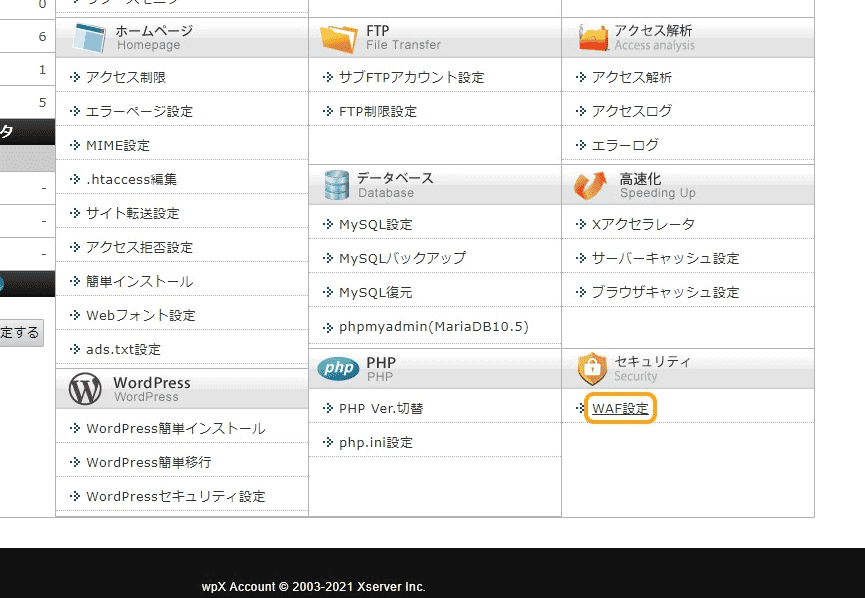
From the thin rental server, click Security >> WAF settings.

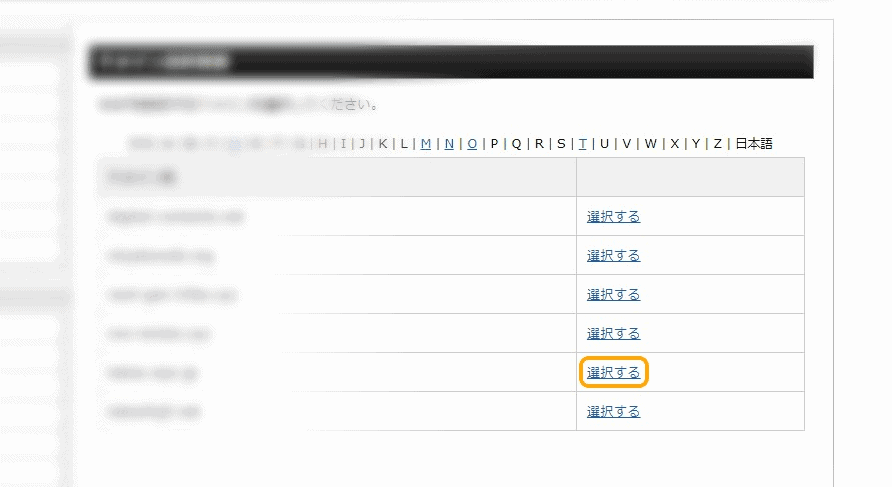
Select the domain you want to verify security.

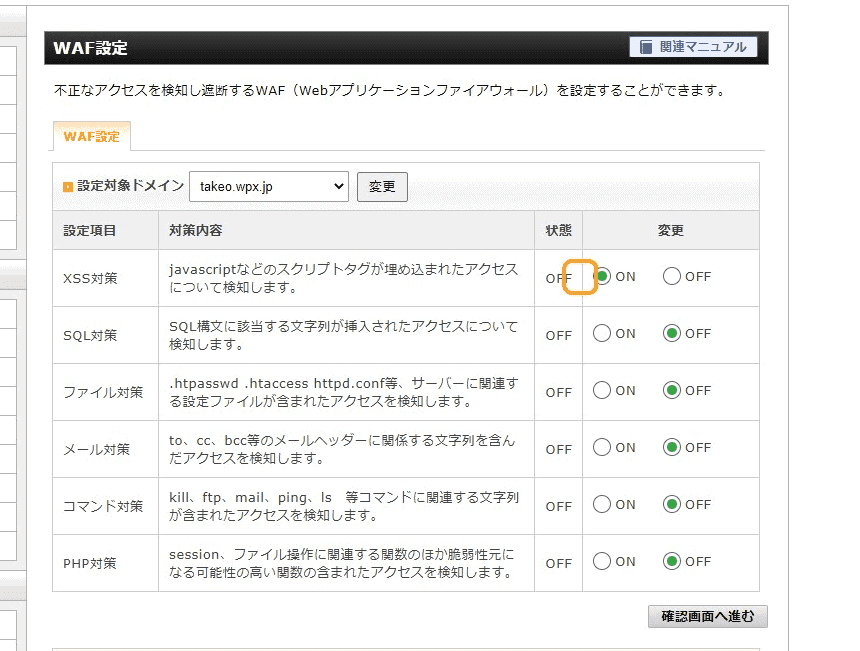
Let's turn on the item from the WAF settings.
Summary of causes and improvements of thin rental servers
In this article, we have told you why thin rental servers are slow and how to improve them so that you can use them comfortably.
Shin rental servers have overwhelming performance because they aim to be the "fastest in Japan". If the website you run on this server is slow,There is a high possibility that similar problems will occur with other companies' rental servers.
We hope this article was helpful. If you haven't seen any improvement after trying the methods mentioned here, stop and recheck how you use your thin rental server.
In my experience, problems are often solved by starting with the parts that come to mind. I hope you will try it.
If you need more information, you can also refer to the following explainer article.

![[2024] Thorough explanation of the features, reputation, and usability of thin rental servers](https://sp-ao.shortpixel.ai/client/to_webp,q_lossy,ret_img,w_485,h_273/https://takeofujii.net/wp-content/uploads/2021/10/wpxshin-review.png "[2024] Thorough explanation of the features, reputation, and usability of thin rental servers")





![[2024] Thorough explanation of the features, reputation, and usability of thin rental servers](https://sp-ao.shortpixel.ai/client/to_webp,q_lossy,ret_img,w_250,h_140/https://takeofujii.net/wp-content/uploads/2021/10/wpxshin-review-250x140.png "[2024] Thorough explanation of the features, reputation, and usability of thin rental servers")












In this article, we will focus on 9 causes and explain the approach to speeding.